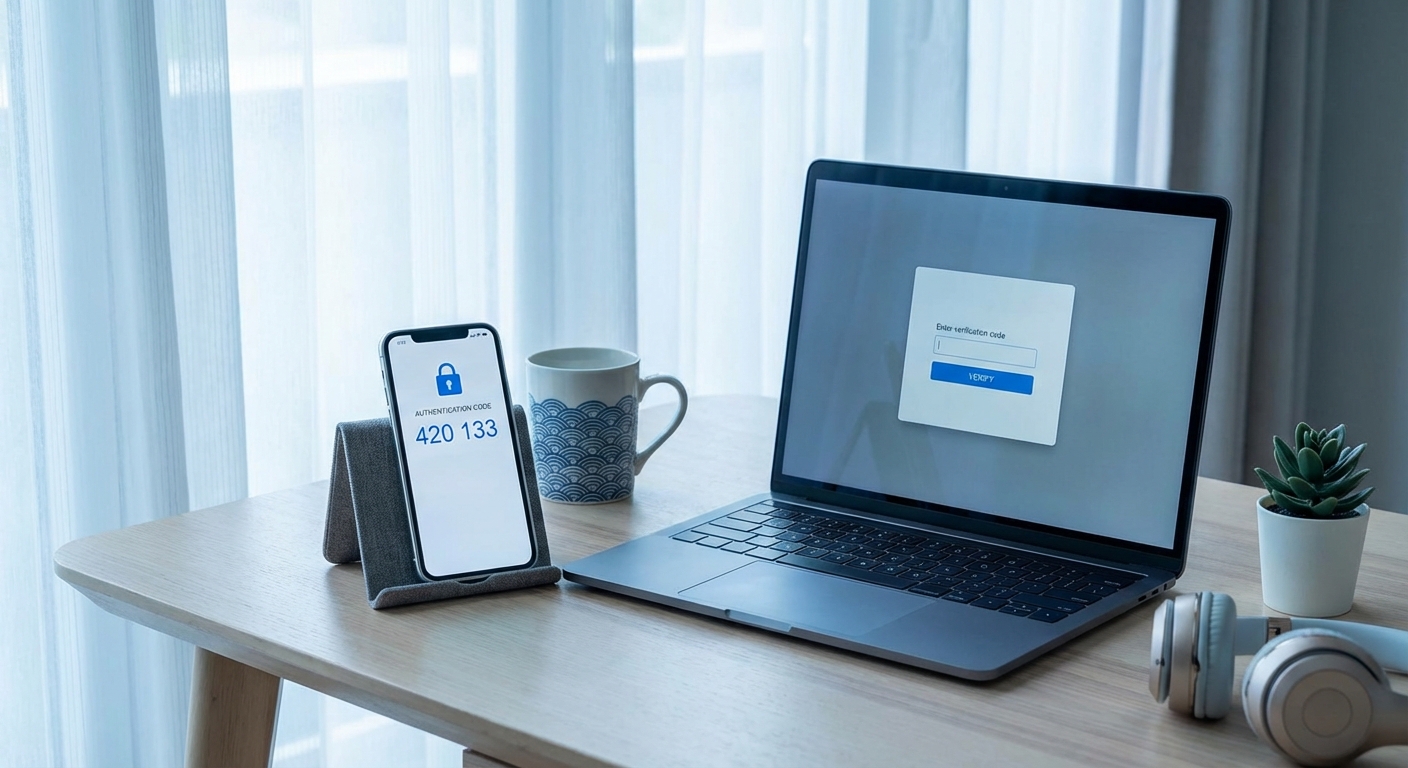
What is two-factor authentication? Two-factor authentication (2FA) is a security method that requires two different types of verification before granting access to an account. Instead of only entering a password, you also provide a second “factor,” typically a code sent to your phone or generated by an app. This means that even if someone steals your password, they still can’t access your account without also having your phone.
Think of it like a bank vault that requires both a key and a combination. Having just one isn’t enough to get in. For your online accounts, your password is the key, and the second factor is the combination. This layered approach makes your accounts dramatically more secure, and it’s why security experts recommend enabling 2FA on every account that offers it.
How Two-Factor Authentication Works
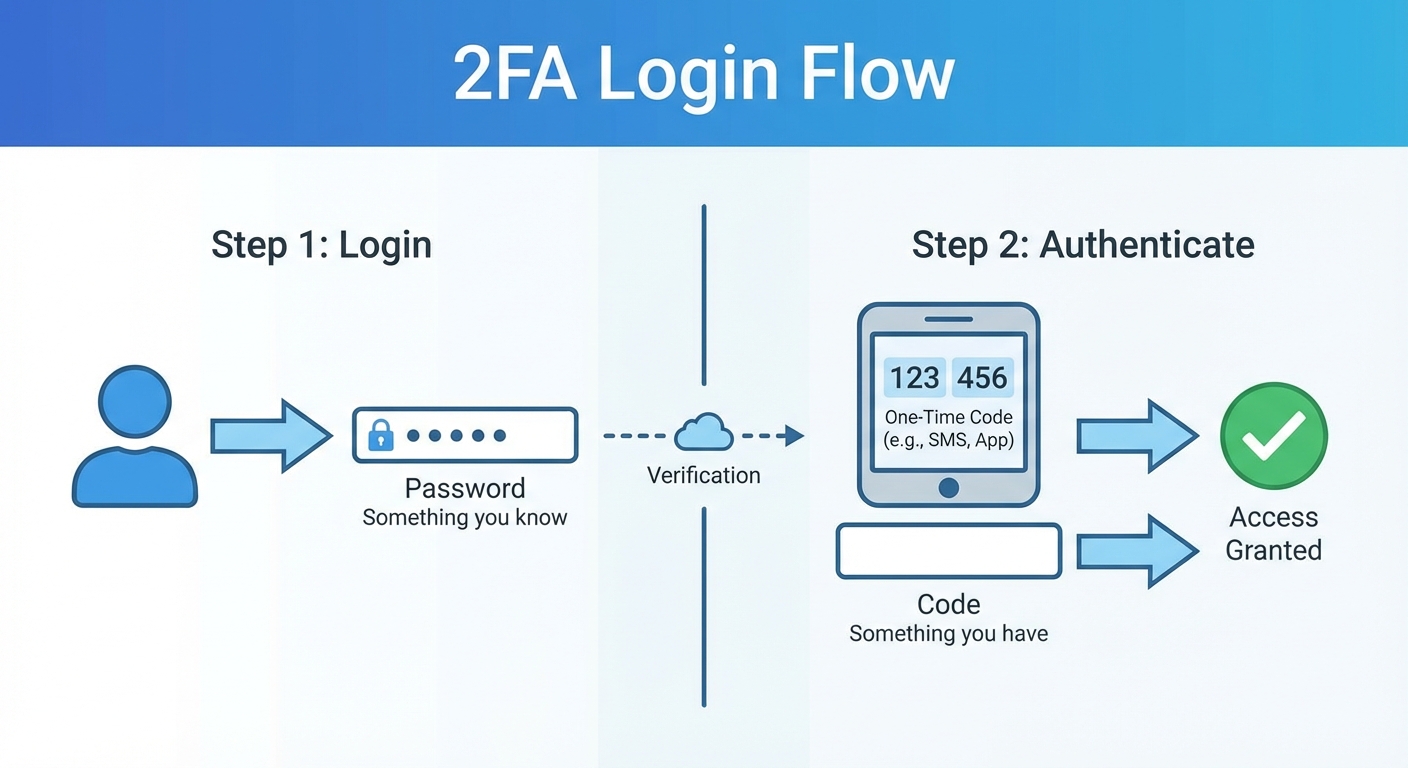
Authentication factors fall into three categories: something you know (like a password or PIN), something you have (like a phone or security key), and something you are (like a fingerprint or face scan). Traditional login uses only one factor, your password, which is something you know. Two-factor authentication combines two of these categories.
When you log in to an account with 2FA enabled, you first enter your username and password as usual. The service then asks for a second verification. This might be a six-digit code texted to your phone, a code from an authenticator app, a push notification you approve, or a physical security key you plug into your computer. Only after providing both your password and the second factor does the account grant access.
The second factor proves that you possess something, not just that you know something. Passwords can be guessed, stolen in data breaches, or tricked out of you through phishing. But a code on your phone or a physical key is much harder for an attacker to obtain, especially if they’re on the other side of the world. This is why checking if your passwords have been leaked is important, but 2FA provides a safety net even when passwords are compromised.
Types of Two-Factor Authentication
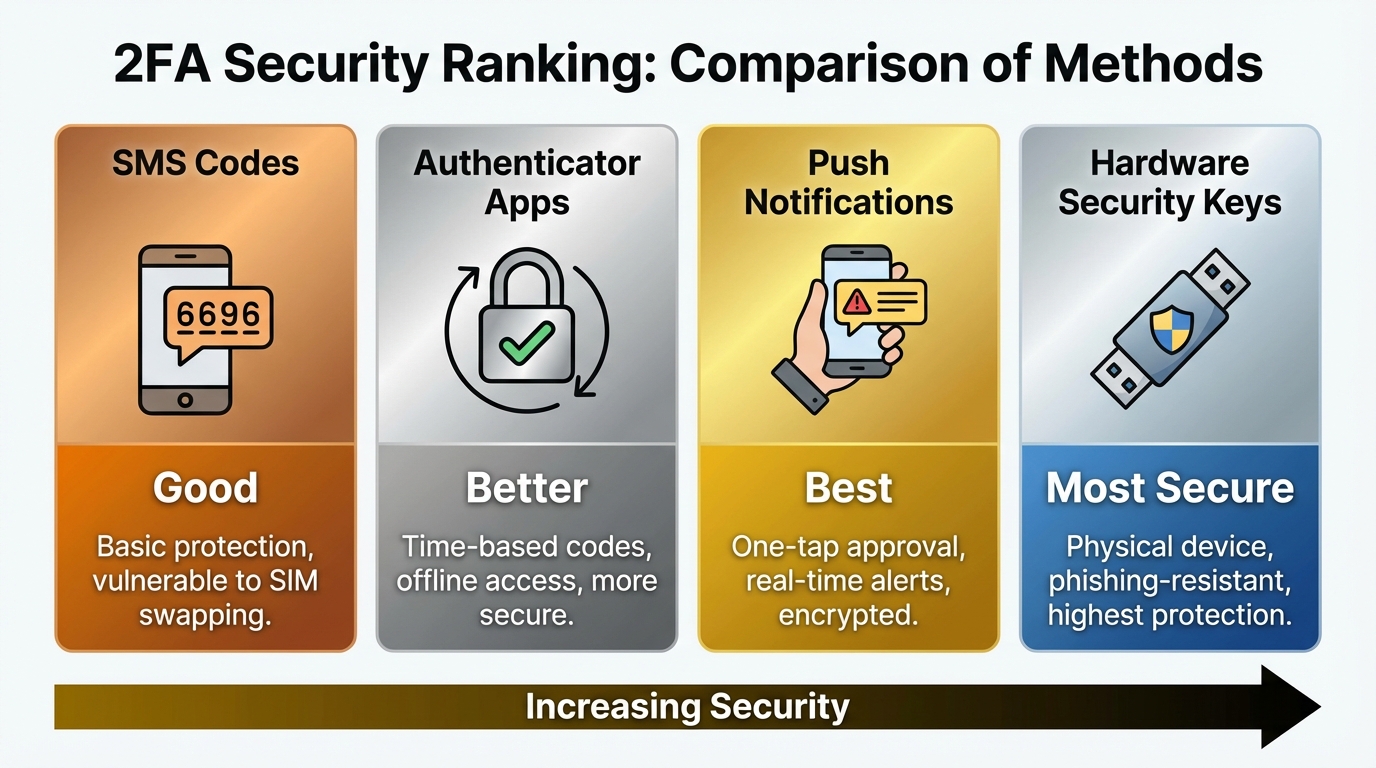
Not all second factors provide the same level of security. Understanding the differences helps you choose the best option when services offer multiple 2FA methods.
SMS codes are the most common form of 2FA. When you log in, the service texts a six-digit code to your phone number. This method is convenient because it requires no app installation, but it has weaknesses. Attackers can intercept SMS messages through SIM swapping, where they convince your carrier to transfer your phone number to their SIM card. They can also exploit flaws in the phone network protocol. SMS-based 2FA is still much better than no 2FA, but it’s the least secure option.
Authenticator apps like Google Authenticator, Microsoft Authenticator, and Authy generate time-based codes that change every 30 seconds. These apps work offline and don’t depend on your phone number, making them immune to SIM swapping attacks. The codes are generated using a shared secret between the app and the service, synchronized by time. Authenticator apps are more secure than SMS and are widely supported.
Push notifications send a prompt to your phone asking you to approve or deny a login attempt. Apps like Duo and Microsoft Authenticator offer this. You simply tap “Approve” rather than copying a code. This is convenient and reasonably secure, though attackers have been known to flood victims with approval requests hoping they’ll accidentally tap approve to make the notifications stop.
Hardware security keys like YubiKey and Google Titan are physical devices that plug into your computer’s USB port or tap against your phone via NFC. They use cryptographic protocols that verify both the key’s authenticity and the website’s legitimacy, making them immune to phishing attacks. If an attacker creates a fake login page, the security key won’t work because it cryptographically verifies the real site. Security keys are the most secure 2FA option but require purchasing a physical device.
Why You Should Enable Two-Factor Authentication
The single biggest reason to use 2FA is that passwords alone are inadequate protection. Data breaches expose billions of passwords every year. If you’ve reused a password across sites, a breach at one service can compromise all your accounts that share that password. Even unique, strong passwords can be stolen through phishing attacks, keyloggers, or malware.
Two-factor authentication changes the equation for attackers. With only passwords to protect accounts, hackers can compromise millions of accounts from anywhere in the world using leaked credentials. With 2FA enabled, they need both your password and physical access to your second factor. This doesn’t make accounts impossible to breach, but it makes the attack dramatically more difficult and expensive.
The accounts that matter most deserve 2FA protection. Your email is often the master key to your digital life because password reset links go there. If an attacker controls your email, they can reset passwords and take over other accounts. Your bank and financial services contain obvious targets for theft. Cloud storage may hold sensitive documents, photos, and backups. Social media accounts, once hijacked, can be used to scam your friends and family or damage your reputation.
How to Set Up Two-Factor Authentication
Setting up 2FA varies slightly by service, but the general process is similar. Look for a “Security” or “Privacy” section in your account settings. Find the two-factor, two-step verification, or multi-factor authentication option. The service will guide you through adding a phone number for SMS codes or scanning a QR code with an authenticator app.
For authenticator apps, the setup involves scanning a QR code displayed on screen with your authenticator app’s camera. This transfers a shared secret to your app. You’ll then enter a code from the app to verify the setup worked. The service typically provides backup codes at this point, which are one-time codes you can use if you lose access to your authenticator. Write these down and store them somewhere secure, separate from your phone.
Start with your most critical accounts. Enable 2FA on your primary email account first, since email is the key to resetting other passwords. Next, protect your bank accounts, investment accounts, and any financial services. Then add 2FA to cloud storage services like Google Drive, iCloud, or Dropbox that might contain sensitive files. Finally, secure social media accounts to prevent impersonation.
For authenticator apps, Authy has an advantage over Google Authenticator because it offers encrypted cloud backup of your authentication codes. If you lose your phone with Google Authenticator, you lose access to all your codes and must go through recovery processes for each account. Authy lets you restore your codes on a new device. The tradeoff is that this cloud backup is itself a potential attack target, though Authy encrypts backups with a password you set.
What to Do If You Lose Your Second Factor
Losing access to your second factor is inconvenient but recoverable if you’ve prepared. This is why services provide backup codes during 2FA setup. Store these codes somewhere secure and accessible without your phone, like a password manager on your computer, a safe at home, or a secure note in a trusted location.
If you didn’t save backup codes and lost your phone, you’ll need to go through account recovery. Each service handles this differently. Some email a recovery link to a backup email address. Others require identity verification, which might involve submitting a photo ID or answering security questions. This process can take days, which is why backup codes matter.
For authenticator apps specifically, consider using an app that supports backup like Authy or Microsoft Authenticator with cloud sync. If you use Google Authenticator, take screenshots of your backup codes and store them securely. You can also add your authenticator to multiple devices, though this slightly increases risk if one device is compromised.
Hardware security keys are physically robust but can be lost. Most services that support security keys let you register multiple keys. Buy two, set up both, and keep one in a secure location as a backup. Major services also allow you to have both a security key and an authenticator app as backup methods.
Summary
Two-factor authentication requires both a password and a second verification, typically a code from your phone or an app, making accounts dramatically more secure. Even if your password is stolen, attackers can’t access your account without your second factor. Authenticator apps are more secure than SMS codes, and hardware security keys provide the strongest protection.
Enable 2FA on your email, financial accounts, and cloud storage first. Save your backup codes somewhere secure in case you lose your phone. The few extra seconds 2FA adds to logging in are a small price for significantly better protection against account takeovers.