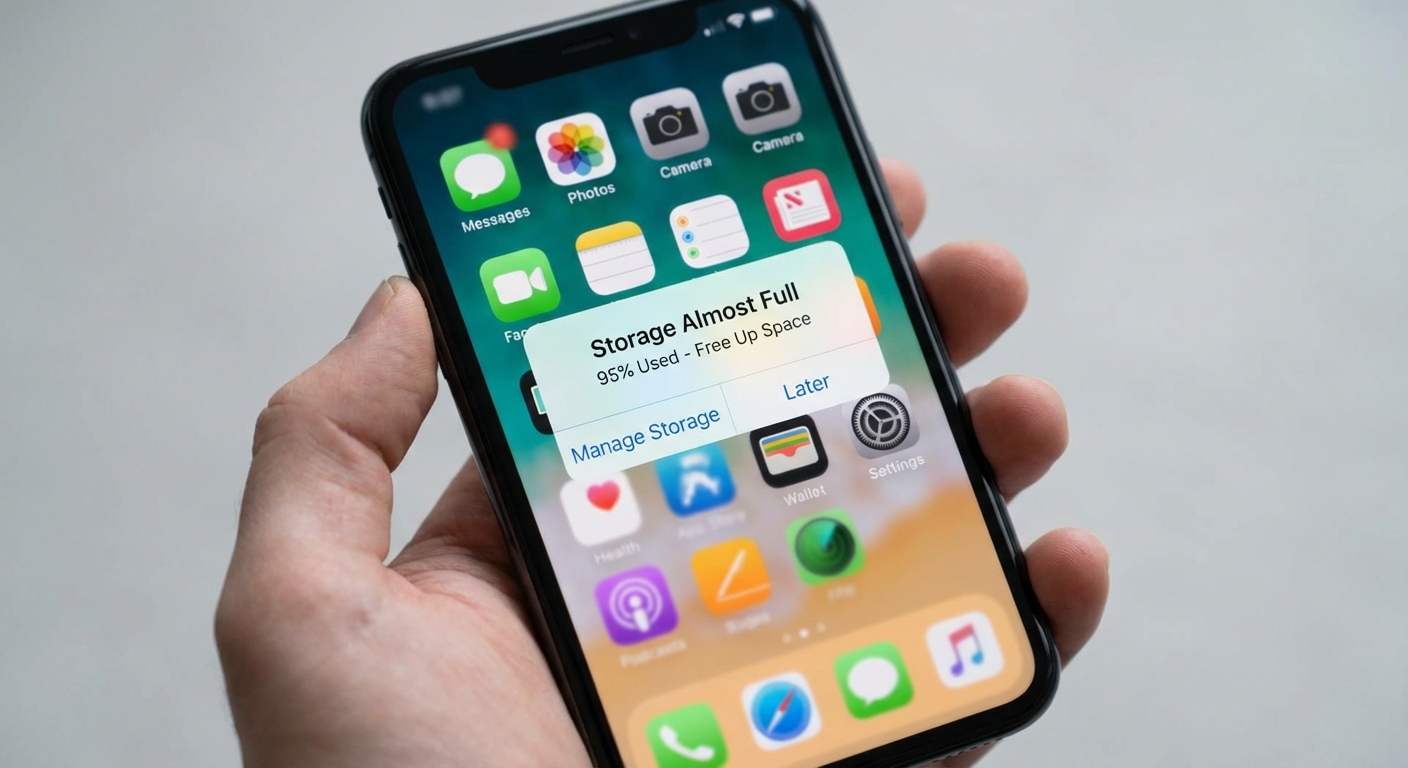
How do you free up storage on your phone? Start with the biggest space hogs: delete apps you don’t use, remove old photos and videos, clear app caches, and delete downloaded music or podcasts you’ve already listened to. On iPhones, go to Settings > General > iPhone Storage to see exactly what’s using space. On Android, go to Settings > Storage. Both systems can identify and suggest files to delete.
Most people’s storage problems come from photos, videos, and apps they forgot they had. A few minutes of cleanup can often recover gigabytes of space.
Check What’s Using Your Storage
Before deleting anything, see where your storage is actually going. Both iPhone and Android provide detailed breakdowns.
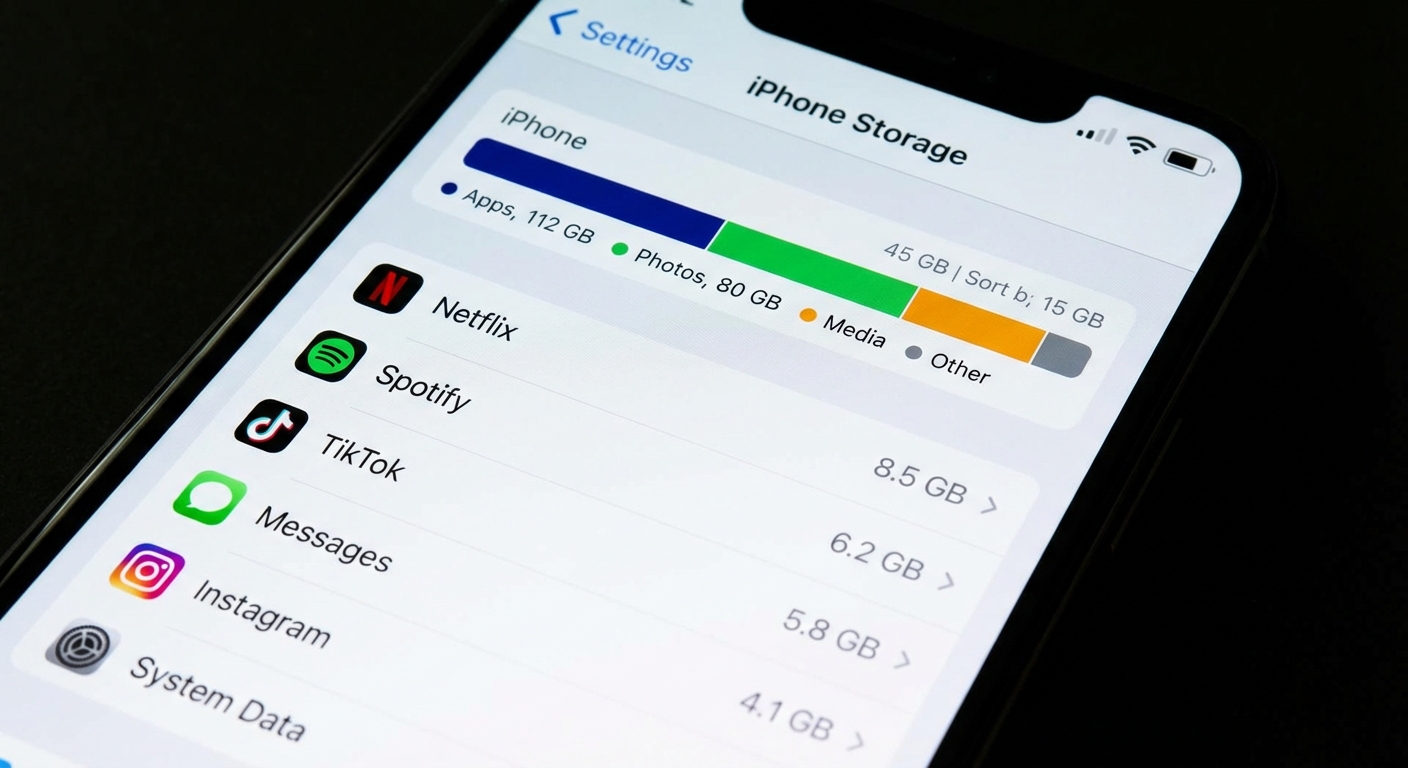
On iPhone, open Settings > General > iPhone Storage. You’ll see a color-coded bar showing categories like Apps, Photos, Media, and Other. Below that, apps are listed by size. Wait a moment for recommendations to appear at the top, which might include offloading unused apps or reviewing large attachments.
On Android, go to Settings > Storage. The exact path varies by manufacturer, but you’ll find a breakdown of storage by category. Tap any category to see details and options for freeing space. Some Android phones have a “Free up space” option that identifies files to delete.
Delete Unused Apps
Apps you downloaded once and never use still take up storage. Games are often the worst offenders, frequently exceeding 1GB each. That puzzle game you played for a week last year? It’s still sitting there.
On iPhone, press and hold an app icon until the menu appears, then tap “Remove App.” Alternatively, in iPhone Storage settings, tap any app and choose “Delete App.” The “Offload App” option removes the app but keeps its data, so you can reinstall later without losing progress.
On Android, press and hold an app icon and drag it to “Uninstall,” or go to Settings > Apps, select an app, and tap “Uninstall.” Some pre-installed apps can only be disabled, not deleted, but disabling stops them from updating and using additional space.
Clear App Caches and Data
Apps store temporary files called caches that help them load faster. Over time, these caches grow large. Clearing them forces the app to rebuild the cache, freeing space without losing your data.
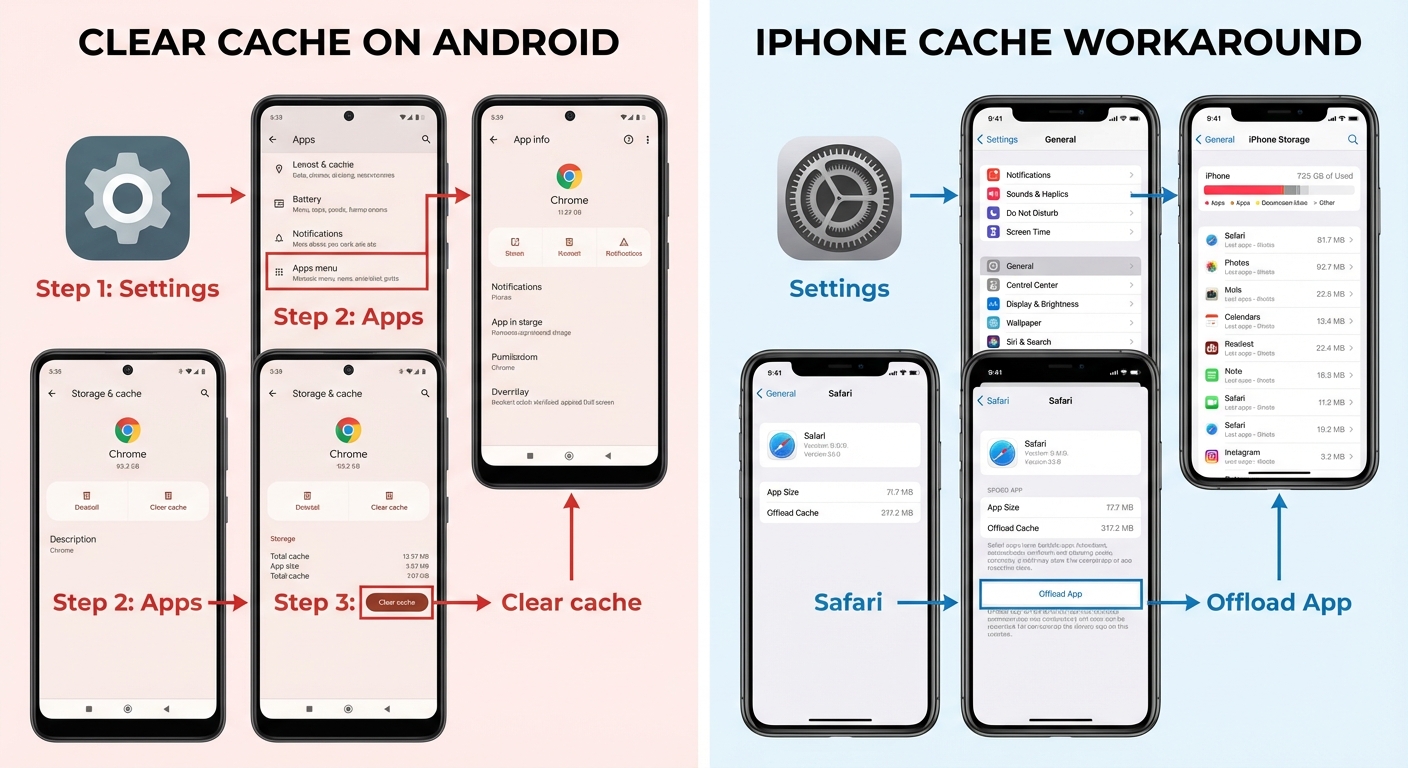
On Android, go to Settings > Storage > Apps (or Settings > Apps > [App Name] > Storage) and tap “Clear Cache.” You can do this for individual apps that are using excessive cached data. Safari, Chrome, Facebook, Instagram, and streaming apps often have large caches.
iPhone doesn’t offer a system-wide cache clearing option for most apps. However, you can offload and reinstall apps to clear their caches. For Safari specifically, go to Settings > Safari > Clear History and Website Data.
Messaging apps often store significant data. In WhatsApp, go to Settings > Storage and Data > Manage Storage to delete large files and old chats. Similar options exist in most messaging apps.
Manage Photos and Videos
Photos and videos typically consume the most storage. A few strategies can recover significant space.
Back up photos to a cloud service like iCloud, Google Photos, or Dropbox, then delete them from your device. iCloud Photos can automatically optimize storage on iPhone, keeping full-resolution photos in the cloud and smaller versions on your phone. Google Photos offers similar functionality for Android.
Delete bad photos: blurry shots, accidental screenshots, duplicates from burst mode. Your Photos app likely has many images you’d never want to look at again. Review your camera roll monthly to prevent buildup.
Videos consume far more space than photos. A single minute of 4K video can exceed 400MB. Review your videos and delete anything you don’t need to keep locally. Consider lowering your default video resolution in camera settings if you rarely watch videos on a large screen.
Remove Downloaded Content
Offline content for streaming apps quietly consumes storage. Netflix shows, Spotify playlists, podcasts, and maps you downloaded for a trip can add up to many gigabytes.
In Spotify, go to Settings > Storage and see how much space downloaded music uses. Delete playlists you no longer need offline. In Netflix, go to Downloads and remove watched shows. Check YouTube, podcasts apps, and any other services where you download content.
Offline maps in Google Maps or Apple Maps can be large. If you downloaded maps for travel you’ve completed, remove them. Navigation apps often let you limit how much storage they use for cached maps.
Move Files to Cloud or Computer
For files you want to keep but don’t need daily access to, cloud storage or a computer provides off-device backup.
Documents stored in apps like Pages, Numbers, or Office can be moved to iCloud, Google Drive, or OneDrive. Voice recordings, downloaded PDFs, and other files can similarly be uploaded to cloud services and deleted from your device.
Periodically connect your phone to a computer and transfer photos, videos, and files you want to archive. This ensures you have a backup beyond cloud services and frees device storage.
Prevent Future Storage Problems
Once you’ve freed space, habits can prevent the problem from recurring. Enable automatic cloud backup for photos so you can delete local copies. Periodically review your app list and delete unused apps before they accumulate.
Use streaming instead of downloading when practical. Listen to Spotify rather than downloading playlists you rarely replay. Watch Netflix online rather than downloading shows you might not finish.
If storage remains persistently tight despite cleanup, your phone may simply lack sufficient capacity for your usage patterns. Consider a higher-capacity phone when you next upgrade, or rely more heavily on cloud services for photos and media.
Summary
Free phone storage by deleting unused apps, clearing app caches (especially browsers and social media), managing photos and videos through cloud backup and deletion, and removing downloaded content from streaming apps.
Check your storage breakdown first to see what’s actually consuming space. Photos and videos are usually the biggest culprits, followed by apps and cached data. Regular maintenance prevents “storage full” warnings and keeps your phone running smoothly.