How do you extend your phone’s battery life? The most effective methods are reducing screen brightness, limiting background app refresh, disabling features you don’t use (like always-on display), and keeping your phone away from temperature extremes. For long-term battery health, avoid letting your battery drop below 20% regularly and don’t keep it at 100% for extended periods.
These adjustments can add hours to your daily battery life and years to your battery’s overall lifespan. The specific settings vary between iPhone and Android, but the underlying principles are the same. Understanding why phone batteries degrade over time helps explain why these practices matter, but you don’t need a chemistry degree to implement them effectively.
Screen Settings: The Biggest Battery Drain
Your display consumes more power than any other component. On most phones, the screen accounts for 30-50% of total battery usage. Optimizing display settings delivers the biggest improvements in daily battery life.
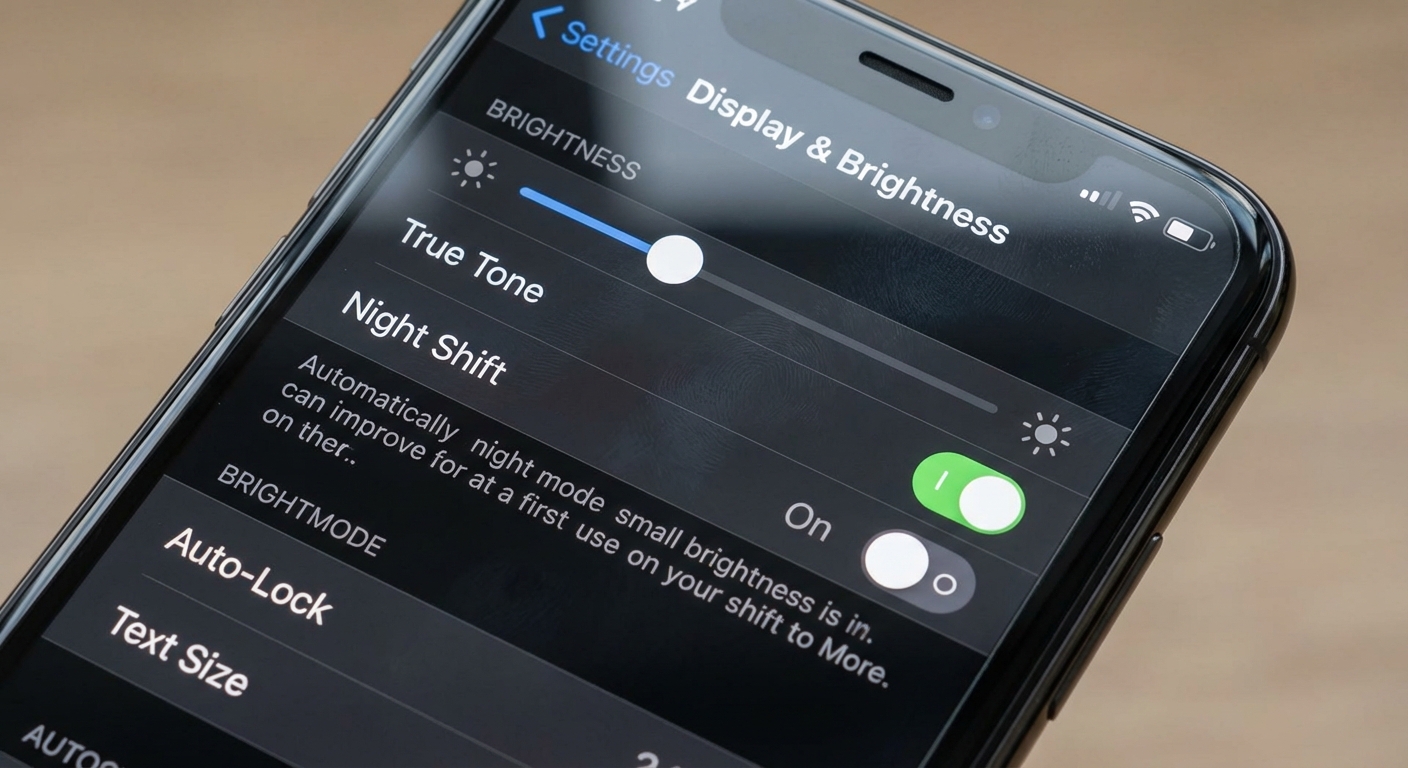
Reduce brightness to the lowest comfortable level. Auto-brightness helps, but it often keeps the screen brighter than necessary. Try setting brightness manually to 30-40% indoors and letting auto-brightness adjust when you go outside. This single change can extend battery life by 20-30% in typical use.
Shorten screen timeout so your display turns off quickly when you’re not actively using it. Thirty seconds is reasonable for most people. A screen left on for a minute after each use wastes significant power over the course of a day. On iPhones, this setting is under Display & Brightness. On Android, look under Display settings for Screen timeout.
Disable always-on display if battery life matters more to you than seeing the time at a glance. Always-on display is convenient but consumes power continuously. Samsung, Google, and Apple all offer this feature on recent phones, and all of them drain your battery to keep those pixels lit.
Use dark mode if your phone has an OLED screen (most flagship phones from the past few years). OLED displays light up individual pixels, so black pixels use essentially no power. Dark mode can reduce display power consumption by 30-40% on OLED screens. LCD screens don’t benefit from dark mode because the backlight runs regardless of what’s displayed.
Background Activity and Location Services
Apps running in the background consume power even when you’re not using them. Location services, in particular, can drain your battery quickly when multiple apps track your position continuously.
Review background app refresh settings and disable it for apps that don’t need to update when you’re not using them. Social media apps, news apps, and games often refresh constantly in the background. On iPhone, go to Settings, General, Background App Refresh. On Android, look under Battery settings for background restrictions.
Audit location permissions for every app. Many apps request “always” location access when “while using” would work fine. Weather apps, food delivery apps, and social media apps rarely need your location 24/7. Change permissions to “While Using the App” or “Ask Next Time” for most apps. Reserve “Always” for genuinely essential uses like Find My iPhone or family location sharing.
Disable precise location where approximate location works. Instagram doesn’t need to know your exact GPS coordinates; knowing your city is sufficient. iOS and Android both offer options to allow only approximate location for apps that request position data.
Turn off Wi-Fi and Bluetooth scanning if your phone offers these options. Some phones continuously scan for networks and devices even when Wi-Fi and Bluetooth are “off” to improve location accuracy. This background scanning consumes power. Check your location or connection settings for options to disable scanning when connections are off.
Charging Habits That Protect Long-Term Health
How you charge your phone affects how long the battery maintains its capacity. Lithium-ion batteries have preferences that differ from older battery technologies, and following modern best practices can extend your battery’s useful life by a year or more.
Avoid extreme charge levels when possible. Batteries degrade fastest when held at very high (above 80%) or very low (below 20%) states of charge for extended periods. If you can, keep your phone between 20-80% most of the time. Both iPhone and Android now offer optimized charging features that help with this automatically.
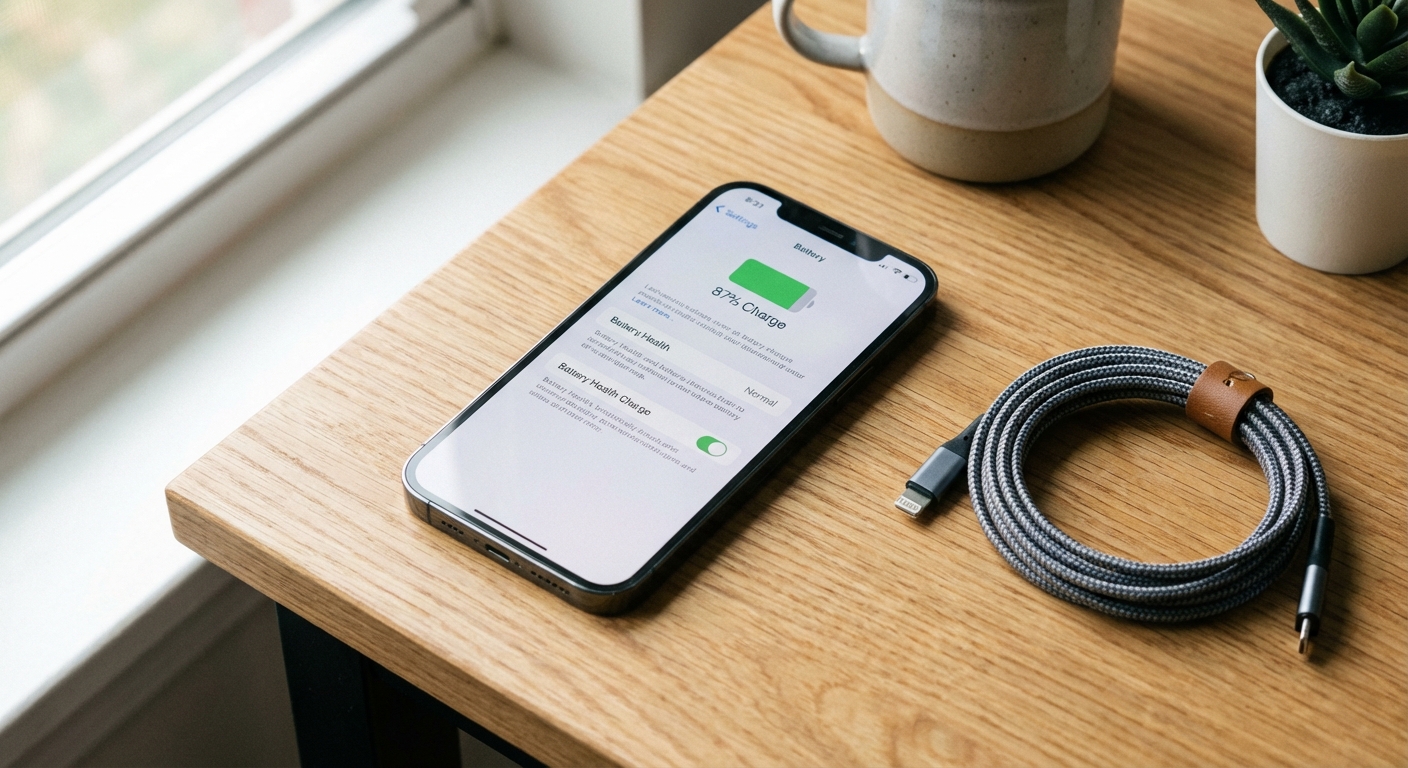
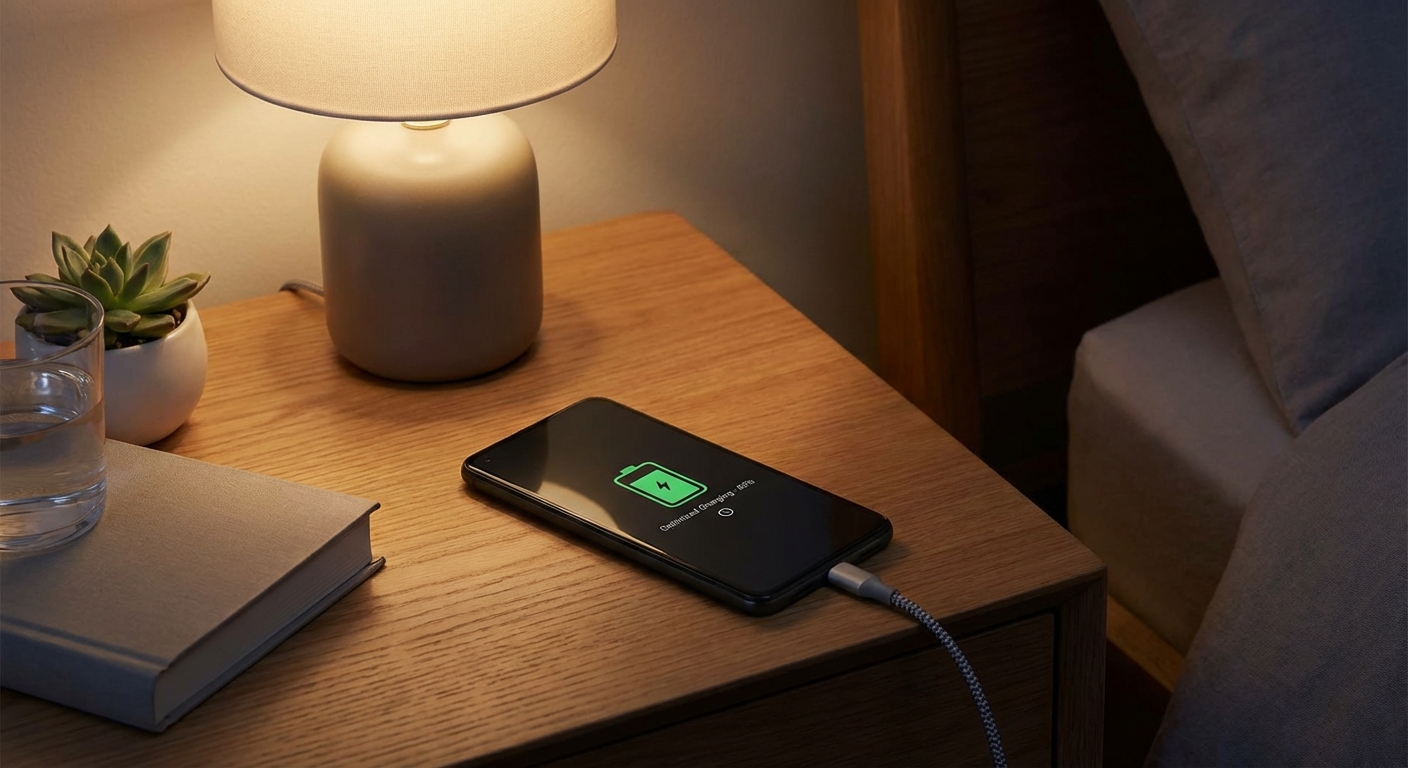
Use optimized charging features built into your phone. iPhone’s Optimized Battery Charging learns your schedule and waits to finish charging to 100% until just before you typically unplug. Android has similar features called Adaptive Charging or Battery Protection depending on the manufacturer. Enable these features and let them work.
Avoid heat while charging. Charging generates heat, and additional heat from cases, direct sunlight, or being under a pillow accelerates battery degradation. Remove thick cases while charging if your phone gets warm. Never charge your phone in hot environments. If your phone gets hot, stop charging and let it cool.
Fast charging is fine for daily use but generates more heat than slow charging. If you’re not in a hurry, using a lower-wattage charger is gentler on your battery. Overnight charging at slow speeds is ideal. Reserve fast charging for when you actually need a quick top-up.
Network and Connectivity Settings
Your phone’s radios consume significant power, especially when signal strength is poor. Cellular data, Wi-Fi, and Bluetooth all contribute to battery drain, though not equally.
Use Wi-Fi instead of cellular when available. Wi-Fi typically uses less power than cellular data, especially when cellular signal is weak. A phone constantly searching for or boosting a weak cellular signal can drain rapidly. If you’re in an area with poor cell coverage but good Wi-Fi, enabling airplane mode with Wi-Fi on can dramatically extend battery life.
Disable mobile data when not needed. If you’re connected to Wi-Fi at home or work all day, you may not need cellular data active. Some phones let you disable mobile data while keeping calls and texts functional. This prevents background apps from using cellular data and reduces radio activity.
Turn off 5G in areas with poor coverage. 5G networks are still expanding, and hunting for a 5G signal when only 4G is strong wastes battery. Both iPhone and Android allow you to select LTE-only modes in network settings. Use this option if you notice battery drain in areas where 5G coverage is spotty.
Disable Wi-Fi and Bluetooth when truly not needed. Modern phones are efficient enough that leaving these on costs minimal power when connected. But if you’re not using them at all and battery life is critical, turning them off helps. Low Energy Bluetooth for accessories like watches and earbuds uses very little power; the drain comes more from Wi-Fi scanning and connection management.
Low Power and Battery Saver Modes
Both iPhone and Android include aggressive battery saving modes that extend runtime when you need every minute of charge. Understanding what these modes do helps you decide when to use them.
iPhone Low Power Mode reduces background activity, lowers brightness, shortens auto-lock time, disables some visual effects, pauses iCloud Photos uploads, and reduces CPU and GPU performance. It can extend battery life by an hour or more in typical use. The mode turns off automatically when you charge above 80%.
Android Battery Saver varies by manufacturer but typically restricts background apps, reduces screen brightness, limits location services, and disables always-on display. Some versions also reduce visual effects and limit vibration. Google’s implementation on Pixel phones is particularly aggressive and effective.
Use these modes proactively when you know you’ll need extended battery life. Don’t wait until you’re at 10%. Enabling Low Power Mode at 50% when you have a long day ahead provides more flexibility than desperately enabling it when you’re almost dead. Both modes sacrifice convenience for runtime; decide what trade-offs work for your situation.
Summary
Extending your phone’s battery life comes down to reducing what drains power most: the screen, background apps, location services, and network activity. Lowering brightness, auditing app permissions, and using optimized charging features provide the biggest improvements for most people. Built-in battery saver modes offer an easy way to extend runtime when you need it.
For long-term battery health, avoid temperature extremes and try to keep your charge between 20-80% when practical. Modern batteries last longer when treated gently. These habits won’t eliminate eventual battery degradation, but they can delay it by a year or more, saving you the cost and hassle of early battery replacement.