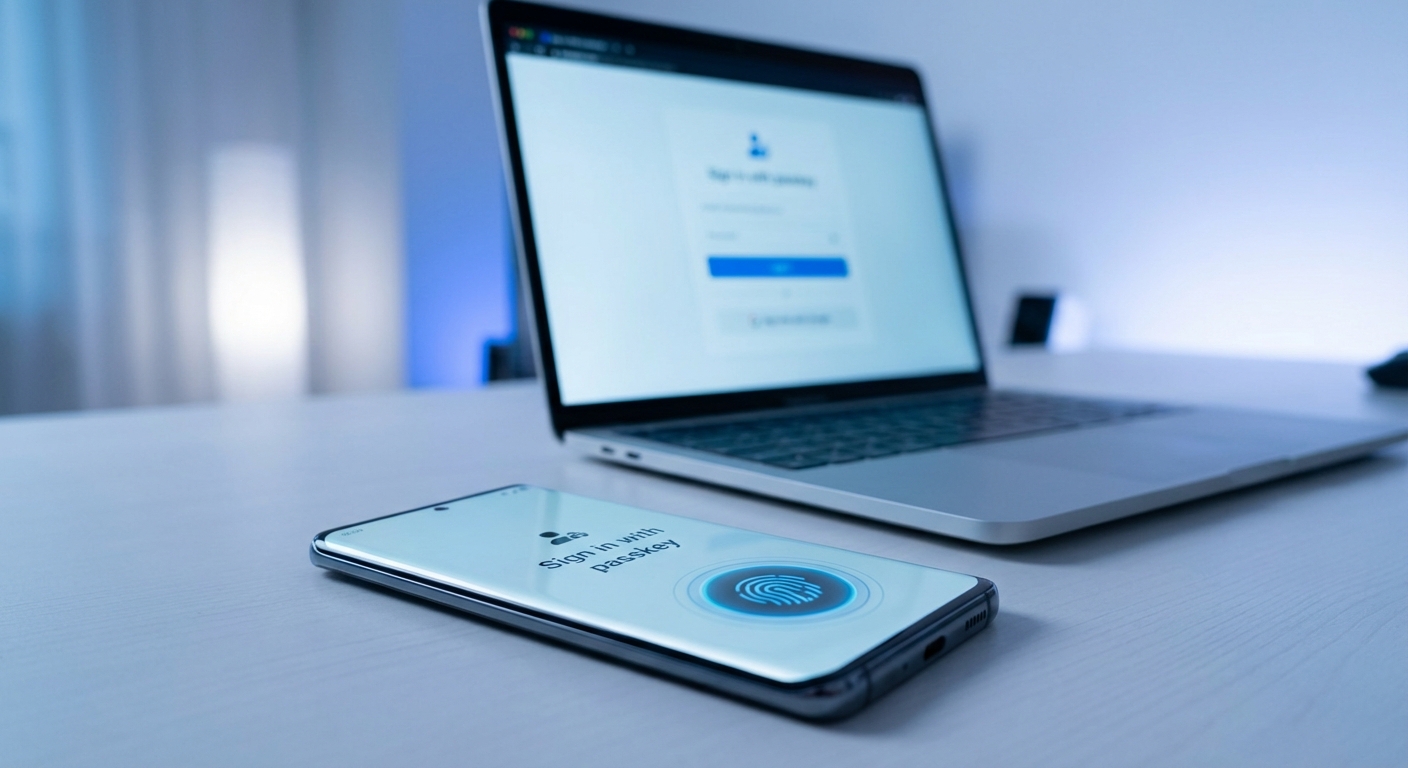
What is a passkey? A passkey is a modern replacement for passwords that uses your device’s built-in security (like Face ID, fingerprint, or PIN) to log you into websites and apps. Instead of remembering and typing a password, you simply authenticate with your face, finger, or device passcode. The passkey itself is a cryptographic key stored securely on your device, and it’s virtually impossible to steal, guess, or phish.
Should you use passkeys instead of passwords? Yes, whenever the option is available. Passkeys are more secure than even the strongest passwords combined with two-factor authentication. They can’t be leaked in data breaches because the actual key never leaves your device. They can’t be phished because they only work on the legitimate website they were created for. And they’re faster to use because there’s nothing to type or remember.
How Passkeys Actually Work
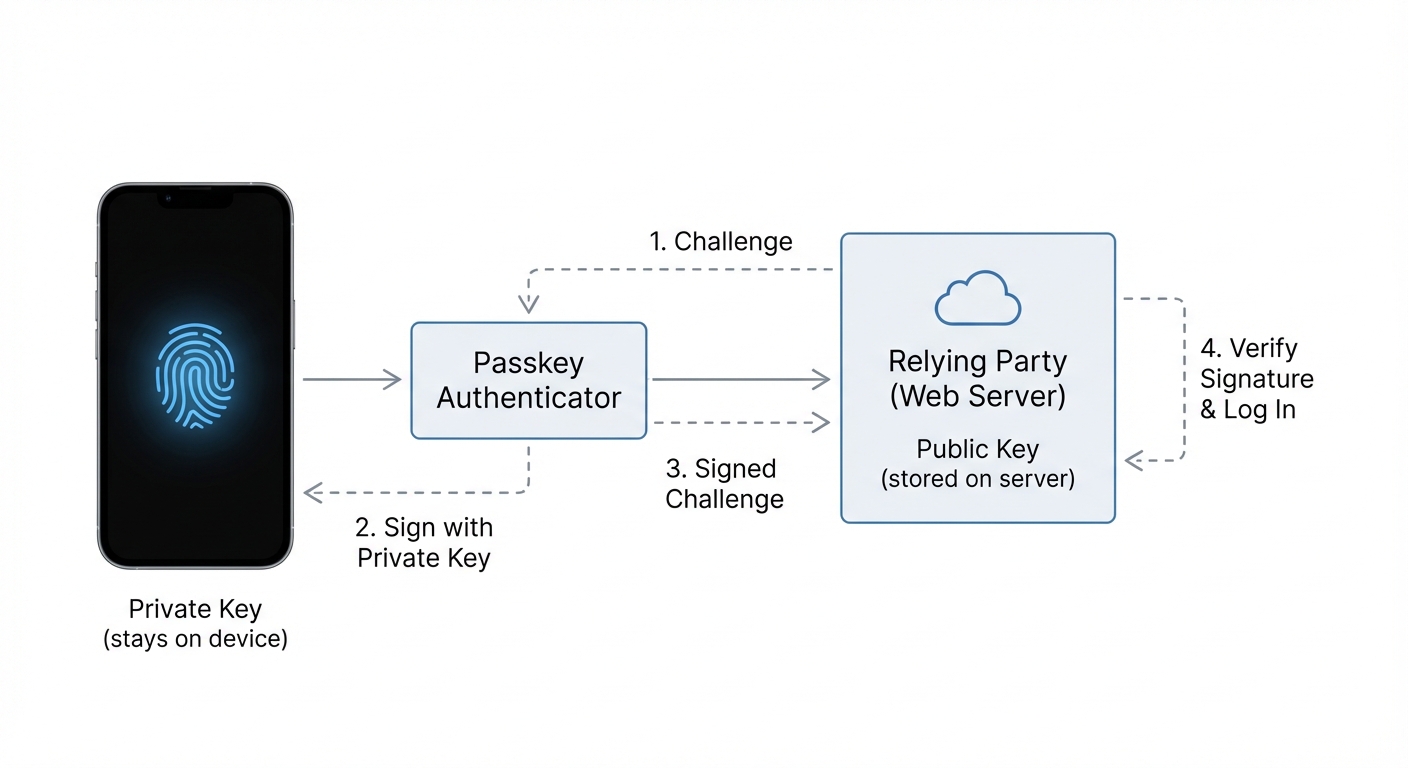
Understanding the technology helps explain why passkeys are so much more secure than passwords. When you create a passkey for a website, your device generates two mathematically linked keys: a private key that stays locked in your phone’s secure hardware, and a public key that gets sent to the website. The website stores only the public key, which is useless without its private counterpart.
When you log in, the website sends a challenge to your device. Your device uses the private key to sign that challenge, proving you have the key without ever revealing it. This happens after you authenticate with Face ID, fingerprint, or your device PIN. The entire process takes about two seconds and requires no typing.
The cryptographic math behind passkeys makes them fundamentally different from passwords. Even if hackers breach a website’s database, they only get public keys, which cannot be reversed to discover your private key. There’s no password hash to crack, no credentials to stuff into other sites, no secret to steal.
Which Sites and Apps Support Passkeys
Passkey adoption has accelerated dramatically. Google, Apple, Microsoft, Amazon, PayPal, eBay, Best Buy, Kayak, and dozens of other major services now support passkey login. Most password managers, including 1Password, Dashlane, and Bitwarden, can store and sync passkeys across your devices. Apple’s iCloud Keychain and Google Password Manager both support passkeys natively.
The FIDO Alliance, the industry group behind passkey standards, reports that over 15 billion accounts are now passkey-enabled as of late 2025. That number continues to grow as more services add support. If you’re curious whether a specific site supports passkeys, the community-maintained directory at passkeys.directory maintains an updated list.
Banking and financial services have been slower to adopt passkeys, though several major banks now offer them. If your bank doesn’t support passkeys yet, using a strong unique password with two-factor authentication remains the best alternative. Check your bank’s security settings periodically, as many are adding passkey support throughout 2026.
How to Set Up Passkeys on Your Devices
Setting up passkeys is straightforward on modern devices. The process varies slightly depending on your operating system, but the general flow is similar everywhere.
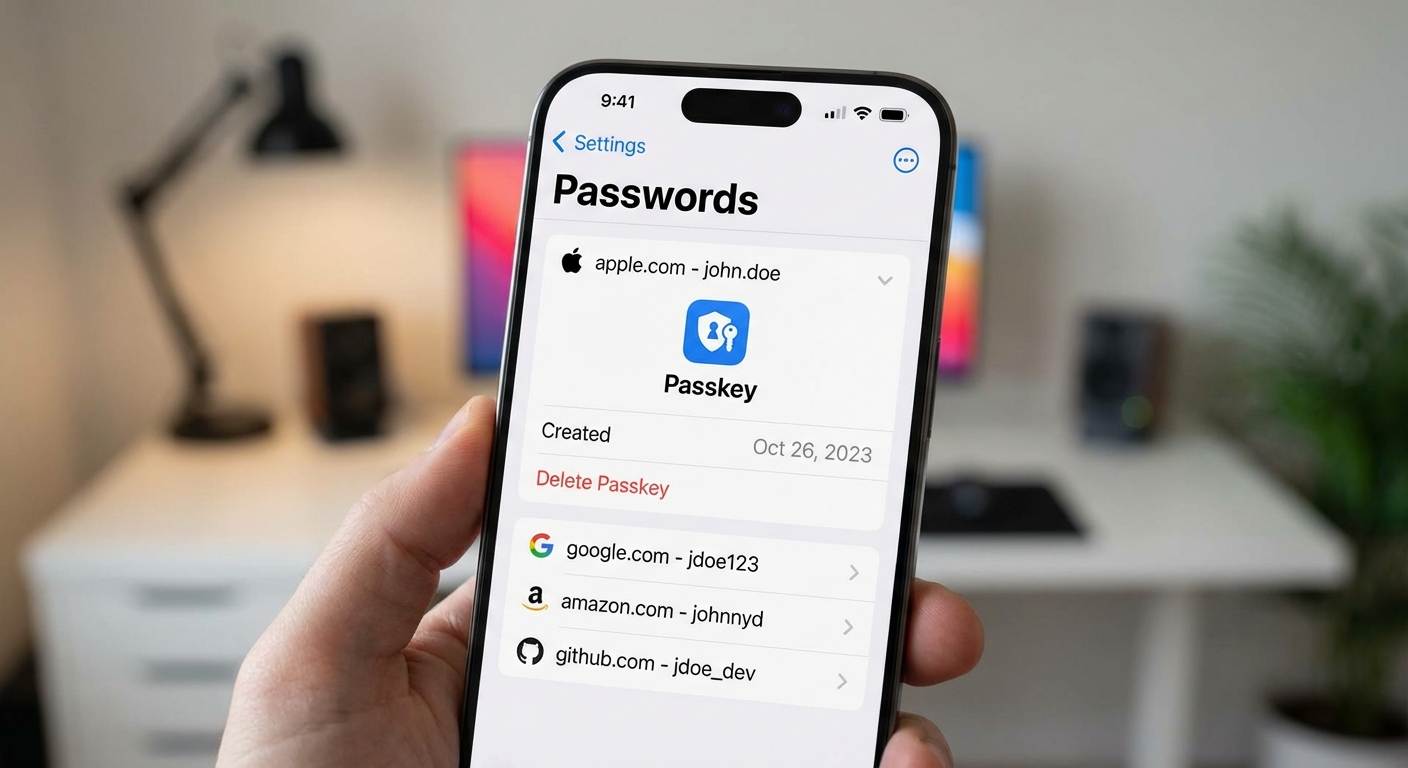
On iPhone (iOS 16 or later): When a website offers passkey signup or login, Safari will prompt you to create or use a passkey. Authenticate with Face ID or Touch ID, and you’re done. Your passkey syncs automatically through iCloud Keychain to your other Apple devices. You can view and manage your passkeys in Settings under Passwords.
On Android (Android 9 or later): Chrome and other browsers prompt you when passkeys are available. Authentication uses your fingerprint, face unlock, or screen lock PIN. Passkeys sync through your Google account to other Android devices and Chrome browsers where you’re signed in. Manage them in your Google Account security settings.
On Windows (Windows 10/11): Windows Hello handles passkey authentication using your fingerprint, face, or PIN. Passkeys created in browsers like Chrome, Edge, or Firefox work across those browsers. Some passkeys can sync through your browser’s password manager or a third-party manager like 1Password.
On Mac: Safari passkeys sync through iCloud Keychain just like on iPhone. Chrome passkeys sync through your Google account. You authenticate with Touch ID on MacBooks that have it, or with your password on older models.
Passkeys vs. Passwords: Key Differences
The practical differences between passkeys and passwords matter for everyday use. Passkeys eliminate entire categories of security risks that passwords cannot address, no matter how strong your password habits.
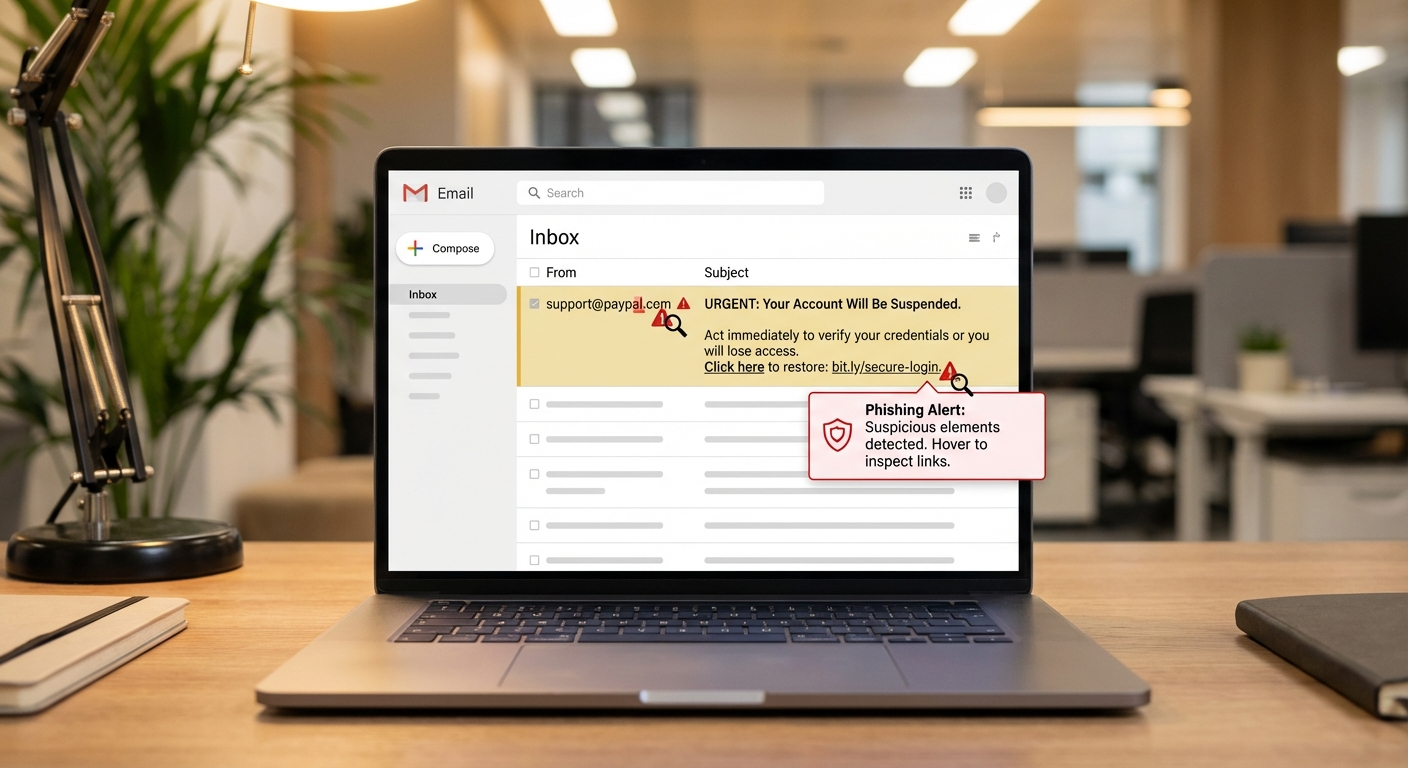
Phishing resistance is perhaps the most significant advantage. Passwords can be entered on fake websites that look identical to real ones. Passkeys cannot. The passkey is cryptographically bound to the real website’s domain, so a phishing site literally cannot request your passkey. Even if you click a malicious link, your device simply won’t offer the passkey because the domains don’t match.
Data breach immunity follows from how passkeys work. When you check if your passwords have been leaked, you’re looking for credentials exposed in breaches. Passkeys don’t have this problem. A website breach exposes only public keys, which are mathematically useless for logging in. There’s nothing to crack, nothing to stuff, nothing to sell on dark web markets.
Convenience often surprises people. They expect more security to mean more friction. Instead, passkey login typically takes two seconds with a glance or touch. No fumbling with password managers, no copying codes from authenticator apps, no waiting for SMS messages. Biometric authentication is both faster and more secure than typing.
Cross-device access requires some planning. If you only have one device, losing it could lock you out. Most services let you register multiple passkeys from different devices. Password managers that sync passkeys provide another backup option. Apple and Google sync passkeys to new devices when you sign in with your account.
When to Keep Using Passwords
Passkeys aren’t available everywhere yet. For services that don’t support them, traditional security best practices still apply: use unique passwords for each account, store them in a password manager, and enable two-factor authentication where available.
Some specific situations still call for passwords. Shared accounts, like a family streaming subscription, work better with passwords since passkeys are tied to individual devices and biometrics. Very old devices that can’t run current operating systems may not support passkeys at all. And some specialized software or enterprise systems haven’t added passkey support yet.
The transition from passwords to passkeys will take years. During that time, you’ll likely use both. Set up passkeys wherever they’re offered, keep your password manager updated for everything else, and periodically check whether services you use have added passkey support.
Summary
Passkeys represent the biggest improvement in authentication security since two-factor authentication became mainstream. They use cryptographic keys stored in your device’s secure hardware, authenticated by your biometrics, to replace the entire concept of passwords. They’re immune to phishing, immune to data breaches, and faster to use than typing passwords.
If you’re wondering whether to start using passkeys, the answer is yes. Set them up on any account that offers them, starting with your most important accounts like email and financial services. Keep your password manager for services that haven’t adopted passkeys yet, and check back periodically as more services add support. The future is passwordless, and it’s already here for many of the accounts you use every day.