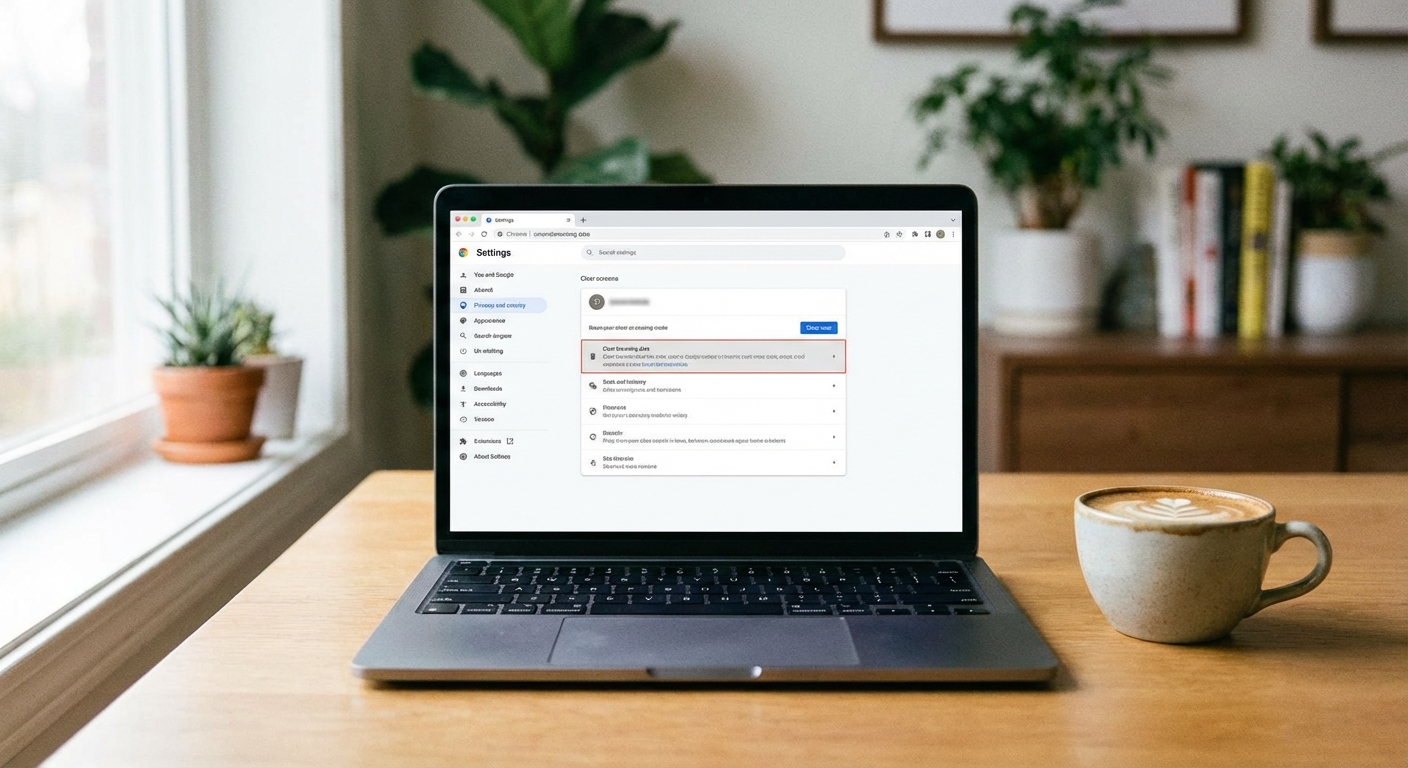
How do you clear your browser cache? The process varies slightly by browser, but it typically takes less than 30 seconds. In Chrome, press Ctrl+Shift+Delete (Cmd+Shift+Delete on Mac), select “Cached images and files,” choose your time range, and click “Delete data.” Other browsers follow similar steps through their settings or history menus. Clearing the cache forces your browser to download fresh versions of websites instead of loading stored files.
If a website looks broken, won’t load properly, or shows outdated content, clearing your cache should be your first troubleshooting step. The cache stores copies of images, scripts, and other files from websites you visit, which speeds up browsing but occasionally causes problems when those stored files become corrupted or outdated. Understanding what the cache does and how to clear it will solve a surprising number of everyday browser frustrations.
What Is the Browser Cache and Why Does It Exist?
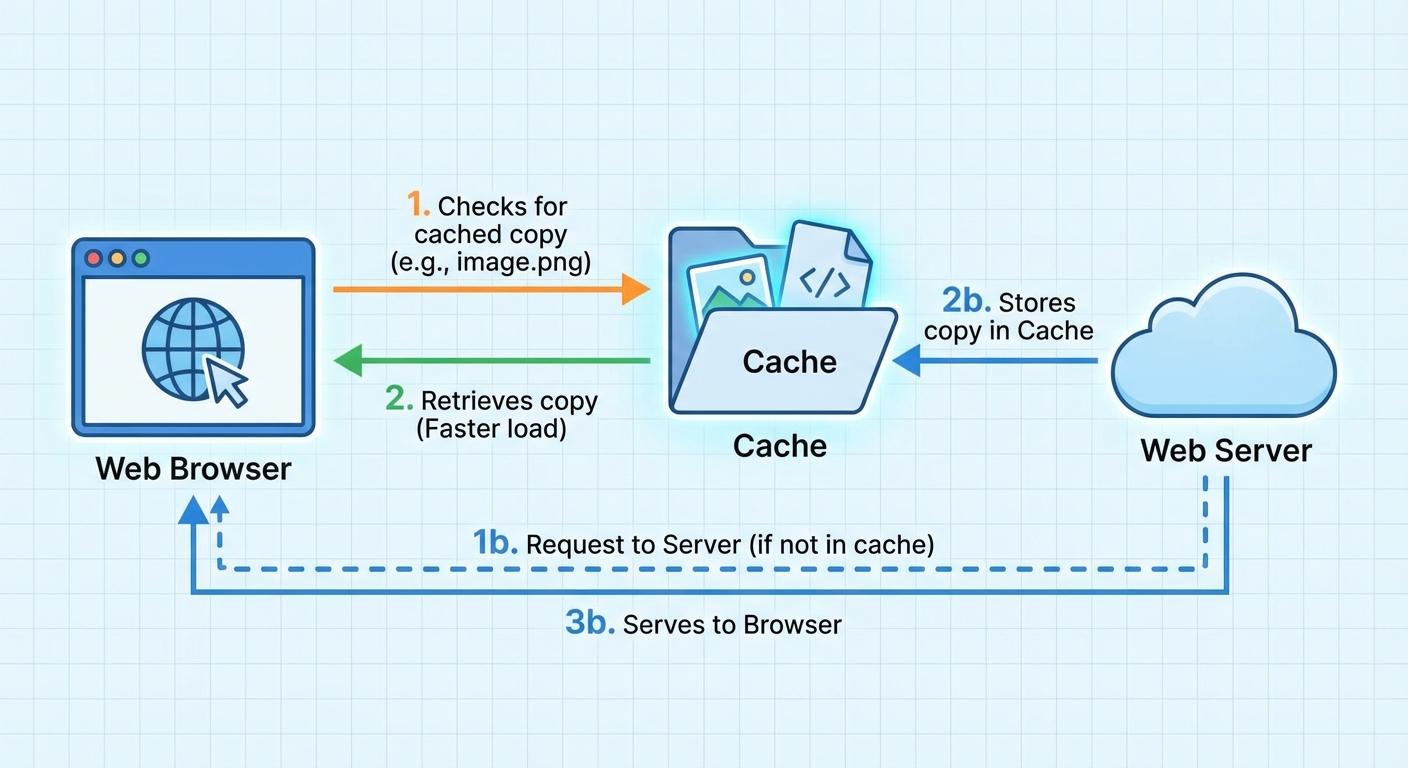
Your browser’s cache is essentially a storage folder where it keeps copies of website files for faster loading. When you visit a website for the first time, your browser downloads everything: the HTML structure, images, CSS styling files, JavaScript code, and fonts. Instead of downloading all of this again on your next visit, the browser checks its cache first and loads the stored versions.
This caching system makes the web feel faster. A news site you visit daily might have a 2MB logo and several hundred kilobytes of styling that never change. Rather than re-downloading these files every visit, your browser loads them instantly from your hard drive. Most modern websites are designed with caching in mind, telling browsers how long to keep different files before checking for updates.
Problems arise when cached files become outdated or corrupted. If a website updates its design but your browser is still loading old styling files, the page might look broken. If a JavaScript file cached on your computer has an error that the website has since fixed, you’ll keep experiencing that bug. Corrupted cache files can cause even stranger issues, from pages that won’t load at all to images that display incorrectly.
How to Clear Cache in Google Chrome
Chrome is the most widely used browser, so let’s start there. You can access the cache clearing tool in several ways.
Keyboard shortcut method: Press Ctrl+Shift+Delete on Windows or Linux, or Cmd+Shift+Delete on Mac. This opens the “Clear browsing data” dialog immediately.
Menu method: Click the three-dot menu in the top-right corner, then select “More tools,” then “Clear browsing data.” Alternatively, go to Settings, then “Privacy and security,” then “Delete browsing data.”
In the dialog that appears, you’ll see a “Time range” dropdown at the top. Choose “All time” if you’re troubleshooting a persistent issue, or select a shorter range if you only need to clear recent data. Under “Basic,” check “Cached images and files.” You can leave “Cookies and other site data” unchecked unless you specifically want to clear that too, though clearing cookies will log you out of websites.
Click “Delete data” and wait a few seconds. Chrome will remove the cached files and automatically start building a new cache as you browse. Refresh any problematic website to force your browser to download fresh copies of its files.
How to Clear Cache in Safari (Mac and iPhone)
Safari handles cache clearing differently on Mac versus iOS, and the process is less obvious than in Chrome.
On Mac: Open Safari, click “Safari” in the menu bar, then select “Settings” (or press Cmd+comma). Go to the “Privacy” tab and click “Manage Website Data.” You can remove data for specific sites by selecting them and clicking “Remove,” or clear everything with “Remove All.” For a more thorough cache clear, enable the Develop menu (in Settings > Advanced, check “Show Develop menu in menu bar”), then click Develop > Empty Caches.
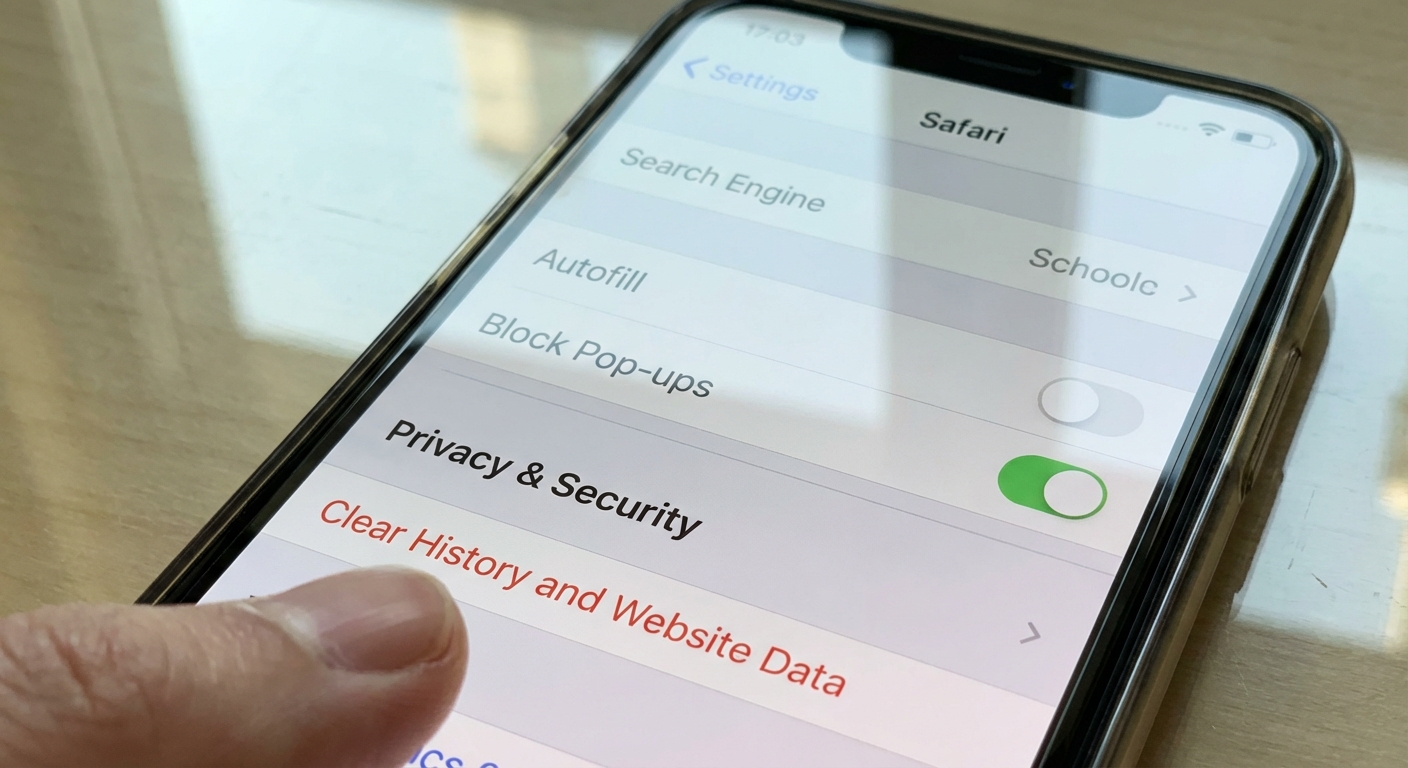
On iPhone or iPad: Go to the Settings app (not Safari itself), scroll down to Safari, then tap “Clear History and Website Data.” This clears both cache and browsing history. Unfortunately, iOS doesn’t offer a way to clear only the cache while keeping history intact. If you want more control, you can go to Settings > Safari > Advanced > Website Data to manage data for specific sites.
Safari’s cache clearing is more aggressive than some other browsers, often improving performance noticeably if you haven’t cleared it in months.
How to Clear Cache in Firefox
Firefox provides straightforward cache clearing with good control over what gets deleted.
Keyboard shortcut method: Press Ctrl+Shift+Delete on Windows or Linux, or Cmd+Shift+Delete on Mac. This opens the “Clear Recent History” dialog.
Menu method: Click the hamburger menu (three horizontal lines) in the top-right corner, select “Settings,” then “Privacy & Security” in the left sidebar. Scroll to “Cookies and Site Data” and click “Clear Data.”
In the Clear Data dialog, make sure “Cached Web Content” is checked. You can uncheck “Cookies and Site Data” if you want to stay logged into websites. Click “Clear” to complete the process. Firefox will show you how much space the cache was using before deletion.
Firefox also lets you set the cache to clear automatically when you close the browser. Under “Privacy & Security,” scroll to “History” and select “Use custom settings for history.” Check “Clear history when Firefox closes,” then click “Settings” to specify that you want to clear the cache but keep other data.
How to Clear Cache in Microsoft Edge
Edge uses the same underlying engine as Chrome, so the process is similar.
Keyboard shortcut method: Press Ctrl+Shift+Delete on Windows or Cmd+Shift+Delete on Mac.
Menu method: Click the three-dot menu in the top-right corner, select “Settings,” then “Privacy, search, and services.” Scroll to “Clear browsing data” and click “Choose what to clear.”
Select your time range, check “Cached images and files,” and optionally uncheck other items you want to keep. Click “Clear now” to delete the cache. Edge will confirm once the process completes.
Edge also offers a helpful option under “Choose what to clear every time you close the browser” that lets you automatically clear the cache on exit while keeping cookies and other data intact.
When Clearing Cache Won’t Solve Your Problem
While cache clearing fixes many issues, some problems require different solutions. If a website still doesn’t work after clearing your cache, consider these possibilities.
The issue might be on the website’s end, not yours. Try the site in a different browser or check a service like DownDetector to see if others are reporting problems. Server outages and website bugs can’t be fixed by clearing your local cache.
Browser extensions can interfere with websites in ways that look like cache issues. Try loading the problematic page in a private or incognito window, which disables extensions by default. If the site works there, one of your extensions is likely the culprit.
Your DNS cache, which is separate from your browser cache, might be holding outdated information about where to find a website. On Windows, open Command Prompt and run ipconfig /flushdns. On Mac, open Terminal and run sudo dscacheutil -flushcache; sudo killall -HUP mDNSResponder. This forces your computer to look up website addresses fresh.
Key Takeaways
Clearing your browser cache removes stored copies of website files, forcing your browser to download fresh versions. This simple step fixes a wide range of common issues including broken page layouts, outdated content, slow loading, and various website errors. The keyboard shortcut Ctrl+Shift+Delete (or Cmd+Shift+Delete on Mac) works in Chrome, Firefox, and Edge, making it easy to remember.
Make clearing your cache the first thing you try when a website misbehaves. If you’re still experiencing issues after clearing, the problem likely lies elsewhere, perhaps with your WiFi connection or the website itself. For more persistent issues, consider reviewing your overall approach to protecting your data and keeping your browser secure with regular maintenance.