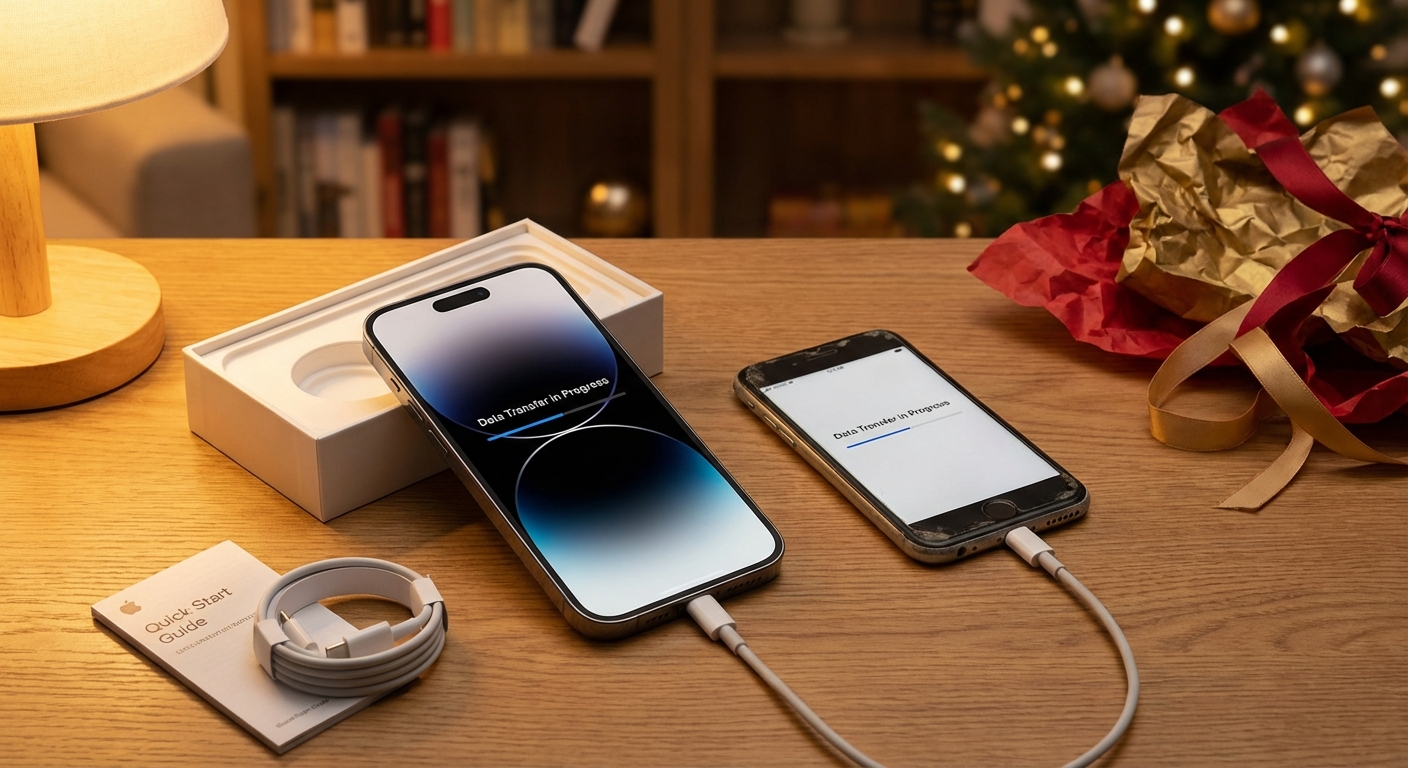
How do you set up a new phone? Start by charging your new phone and keeping your old phone nearby with WiFi and Bluetooth enabled. During initial setup, choose to transfer data from your existing device, which handles contacts, photos, apps, and settings automatically. Then sign into your accounts (Apple ID or Google), set up security features like Face ID or fingerprint, and customize notifications and settings. The whole process takes 30 minutes to a few hours depending on how much data you’re transferring.
Whether you received a new iPhone or Android device, the setup process has become remarkably smooth. Modern phones can copy almost everything from your old device, minimizing the work of starting fresh.
Before You Start
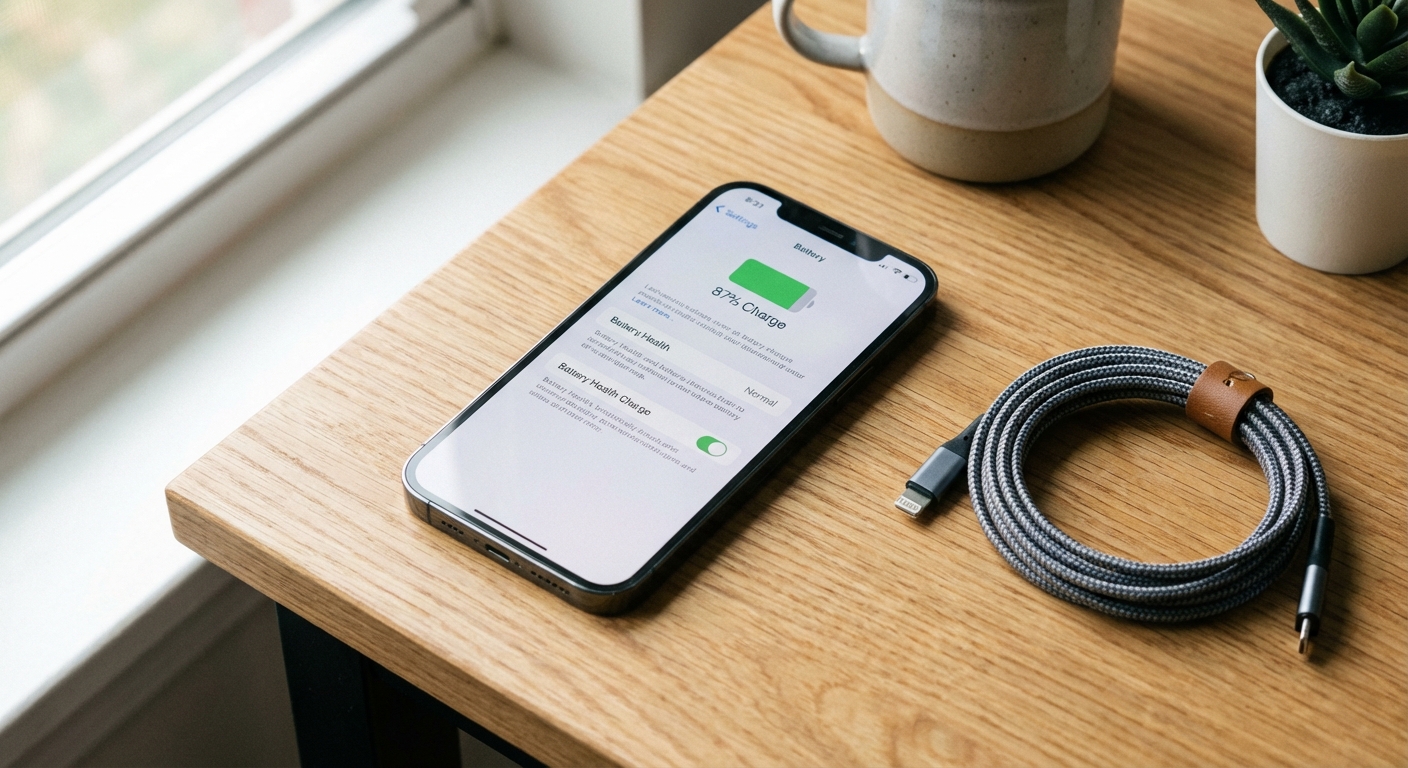
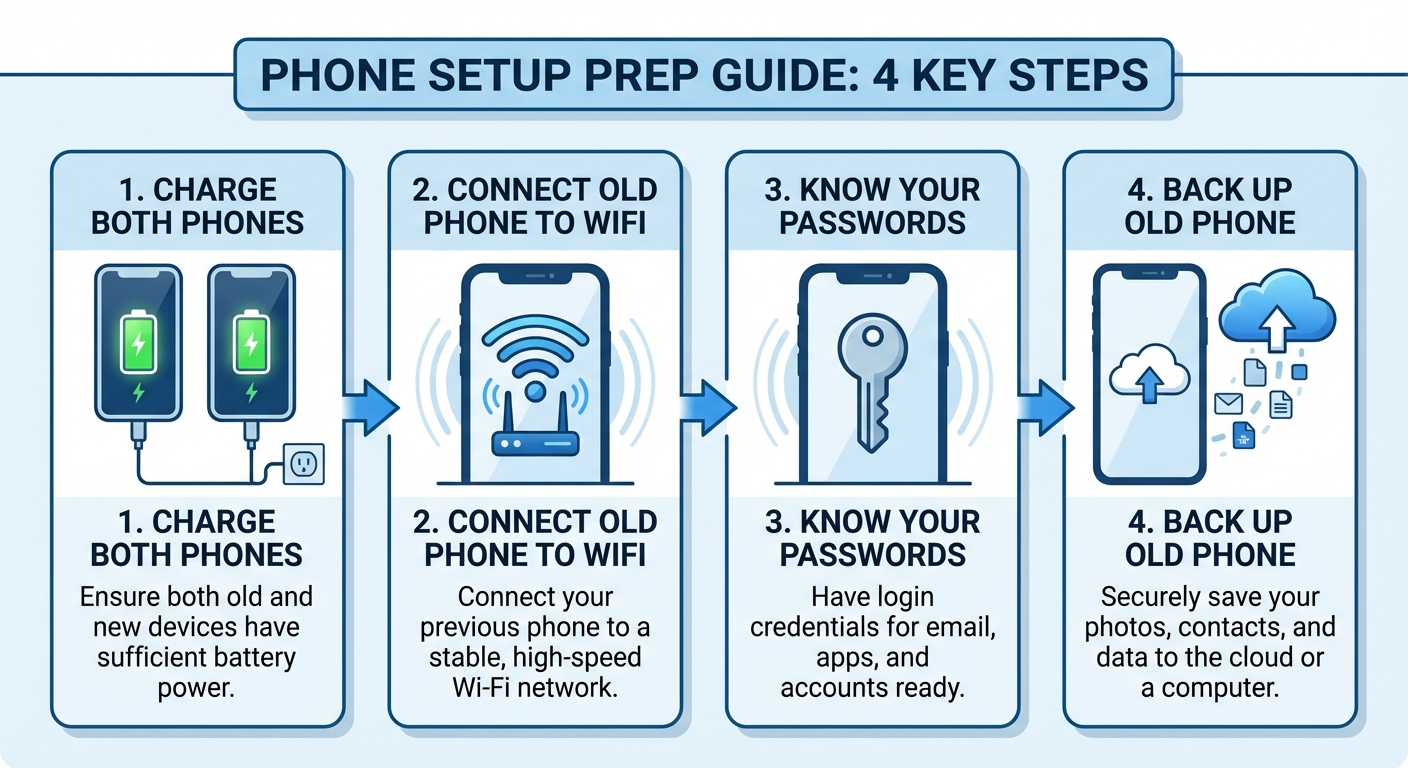
Charge both phones. Your new phone should have some charge from the factory, but plugging it in prevents interruptions during data transfer. Your old phone needs enough power to complete the transfer.
Connect your old phone to WiFi. Large data transfers work better over WiFi than cellular. Make sure you’re on a stable network.
Know your passwords. You’ll need your Apple ID password (for iPhone) or Google password (for Android), plus any two-factor authentication codes. Write down passwords for important apps if you don’t have them memorized or in a password manager.
Back up your old phone one final time. On iPhone, go to Settings > [Your Name] > iCloud > iCloud Backup and tap “Back Up Now.” On Android, go to Settings > System > Backup and ensure your data is backed up to Google.
Setting Up an iPhone
Power on your new iPhone by holding the side button. Select your language and region. Connect to WiFi when prompted.
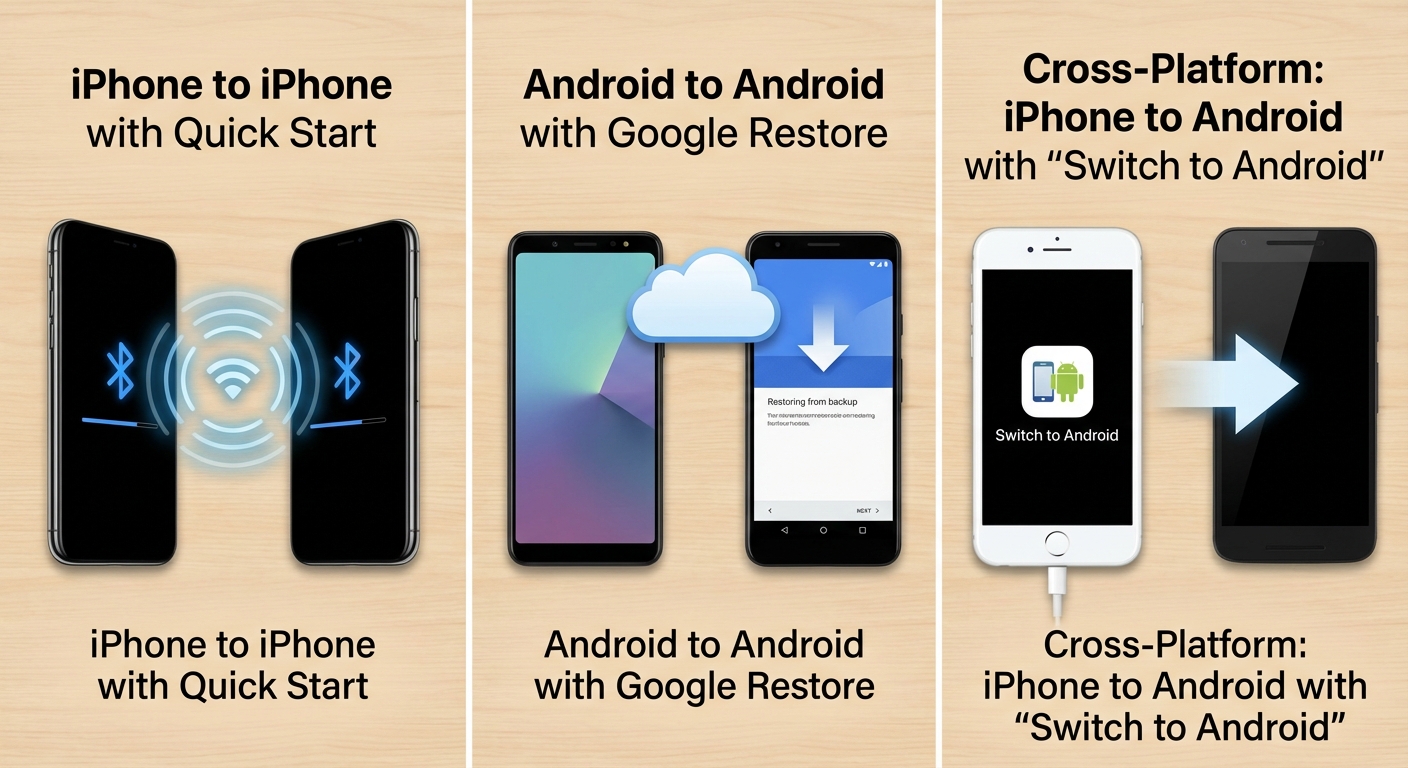
When the Quick Start screen appears, bring your old iPhone close to the new one. A pattern will appear on the new phone’s screen. Point your old phone’s camera at the pattern to pair the devices. This transfers your settings and begins copying your data wirelessly.
If you prefer using a backup, choose “Restore from iCloud Backup” instead of Quick Start. Select your most recent backup and wait for it to download. This requires a strong WiFi connection and can take hours for large backups.
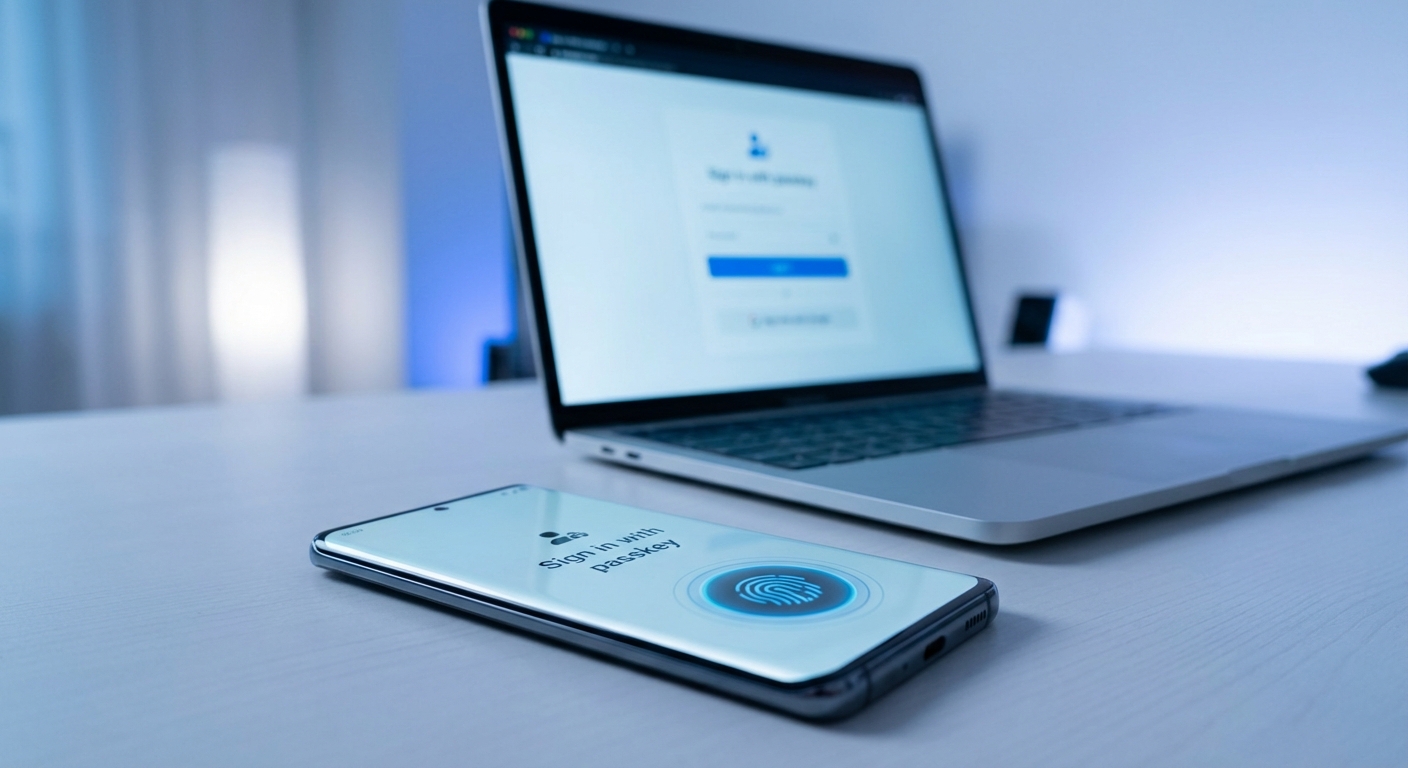
During setup, you’ll sign into your Apple ID, which restores your purchases and links your devices. Set up Face ID (or Touch ID on older models) by following the on-screen prompts to scan your face or fingerprint. Choose a passcode of at least six digits.
Your apps will download automatically based on what was on your old phone. This continues in the background after setup is complete. Apps with sensitive data, like banking apps, will require you to sign in again.
Setting Up an Android Phone
Power on your new Android by holding the power button. Select your language and connect to WiFi.
When prompted, choose to copy data from your old device. For Android to Android transfers, tap your old phone against your new phone, or look for the option to copy using your Google account. The setup wizard walks you through the pairing process.
For transfers from iPhone to Android, download the “Switch to Android” app on your old iPhone. This copies contacts, photos, videos, and calendar events to your new Android device. Apps don’t transfer directly since iPhone apps aren’t compatible with Android, but Google Play will suggest equivalents.
Sign into your Google account to restore your settings, contacts, and calendar. Chrome bookmarks and history also sync through your Google account. Set up fingerprint unlock or face unlock for convenience and security.
Essential Security Setup
After the initial setup, configure important security features.
Lock screen: If you skipped biometrics during setup, go to Settings > Face ID & Passcode (iPhone) or Settings > Security (Android) to set up fingerprint or face unlock. A strong passcode is your backup when biometrics fail.
Find My Phone: Ensure device tracking is enabled so you can locate, lock, or erase your phone if lost. On iPhone, this is in Settings > [Your Name] > Find My > Find My iPhone. On Android, verify Settings > Google > Find My Device is turned on.
Two-factor authentication: If you haven’t already, enable two-factor authentication on your Apple ID or Google account. This protects your account and makes phone theft less damaging.
Emergency features: Configure emergency contacts and medical information accessible from the lock screen. On iPhone, use the Health app’s Medical ID. On Android, go to Settings > Safety & emergency.
Customizing Your New Phone
Once basic setup is complete, personalize your device.
Notifications: Review which apps can send notifications. On iPhone, go to Settings > Notifications. On Android, go to Settings > Apps > Notifications. Disable notifications from apps that don’t need your immediate attention.
Display: Adjust brightness, enable dark mode if you prefer it, and set up Always-On Display if your phone supports it. Customize the home screen layout and widgets to your liking.
Accounts: Add your email accounts, social media logins, and other services. Apps you reinstalled may require signing in again.
Default apps: On Android, choose your preferred browser, email app, and other defaults in Settings > Apps > Default Apps. iPhone allows fewer default changes but you can set your preferred browser and email.
Finishing Touches
Remove your SIM from your old phone (if transferring a physical SIM rather than using eSIM). Insert it into your new phone’s SIM tray. If you have an eSIM, you may need to contact your carrier or use their app to transfer service.
Test your phone. Make a call, send a text, and verify your data is accessible. Check that important apps work correctly.
Erase your old phone once you’re confident everything transferred successfully. On iPhone, go to Settings > General > Transfer or Reset iPhone > Erase All Content and Settings. On Android, go to Settings > System > Reset > Factory data reset.
Keep your old phone’s box or recycle responsibly. Many carriers and electronics stores offer trade-in programs or recycling.
Summary
Setting up a new phone involves transferring data from your old device, signing into accounts, configuring security, and customizing settings. Keep both phones charged and connected to WiFi. Use Quick Start (iPhone) or Google restore (Android) for seamless transfers.
Prioritize security setup including biometrics, Find My Phone, and two-factor authentication. Customize notifications and display settings to your preferences. Once everything is verified working, erase your old phone before selling, trading in, or recycling it.