If you’ve ever reused a password across multiple sites, there’s a reasonable chance at least one of those passwords has been exposed in a data breach. The good news: you can check in about 30 seconds using free, trusted tools. The better news: even if your passwords have been leaked, you can secure your accounts before anyone uses them against you.
The Quick Answer: Go to Have I Been Pwned, enter your email address, and click “pwned?” The site will instantly tell you if your email appeared in any known data breaches. For checking specific passwords, use their Pwned Passwords tool, which checks your password against a database of over 800 million compromised passwords without actually sending your password to their servers.
That covers the basics. But if you want to understand why this matters, how these tools work safely, and what to do with the results, read on.
Step 1: Check Your Email for Breaches
The first step is determining which of your accounts may have been compromised. Have I Been Pwned, created by security researcher Troy Hunt, aggregates data from publicly disclosed breaches and lets you search by email address.
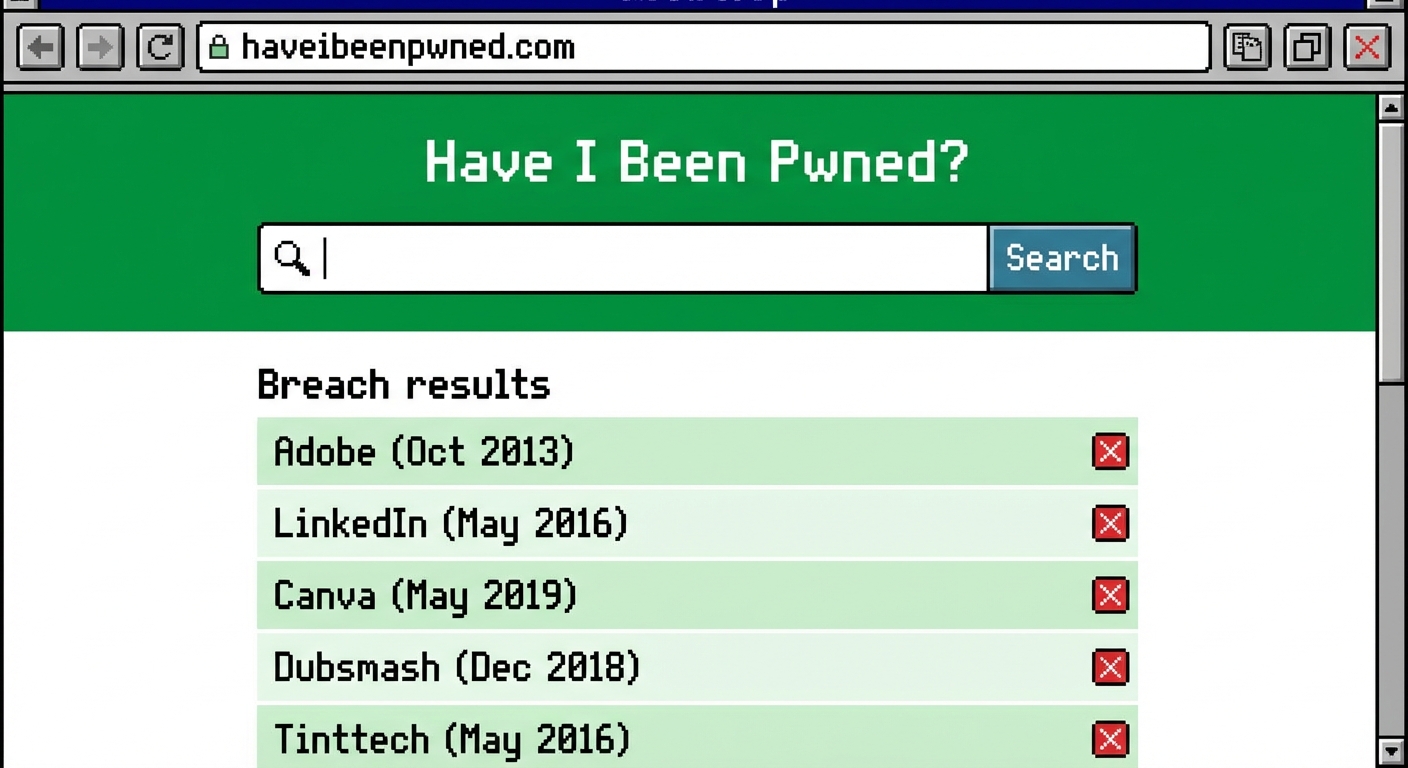
Here’s the process: Navigate to haveibeenpwned.com and enter your primary email address. The site will return a list of breaches where your email was found. Each entry includes the company name, breach date, and what data was exposed. Common exposed data types include email addresses, passwords (sometimes hashed, sometimes in plain text), names, phone numbers, and physical addresses.
If your email appears in breaches, don’t panic. This doesn’t mean someone has accessed your accounts. It means the data exists in databases that hackers trade and sell. Your response should be proportional to what was exposed and whether you’ve changed passwords since the breach occurred.
Run this check for every email address you use, including old ones. Many people forget about email addresses they used years ago, but those accounts may still be linked to active services. An old Yahoo email from 2012 might still be the recovery email for your bank account.
Step 2: Check Your Specific Passwords
Knowing your email was in a breach is useful, but knowing whether your actual passwords are compromised is more actionable. The Pwned Passwords tool addresses this directly by letting you check specific passwords against the breach database.
The security model here is clever: when you type a password, the tool hashes it using SHA-1 and sends only the first five characters of that hash to the server. The server returns all hashes that start with those characters (typically several hundred), and your browser checks locally whether your full hash matches any in the returned list. This means your password never leaves your device, and the server has no way to determine what password you searched for.
Check passwords you’ve reused across multiple sites first. These are the highest-risk credentials because a breach at one service exposes your login at every other service using that same password. If a password returns “This password has been seen X times before,” you should change it everywhere you’ve used it.
Step 3: Use Built-in Browser Tools
Modern browsers have integrated password checking features that automate this process. Chrome’s Password Checkup, Safari’s password monitoring, and Firefox’s breach alerts all compare your saved passwords against known breaches and alert you to compromised credentials.
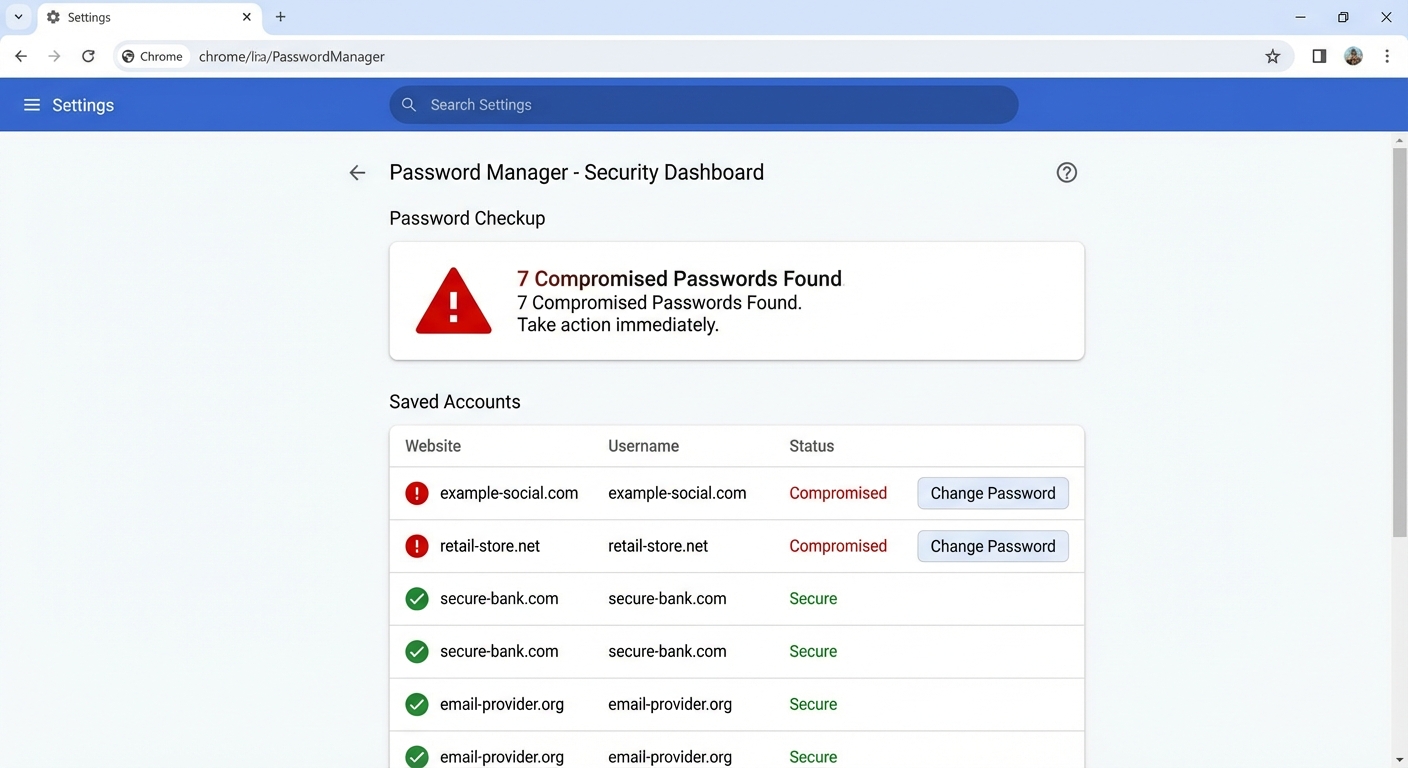
In Chrome, navigate to Settings, then Passwords, then Check passwords. Chrome will compare your saved credentials against Google’s breach database and flag any passwords that appear in known breaches, have been reused across sites, or are considered weak. Safari users can find similar functionality under Settings, then Passwords, then Security Recommendations. Firefox offers this through Firefox Monitor, which integrates with Have I Been Pwned directly.
These browser tools are valuable for ongoing monitoring because they check automatically whenever breach databases are updated. However, they only cover passwords you’ve saved in that browser. If you use a dedicated password manager, check whether it offers similar breach monitoring features.
Step 4: Set Up Breach Notifications
Reactive checking is important, but proactive monitoring catches breaches faster. Have I Been Pwned offers a free notification service: enter your email address at haveibeenpwned.com/NotifyMe, and you’ll receive an email whenever your address appears in a newly disclosed breach.
This notification service is particularly valuable because breaches often aren’t disclosed immediately. A company might discover a breach in January but not disclose it until March. Meanwhile, your credentials could be circulating in hacker forums. Email notifications let you act quickly when new breach data becomes available, rather than discovering the exposure months later.
Consider subscribing with all email addresses you actively use. The notification emails include specific information about what data was exposed, helping you assess the severity and determine your response. A breach that only exposed email addresses requires different action than one that exposed plaintext passwords.
What to Do If Your Passwords Are Compromised
Finding your passwords in breach databases requires action, but the urgency depends on several factors. Passwords exposed in recent breaches require immediate attention, especially if you still use them. Older breaches where you’ve already changed passwords are less urgent but still worth reviewing.
For any compromised password still in use, change it immediately. Prioritize financial accounts, email accounts (which control password resets for everything else), and any account with payment information. Use a unique, strong password for each service. This is where password managers become essential: they generate and store unique passwords so you don’t have to remember hundreds of random character strings.
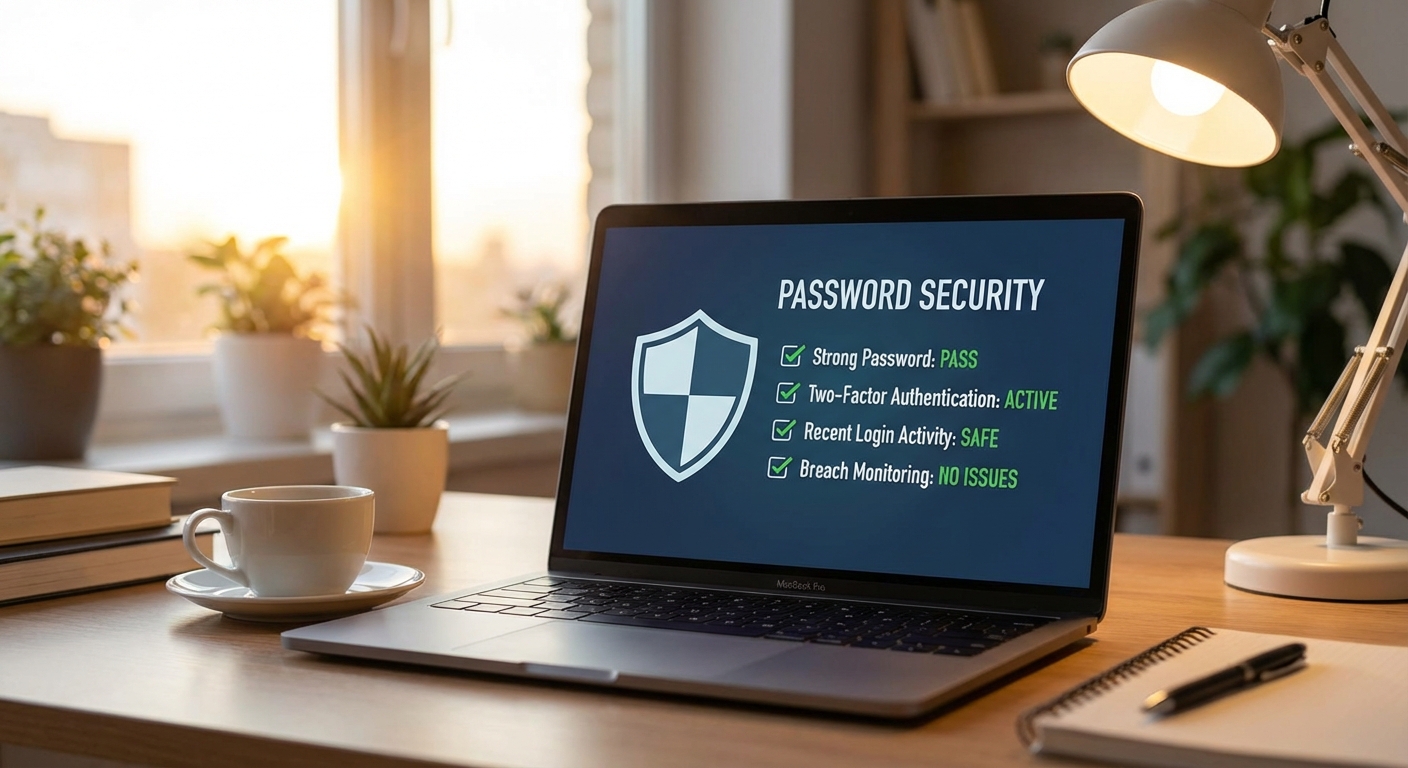
Enable two-factor authentication on every account that offers it, prioritizing email, financial services, and social media. Two-factor authentication means that even if someone has your password, they can’t access your account without also having your phone or security key. This single step neutralizes most of the risk from password breaches.
Summary
Checking for compromised passwords takes minutes and should be part of regular digital hygiene. Use Have I Been Pwned to check email addresses and specific passwords, enable your browser’s built-in password monitoring, and sign up for breach notifications to catch future exposures quickly. When you find compromised passwords, change them immediately and enable two-factor authentication wherever possible.
The goal isn’t achieving perfect security. It’s making your accounts hard enough to compromise that attackers move on to easier targets. Unique passwords plus two-factor authentication accomplish this for the vast majority of people.
Sources: Have I Been Pwned, Google Password Checkup, Mozilla Security Blog, NIST Digital Identity Guidelines