Transferring data to a new phone has become remarkably streamlined. In most cases, you can move your apps, photos, contacts, messages, and settings in under an hour with minimal manual work. The exact process depends on what phones you’re moving between, so here’s how to handle each scenario.
Before you start: Make sure both phones are charged (at least 50%), connected to Wi-Fi, and that you know your account passwords (Apple ID, Google account). Having your old phone nearby is essential for the fastest transfer methods.
iPhone to iPhone
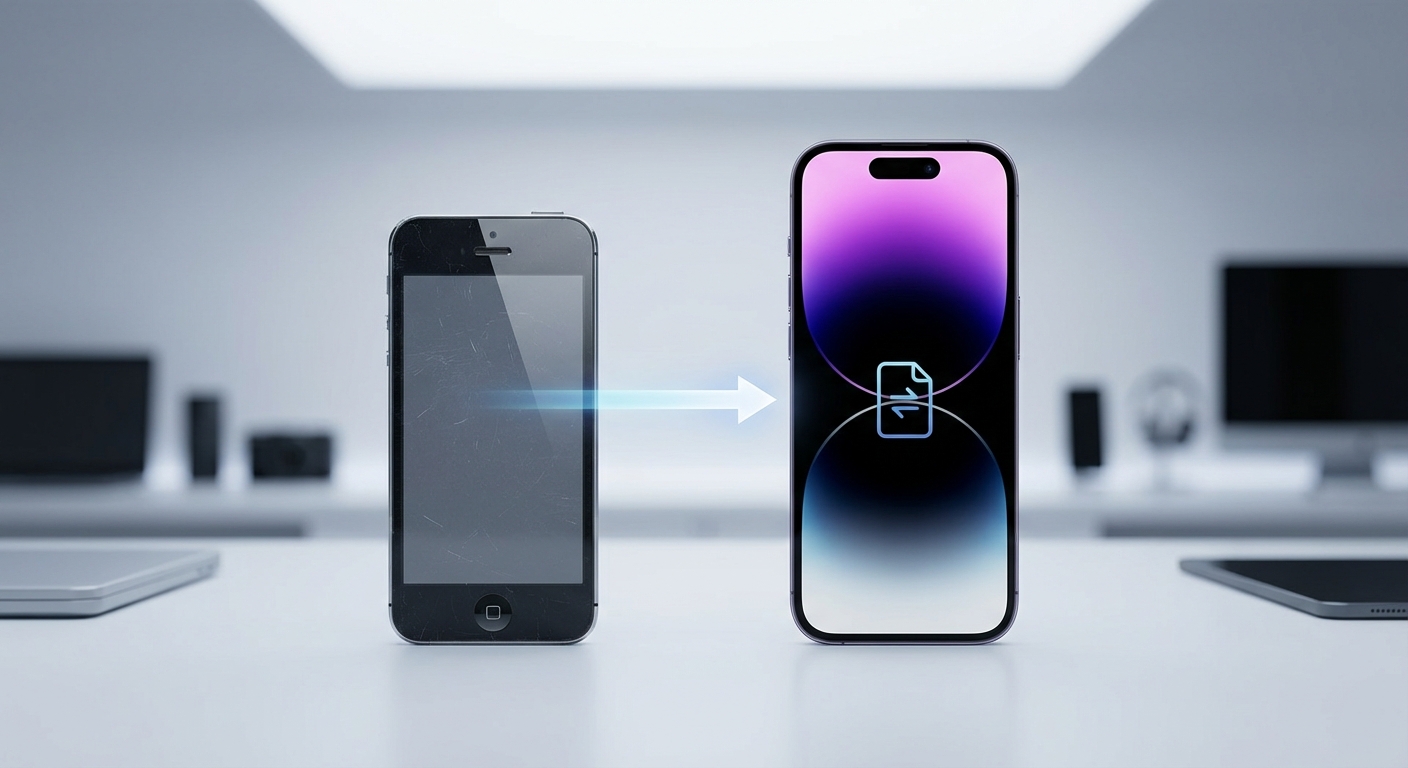
Apple’s built-in transfer system is the smoothest option. When you set up a new iPhone near your old one, a Quick Start prompt appears automatically.
Using Quick Start (recommended):
- Turn on your new iPhone and place it next to your old iPhone
- A prompt appears on your old iPhone asking if you want to set up your new device
- Tap Continue and hold your old iPhone over the animation on the new phone
- Enter your old phone’s passcode on the new phone when prompted
- Set up Face ID or Touch ID on the new phone
- Choose “Transfer from iPhone” to move data directly
- Keep both phones near each other until the transfer completes
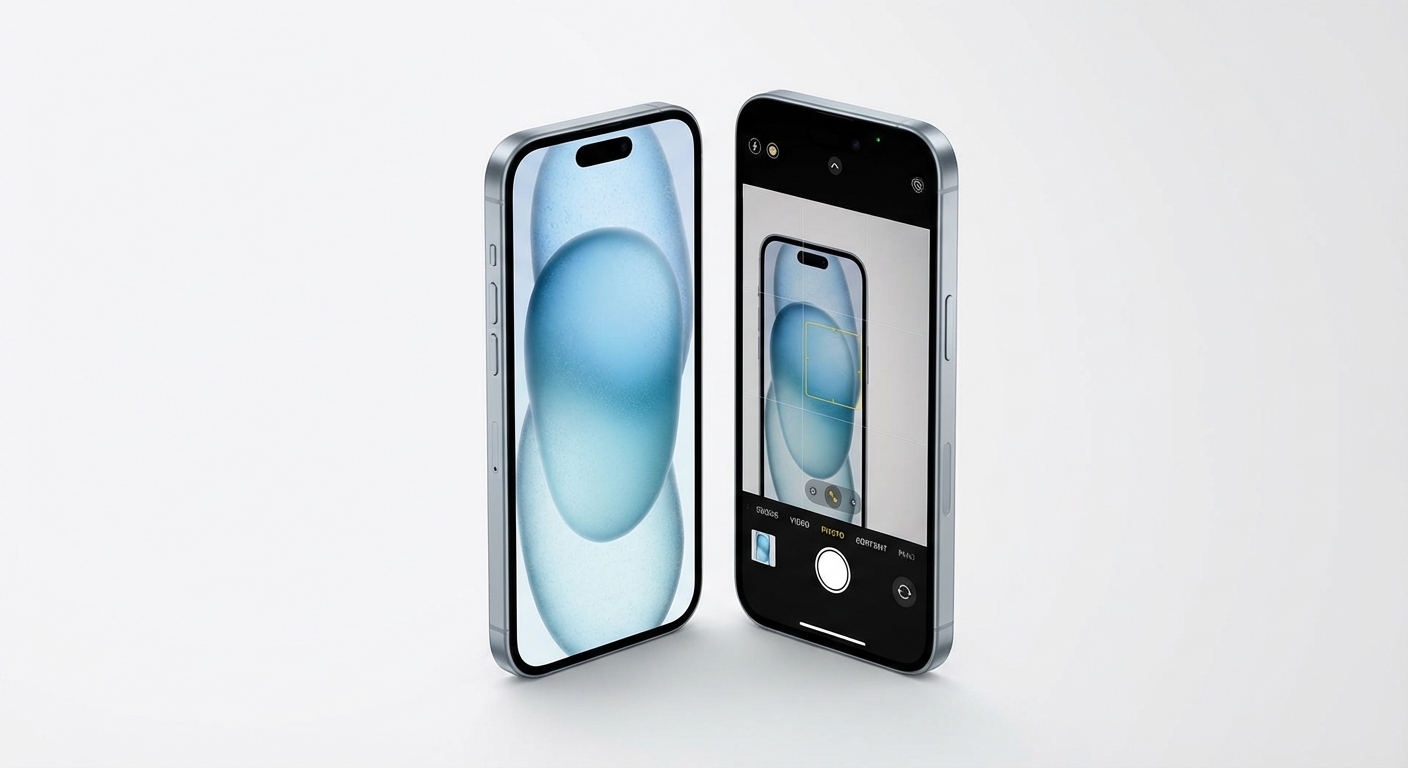
The transfer time depends on how much data you have. A phone with 50GB of data might take 20-30 minutes; one with 200GB could take over an hour. Keep both phones plugged in if possible.
Alternative: Restore from iCloud backup:
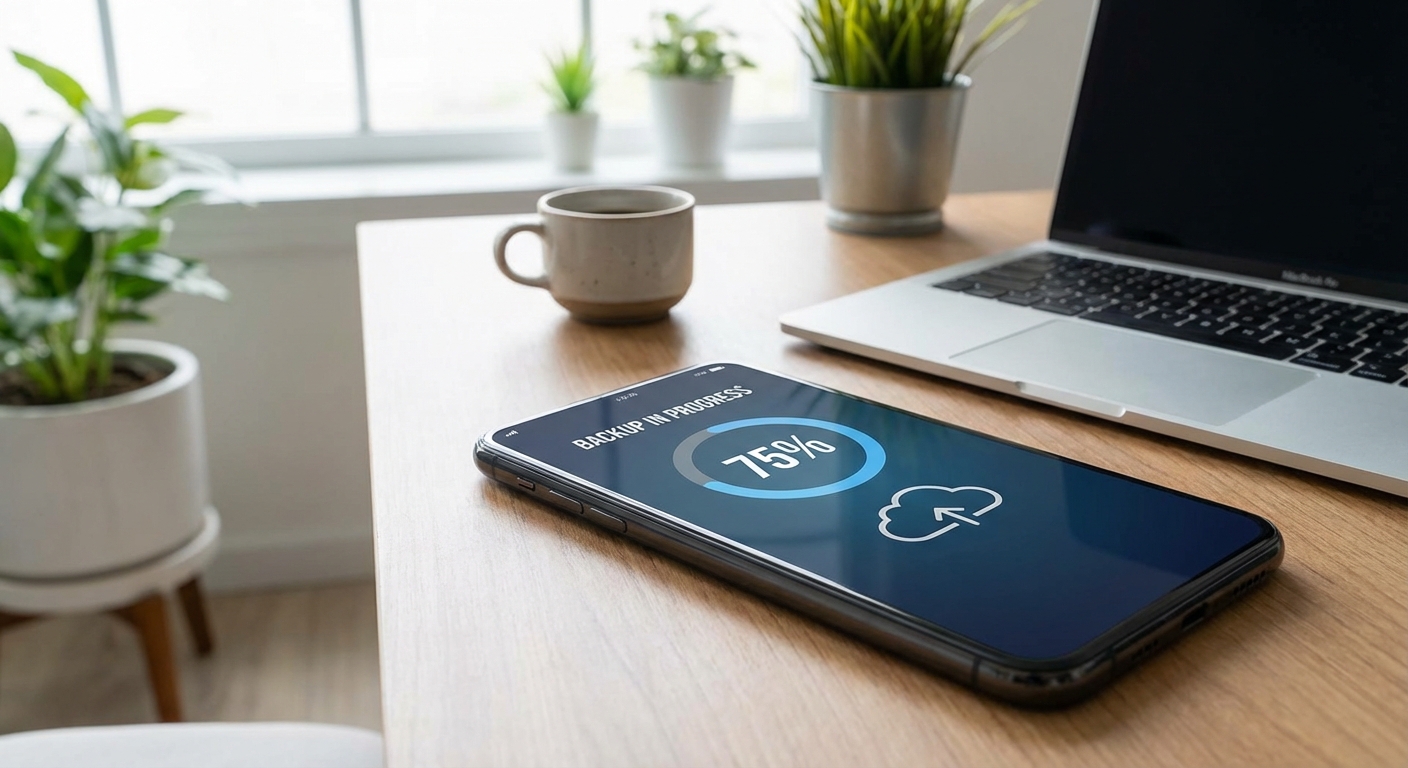
If you don’t have your old phone available, you can restore from an iCloud backup. Before setting up the new phone, make sure your old phone has a recent backup (Settings > Your Name > iCloud > iCloud Backup). During new phone setup, choose “Restore from iCloud Backup” and select your most recent backup.
Android to Android
Google’s transfer process works similarly to Apple’s, using either a direct cable connection or a wireless transfer.
Using the built-in setup wizard:
- Turn on your new Android phone and begin setup
- When prompted to copy data, select “Copy apps and data”
- Choose to copy from your old phone
- Connect both phones via cable (USB-C to USB-C, or with an adapter) or tap “No cable” for wireless
- Follow prompts to select what to transfer
- Wait for the transfer to complete
The cable method is faster and more reliable, especially for large amounts of data. If you’re using wireless transfer, keep both phones close together and connected to the same Wi-Fi network.
What transfers: Apps, contacts, photos, videos, messages, call history, device settings, and Google account data all transfer automatically. App data (like game saves or app-specific settings) transfers for most but not all apps.
iPhone to Android
Switching from iPhone to Android requires a bit more planning since you’re moving between ecosystems, but it’s still manageable.
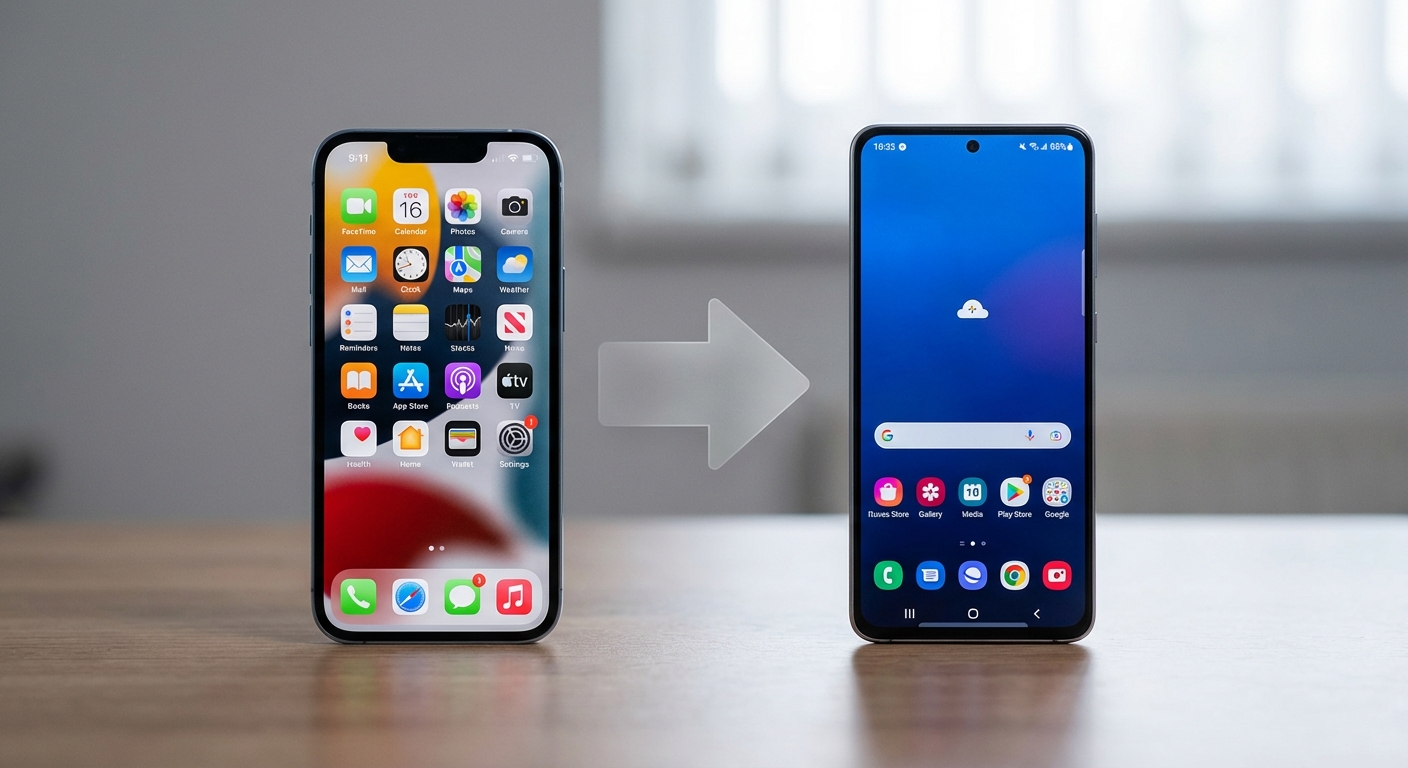
Using Google’s Switch to Android app:
- Download the “Switch to Android” app from the App Store on your iPhone
- Open the app and follow the setup prompts
- On your new Android, start the setup process and choose to copy data from iPhone
- Scan the QR code shown on your Android with your iPhone
- Select the data you want to transfer
- Wait for the transfer to complete
What transfers: Contacts, calendar events, photos, videos, and some messages. iMessage history won’t transfer to Android, and apps must be downloaded fresh from the Google Play Store (your iOS purchases don’t carry over).
Important: Before switching, turn off iMessage on your old iPhone (Settings > Messages > iMessage > Off). If you don’t, text messages from iPhone users may continue routing to your old device instead of your new Android.
Android to iPhone
Apple makes this relatively straightforward with their Move to iOS app.
Using Move to iOS:
- Begin setting up your new iPhone until you reach the “Apps & Data” screen
- Select “Move Data from Android”
- On your Android phone, download the “Move to iOS” app from Google Play
- Open the app and agree to the terms
- On your iPhone, tap “Continue” and wait for a code to appear
- Enter that code on your Android phone
- Select the data you want to transfer
- Wait for the transfer bar on your iPhone to complete
What transfers: Contacts, message history, photos, videos, calendar events, and some free apps (paid apps need to be repurchased in the App Store).
Tip: Complete the Move to iOS process before fully setting up your iPhone. It only works during the initial setup. If you’ve already set up your iPhone, you’ll need to factory reset it to use Move to iOS.
What Doesn’t Transfer Automatically
Some things require manual attention regardless of which phones you’re switching between:
Two-factor authentication apps: Apps like Google Authenticator and Microsoft Authenticator often require you to manually export and import your accounts, or re-add each account from scratch. Check your authenticator app for export options before wiping your old phone. Our article on what is two-factor authentication explains why these codes matter.
App-specific data: While many apps sync to the cloud, some store data locally only. Games, note-taking apps, and fitness apps may require you to check their backup and restore options individually.
Payment methods: Apple Pay, Google Pay, and similar services need to be set up fresh on your new device with your cards re-added.
WhatsApp chat history: If you use WhatsApp, transferring chat history between iPhone and Android requires using WhatsApp’s official migration tool during setup.
Key Takeaways
Most phone data transfers are now guided processes that take an hour or less. For the smoothest experience, keep your old phone nearby during setup, make sure both devices are charged and on Wi-Fi, and use the official transfer tools provided by Apple or Google. Before you wipe your old phone, verify that your authenticator apps and any locally-stored app data have been properly exported.