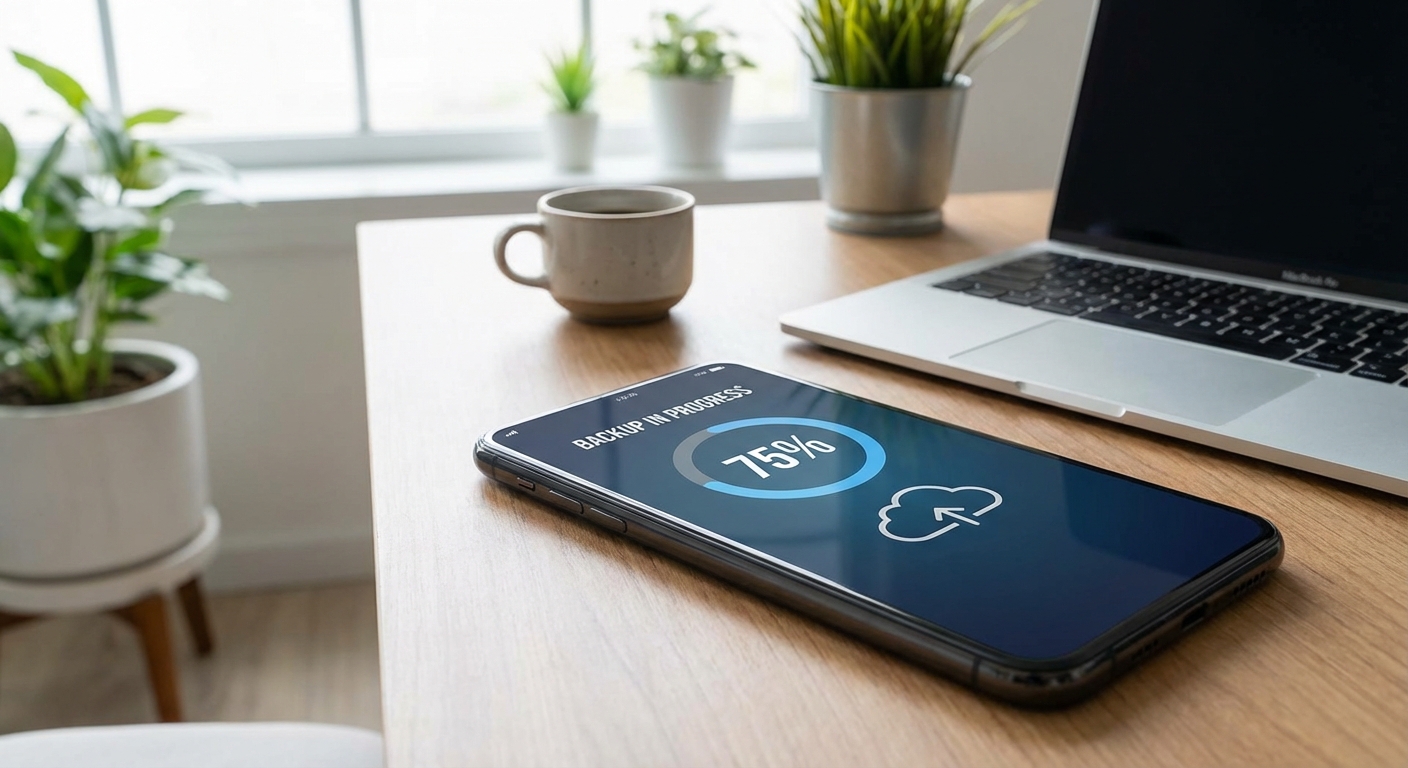
Backing up your phone protects everything from years of photos to your app data and settings. If your phone is lost, stolen, or breaks, a recent backup means you can restore everything to a new device in hours rather than losing it forever. Both iPhone and Android make this straightforward, and the whole process typically takes just a few minutes to set up.
For iPhone users, iCloud backup happens automatically when your phone is charging, locked, and connected to WiFi. Android users can use Google’s backup service for a similar automatic experience. You can also create local backups to your computer for extra security or if you don’t want to rely on cloud storage.
Backing Up Your iPhone to iCloud
Apple’s iCloud backup is the simplest option for most iPhone users. It runs automatically in the background once enabled, and you can restore from it when setting up a new iPhone or after a factory reset.
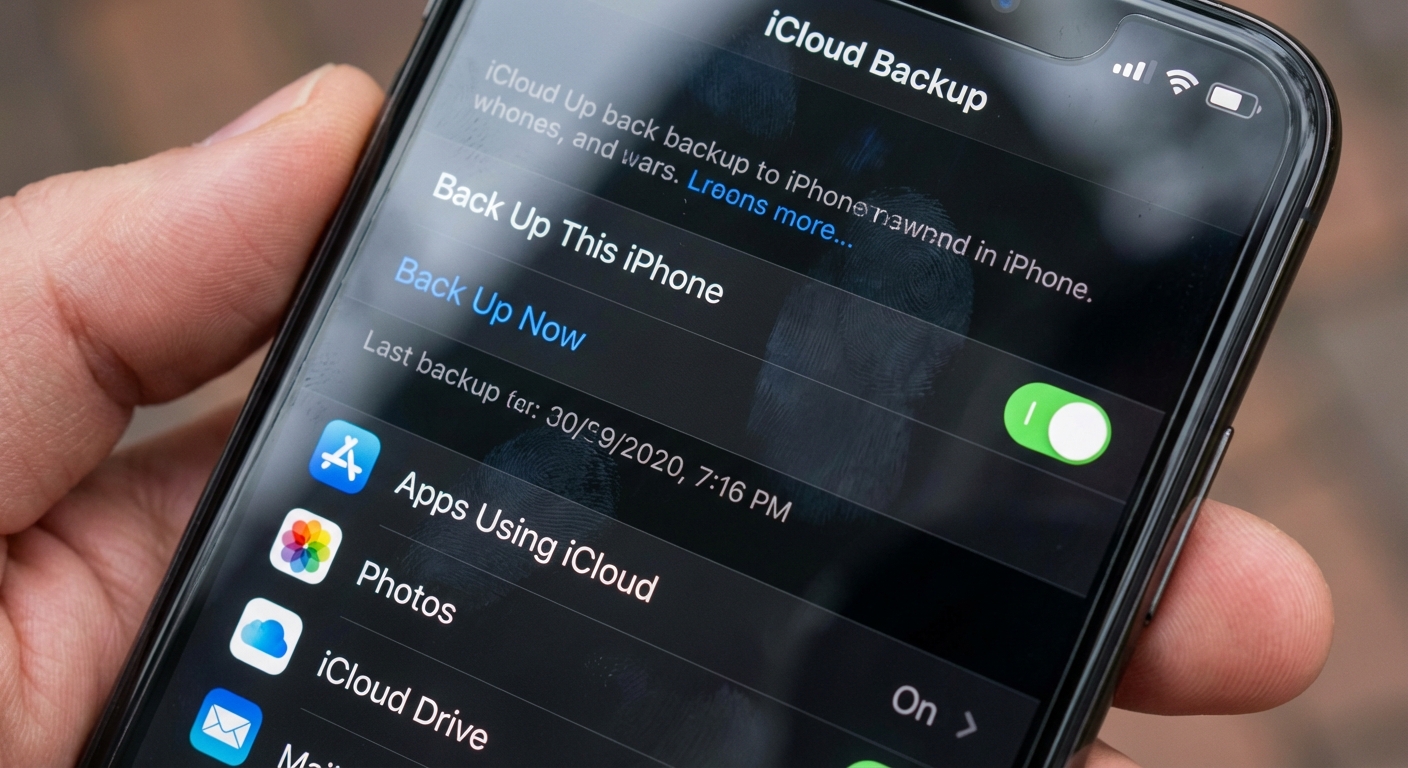
To enable iCloud backup, open Settings, tap your name at the top, select iCloud, then tap iCloud Backup. Toggle on “Back Up This iPhone.” Your phone will now back up automatically whenever it’s charging, locked, and connected to WiFi. You can also tap “Back Up Now” to start an immediate backup.
Free iCloud accounts include 5 GB of storage, which fills quickly if you have many photos. Apple offers 50 GB for $0.99 per month, 200 GB for $2.99, or 2 TB for $10.99. If you’re running out of space, you can choose which apps include their data in backups by going to Settings, then your name, then iCloud, then Manage Account Storage, and finally Backups.
iCloud backups include your device settings, app data, Home screen layout, iMessage and SMS texts, photos (if not using iCloud Photos separately), purchase history, ringtones, and Apple Watch backups. They don’t include data already synced to iCloud like contacts, calendars, and notes, or content synced through iTunes or the Finder like music and movies you didn’t purchase from Apple.
Backing Up Your iPhone to Your Computer
For a backup that doesn’t count against your iCloud storage and stays entirely on your own hardware, you can back up to a Mac or Windows PC. This method also lets you create encrypted backups that include saved passwords and health data.
On a Mac running macOS Catalina or later, connect your iPhone with a cable and open Finder. Your iPhone appears in the sidebar under Locations. Click it, then click “Back up all of the data on your iPhone to this Mac.” Check “Encrypt local backup” to include passwords and health data, and you’ll be prompted to create a password. Click “Back Up Now” to start.
On Windows or older Macs, use iTunes instead of Finder. Connect your phone, open iTunes, click the iPhone icon near the top left, and select “This Computer” under Backups. Again, enable “Encrypt local backup” for a complete backup including sensitive data.
Local backups can be large, sometimes 20 GB or more depending on your data. Make sure your computer has enough free space before starting. These backups are also useful if you want to restore to the exact same state, including all apps and their data, without waiting for everything to re-download.
Backing Up Your Android Phone
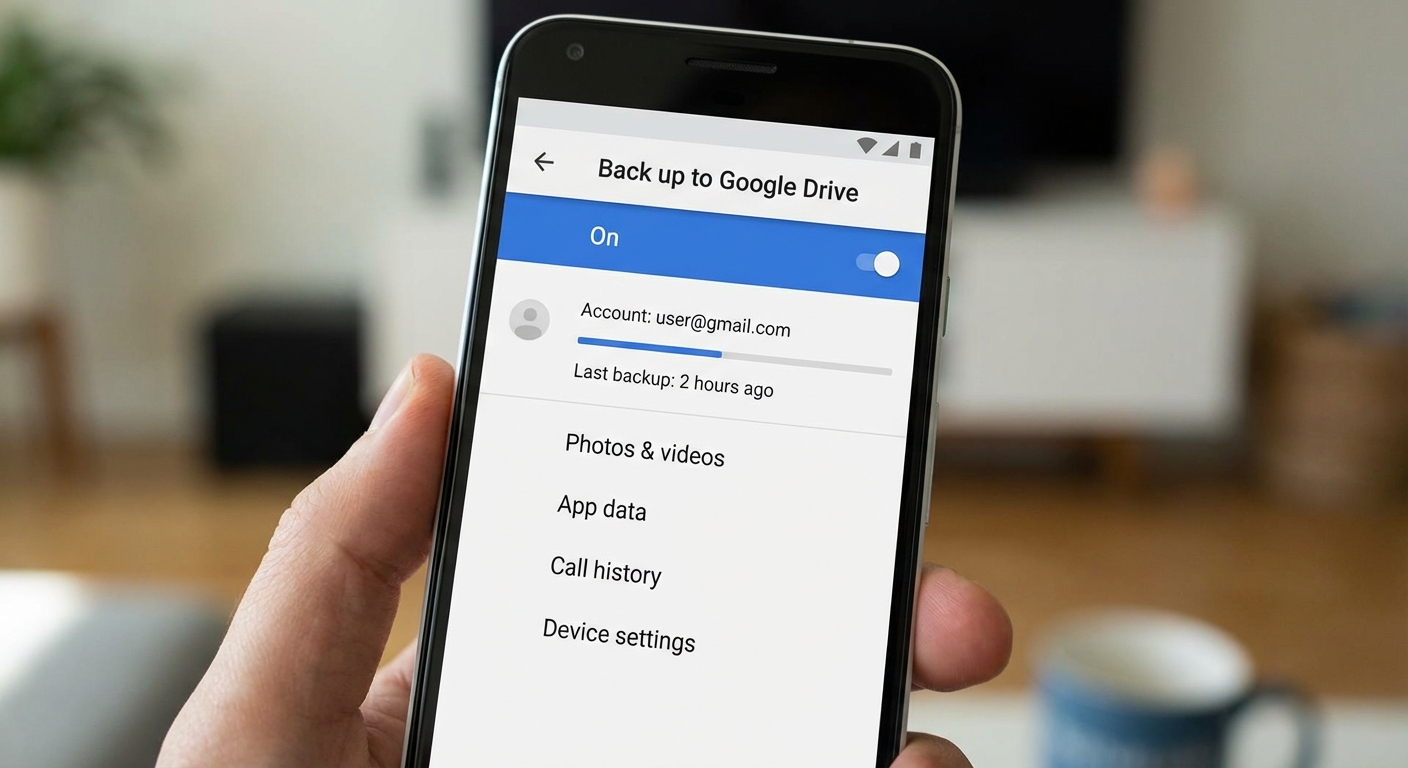
Google backs up most Android data automatically when you’re signed into your Google account. This includes app data, call history, contacts, device settings, SMS messages, and photos and videos if you use Google Photos.
To verify your backup is enabled, open Settings, then Google, then Backup. Make sure “Back up to Google Drive” is turned on. You can also tap “Back up now” to trigger an immediate backup. Your backup uses your Google Drive storage, which includes 15 GB free shared across Gmail, Drive, and Photos.
Google Photos offers a separate backup specifically for photos and videos. Open the Google Photos app, tap your profile picture, select Photos settings, then Backup. You can choose to back up in original quality (counts against storage) or Storage saver quality (slight compression, used to be free unlimited but now counts toward your 15 GB).
Different Android manufacturers sometimes include their own backup solutions. Samsung has Samsung Cloud, which backs up additional Samsung-specific features. Pixel phones integrate deeply with Google’s services. Check your specific phone’s settings for any manufacturer-specific backup options that might preserve additional data.
What Actually Gets Backed Up (And What Doesn’t)
Understanding what’s included in your backup helps avoid unpleasant surprises when you need to restore. Both iCloud and Google backups are selective about what they include.
On iPhone, iCloud backups include most app data, but some apps store their data differently. WhatsApp, for example, requires you to enable chat backup separately within the WhatsApp app itself. It backs up to iCloud but uses its own backup system. If you don’t enable it, you’ll lose your chat history.
Photos are a common point of confusion. If you use iCloud Photos with “Optimize iPhone Storage,” your full-resolution photos are already in iCloud and aren’t duplicated in your device backup. If iCloud Photos is off, your Camera Roll is included in the backup. Check your settings to understand where your photos actually live.
On Android, app data backup depends on whether each app’s developer has enabled Google’s backup API. Most popular apps support it, but some don’t, and you might lose data from those apps when switching phones. Games are particularly inconsistent, with some supporting cloud saves and others requiring you to start over.
Music, movies, and other downloaded media typically aren’t included in either platform’s backup because they assume you can re-download purchased content. If you have files that aren’t from official stores, make sure to back them up separately to a computer or cloud storage service.
How Often Should You Back Up?
With automatic backups enabled, your phone backs up daily whenever conditions are right, usually overnight while charging. This frequency is sufficient for most people since you’d lose at most a day’s worth of data in a worst-case scenario.
Before major events, it’s worth triggering a manual backup. If you’re traveling internationally, attending an important event with lots of photos, or about to do anything that might result in phone loss or damage, tap “Back up now” before you go. This takes just a few minutes and ensures your most recent data is protected.
Before updating your phone’s operating system or installing a major software update, always verify you have a recent backup. While iOS and Android updates rarely cause data loss, it does happen occasionally. A backup lets you restore if something goes wrong during the update process.
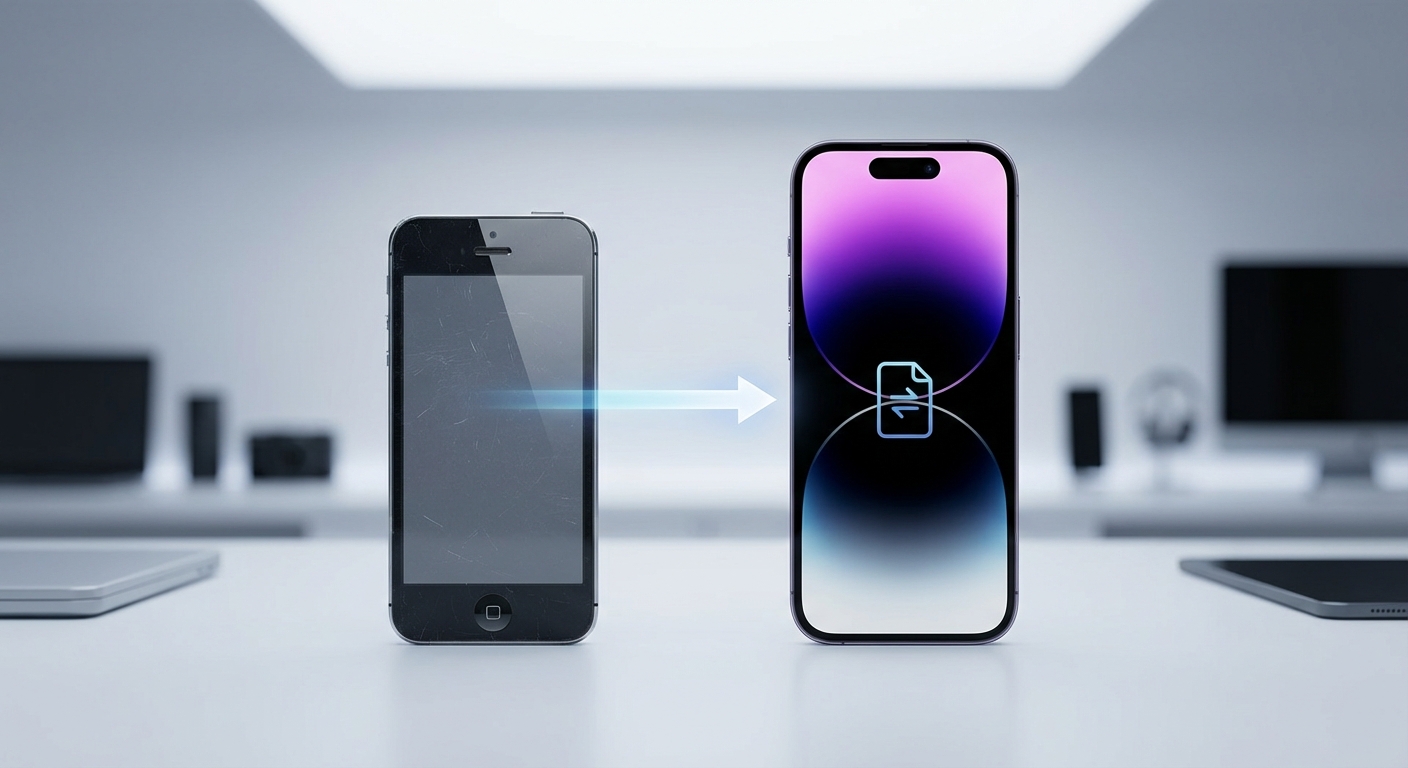
If you’re switching to a new phone, create a fresh backup right before transferring. Both platforms offer setup options to restore from your latest backup, making the transition nearly seamless. Apps re-download, settings restore, and you can be up and running on a new phone within an hour or two.
Summary
Backing up your phone is one of the simplest ways to protect your data from loss. On iPhone, enable iCloud Backup in Settings for automatic daily backups, or connect to your computer for a local backup with more control. On Android, make sure Google Backup is enabled and consider Google Photos for separate photo backup.
Both cloud backup options work automatically once enabled, requiring no ongoing effort from you. The main decision is whether free storage is enough or if you need to pay for additional space. For most users, a combination of cloud backup for convenience and occasional local backups for peace of mind provides excellent protection.
Check your backup settings today if you haven’t recently. The few minutes it takes to verify everything is configured correctly could save you from losing irreplaceable photos and years of accumulated data. If your phone storage is running low and affecting performance, you might also want to learn how to factory reset your iPhone as part of a fresh start.