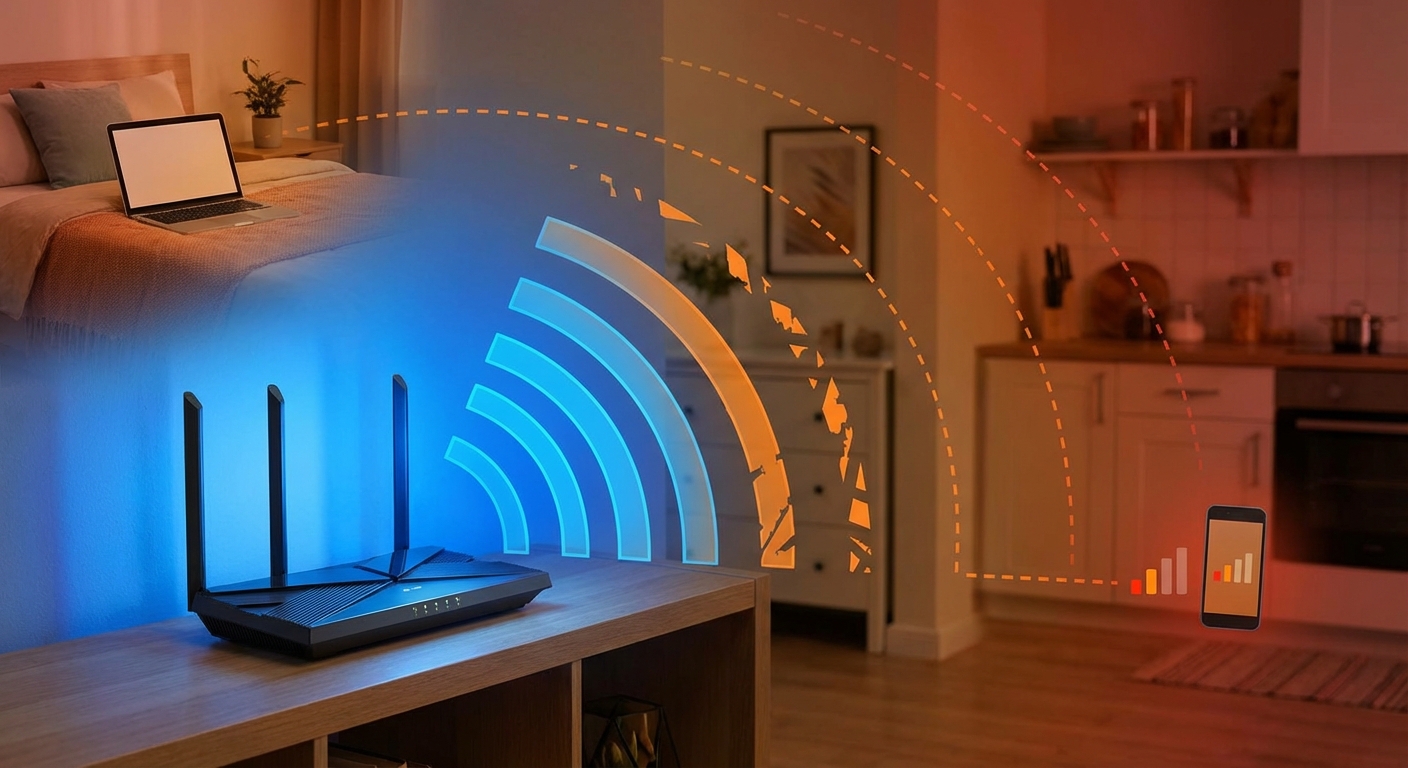
Your WiFi is probably slow for one of three reasons: you’re too far from the router, something is causing interference, or too many devices are competing for bandwidth. The fix depends on which problem you have, and sometimes it’s all three working together to ruin your connection.
The quick fix that works 80% of the time: Restart your router by unplugging it for 30 seconds, then plugging it back in. This clears the router’s memory and often resolves temporary slowdowns. If that doesn’t work, you have a deeper issue that requires actual troubleshooting.
Before you spend money on a new router or call your internet provider, let’s figure out what’s actually causing your problem. Most WiFi issues have simple solutions that take less than five minutes to implement.
Distance and Obstacles Are the Most Common Culprits
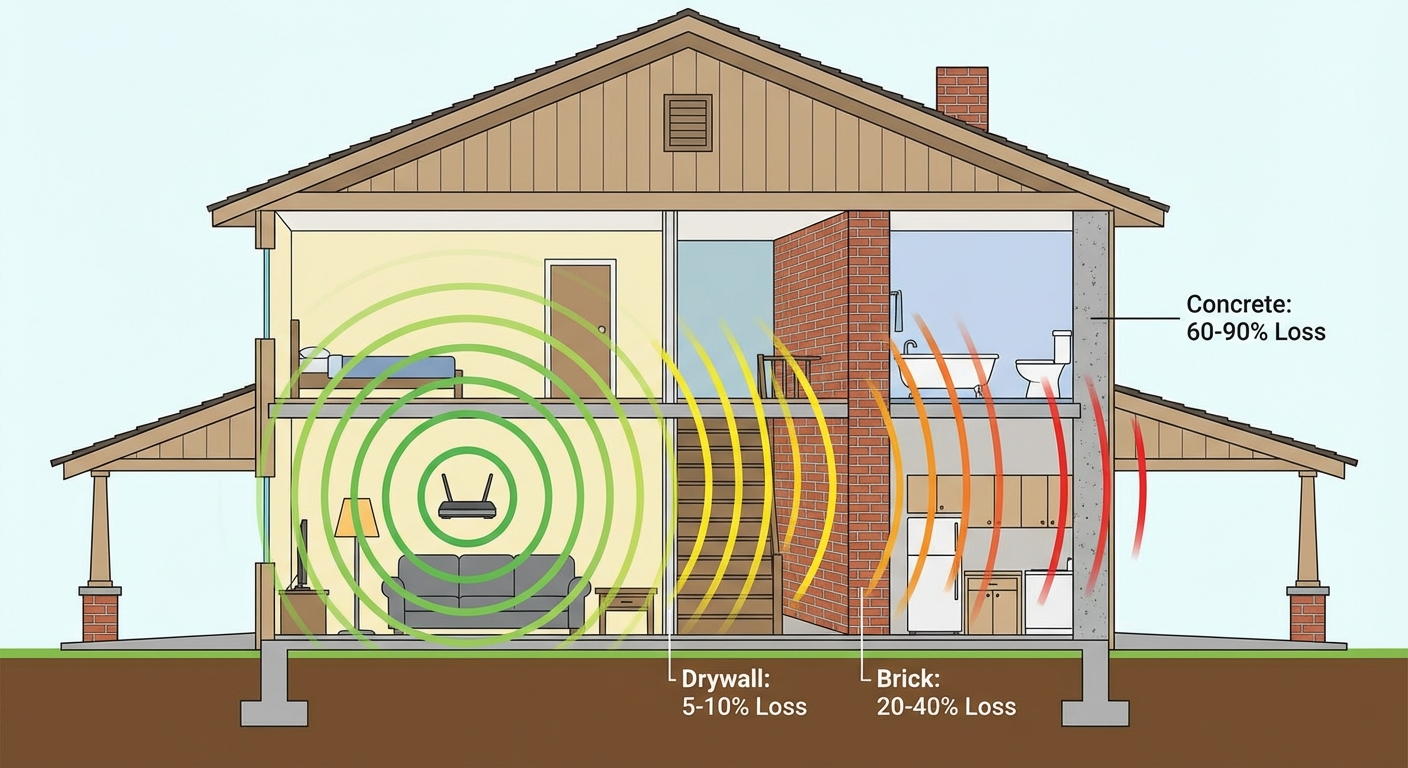
WiFi signals weaken dramatically as they travel through walls, floors, and furniture. A signal that’s strong in your living room might be barely usable in your bedroom if there are two walls and a bathroom between you and the router. Concrete walls, metal appliances, and even aquariums can block or absorb WiFi signals almost completely.
The solution is straightforward: move closer to the router when you need the fastest connection, or move the router to a more central location in your home. If that’s not practical, a mesh WiFi system or a WiFi extender can relay the signal to dead zones. Mesh systems like Google Nest WiFi or Amazon Eero create multiple access points that work together seamlessly, while extenders are cheaper but can create a separate network you have to switch between manually.
Interference From Other Devices
Your WiFi router broadcasts on radio frequencies that other devices also use. Microwaves, cordless phones, baby monitors, Bluetooth speakers, and even your neighbor’s WiFi network can all interfere with your signal. The 2.4 GHz band is particularly crowded because it’s been around longer and has better range, so more devices default to using it.
Switching to the 5 GHz band often solves interference problems immediately. The 5 GHz band has more available channels and is used by fewer household devices. The tradeoff is that 5 GHz doesn’t travel through walls as well as 2.4 GHz, so it works best when you’re relatively close to the router. Most modern routers broadcast both frequencies simultaneously, and you can usually see them as separate networks (like “HomeWiFi” and “HomeWiFi-5G”) in your device’s WiFi settings.
If your router is old and only supports 2.4 GHz, consider upgrading to a dual-band router. They’re affordable now, with good options available for under $60, and the speed difference is substantial.
Too Many Devices Sharing the Connection
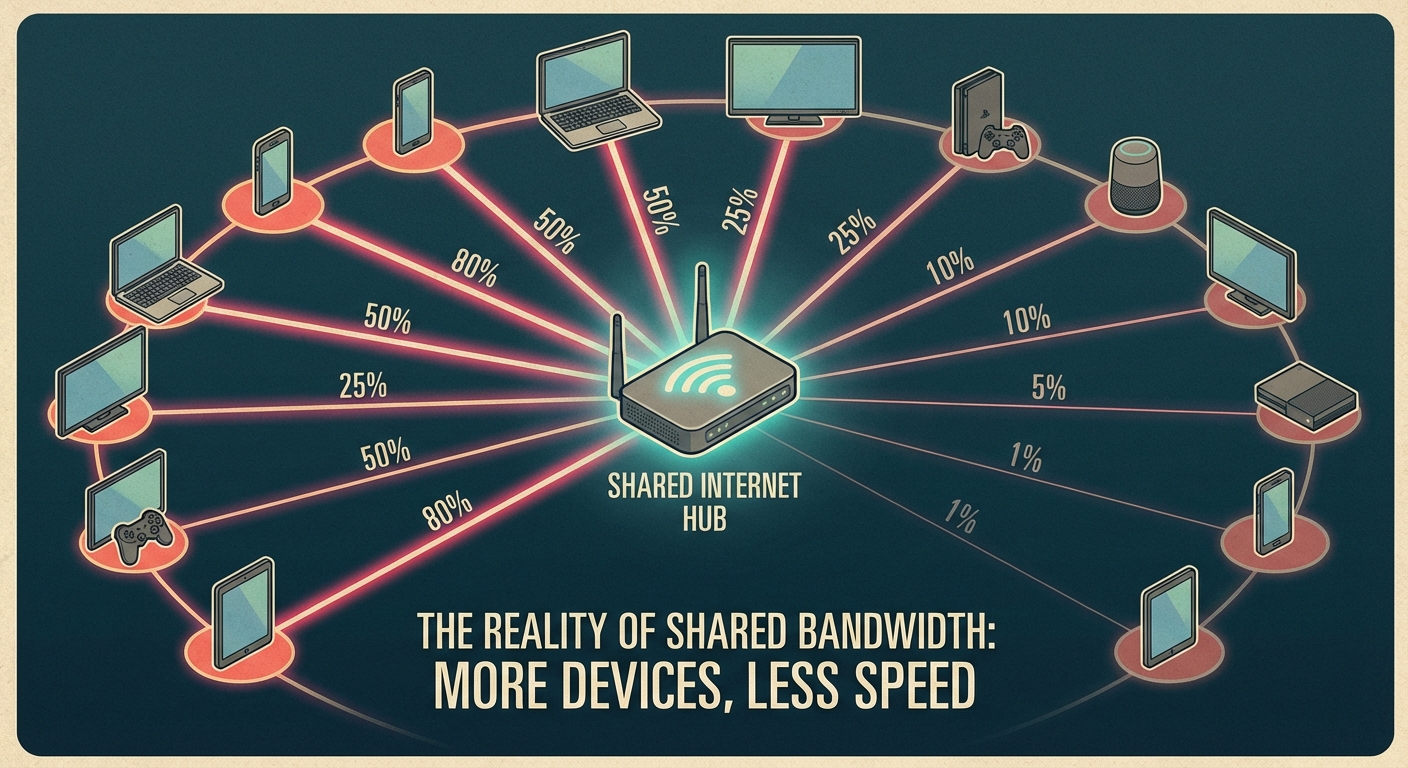
Every device connected to your WiFi is sharing the same internet bandwidth. If you have 20 devices connected and your internet plan provides 100 Mbps, each device gets an average of 5 Mbps when everything is active. Smart home devices, phones, tablets, computers, gaming consoles, and streaming sticks all add up quickly, and many of them use bandwidth in the background even when you’re not actively using them.
Check how many devices are connected through your router’s admin page (usually accessible at 192.168.1.1 or 192.168.0.1 in your browser). You might be surprised to find devices you forgot about, or devices that shouldn’t be there at all. Disconnect anything that doesn’t need to be connected, and consider whether your internet plan provides enough bandwidth for your household’s actual usage.
Summary
Slow WiFi usually comes down to distance, interference, or congestion. Start by restarting your router, then check your distance from it and consider whether obstacles might be blocking the signal. Switch to the 5 GHz band if interference is the issue, and audit your connected devices if you suspect bandwidth congestion. If none of these solutions work, the problem might be with your internet service itself rather than your WiFi. Run a speed test while connected directly to your modem with an ethernet cable to check whether you’re getting the speeds you’re paying for.