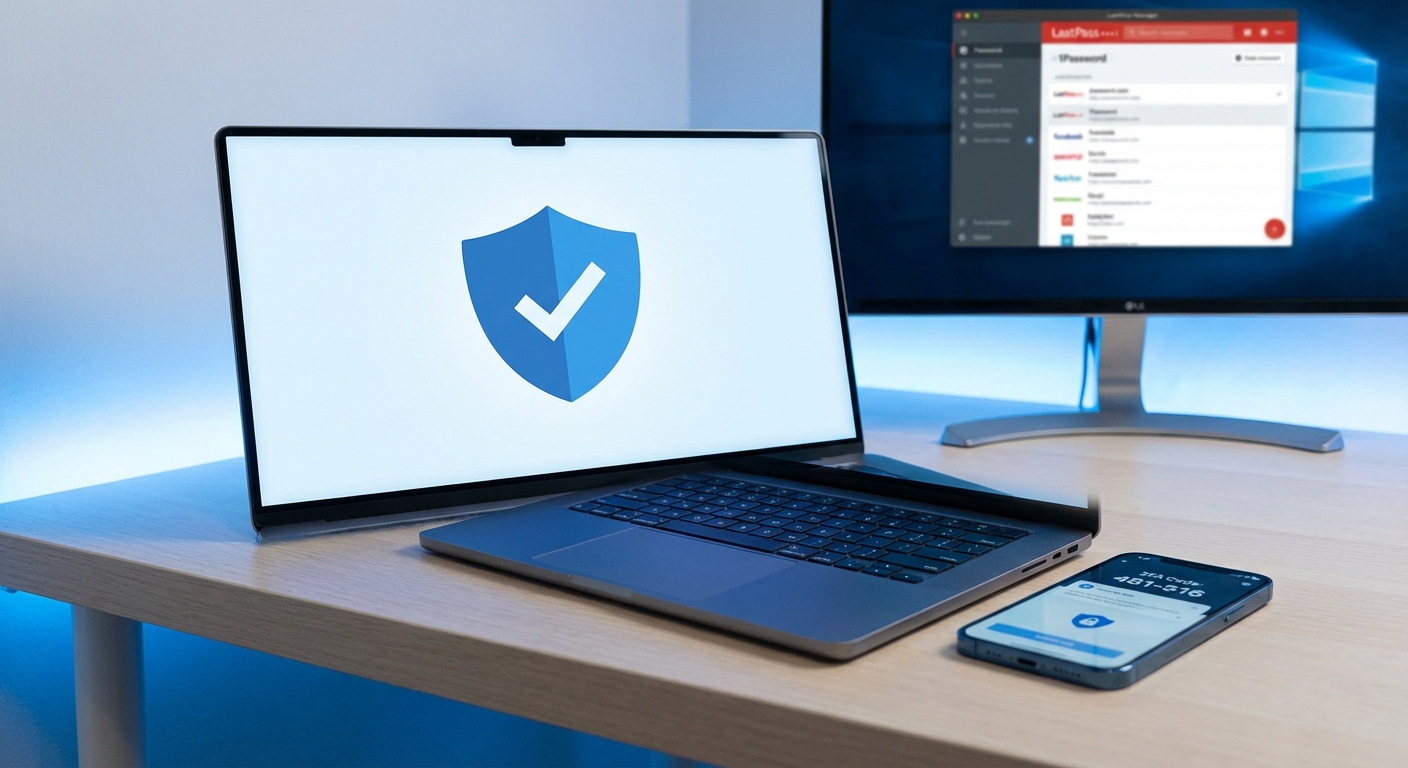
How do you protect your data in 2026? The foundation of personal cybersecurity rests on three pillars: using a password manager to create and store unique passwords for every account, enabling two-factor authentication everywhere it’s available, and configuring privacy settings on your devices and services to minimize data exposure. These three practices, implemented properly, will protect you from the vast majority of threats targeting individuals.
The average person has over 100 online accounts, making unique password management humanly impossible without tools. Meanwhile, data breaches expose billions of credentials annually, and sophisticated phishing attacks have become nearly indistinguishable from legitimate communications. The good news is that effective protection doesn’t require technical expertise. It requires understanding why these tools matter and taking the time to set them up correctly.
Why Password Managers Are Non-Negotiable
Every security expert agrees on one point: using unique, complex passwords for every account is essential, and the only practical way to achieve this is with a password manager. When a company experiences a data breach, attackers immediately try those stolen credentials on other services. If you reuse passwords, a breach at a minor shopping site could give attackers access to your email, bank, and other critical accounts.
A password manager generates random, complex passwords for each account and stores them in an encrypted vault. You remember one strong master password, and the manager handles the rest. Modern password managers auto-fill credentials on websites and apps, making them more convenient than trying to remember passwords yourself. The best options include Bitwarden, 1Password, Dashlane, and the built-in managers in iOS and Android for users who stay within those ecosystems.
Choosing a password manager comes down to your priorities. Bitwarden offers a free tier with full functionality and is open-source, meaning its code is publicly auditable. 1Password and Dashlane provide polished interfaces and family sharing features at premium price points. Apple’s iCloud Keychain and Google Password Manager work seamlessly within their respective ecosystems but offer limited cross-platform functionality. For most people, Bitwarden’s free tier provides everything needed without compromises.
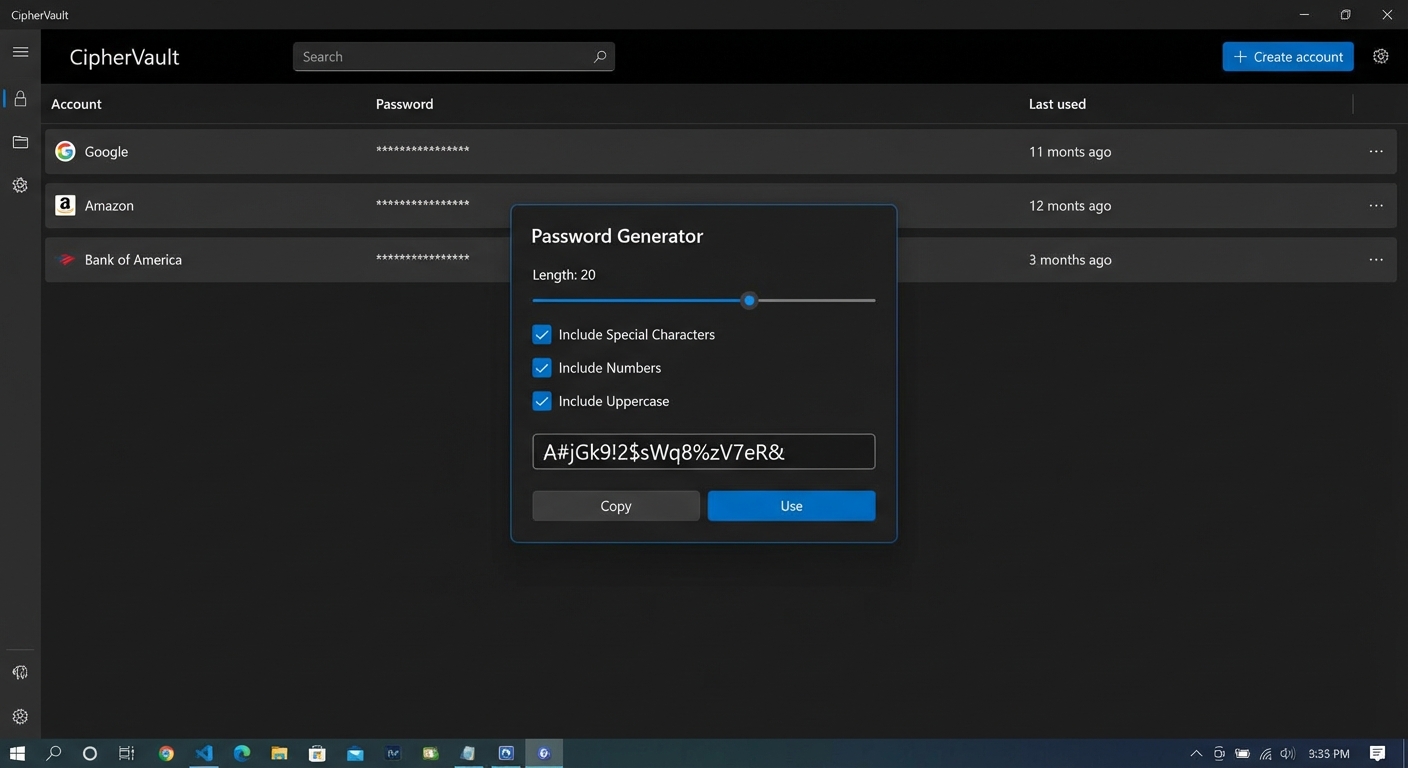
Setting up a password manager properly takes an afternoon but pays dividends for years. Start by installing the browser extension and mobile app for your chosen manager. Create a strong master password of at least 16 characters, ideally a passphrase combining random words with numbers and symbols. Write this master password down and store it in a physical location like a safe or safety deposit box. You cannot recover your vault without it.
Once the manager is set up, begin migrating your existing accounts. Most browsers allow you to export saved passwords, which can be imported into your new manager. Then, systematically visit your most important accounts, including email, banking, and social media, and use the password manager to generate new unique passwords for each. Enable biometric unlock on mobile devices for convenience while maintaining security.
Two-Factor Authentication: Your Second Line of Defense
Two-factor authentication, often abbreviated 2FA, requires something you know (your password) and something you have (typically your phone) to access an account. Even if an attacker obtains your password through a breach or phishing attack, they cannot access your account without the second factor. This single measure stops the overwhelming majority of unauthorized access attempts.
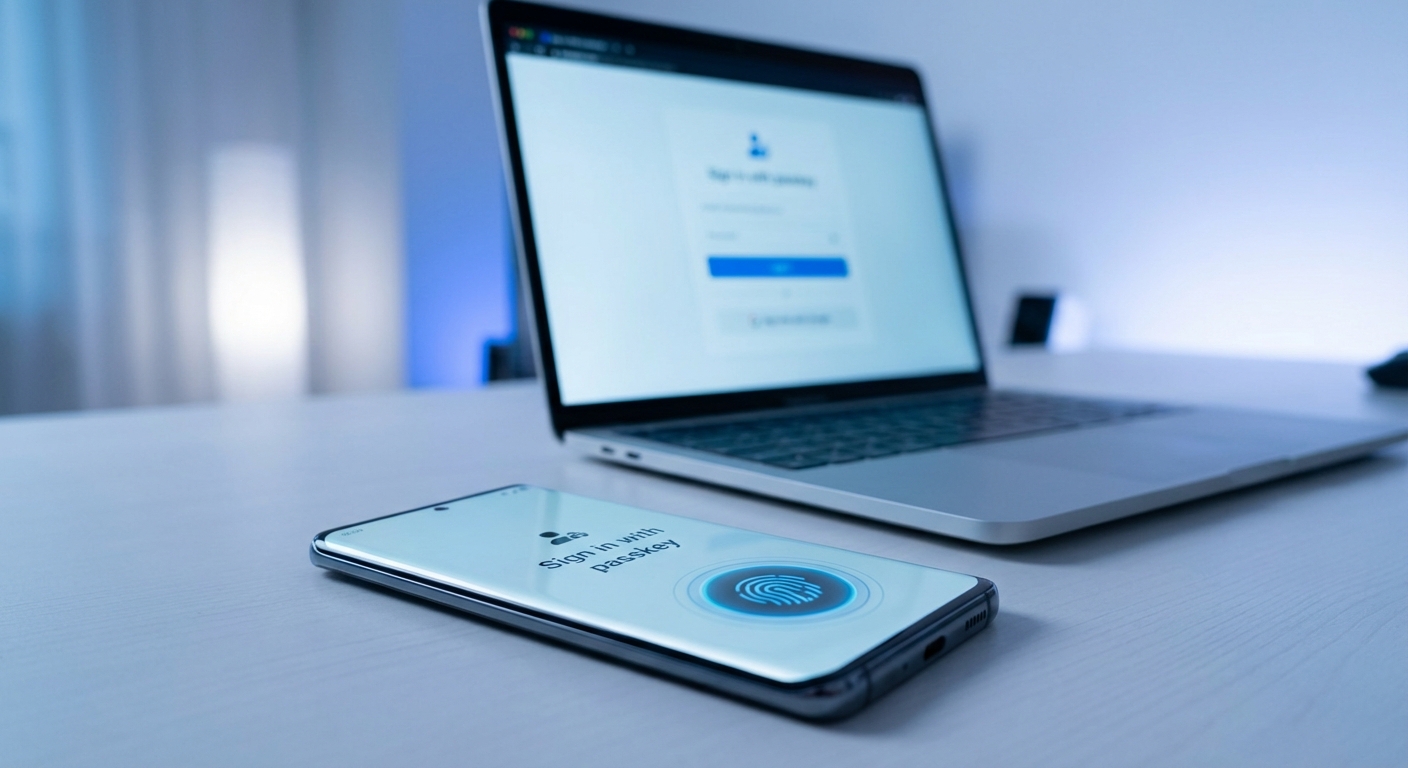
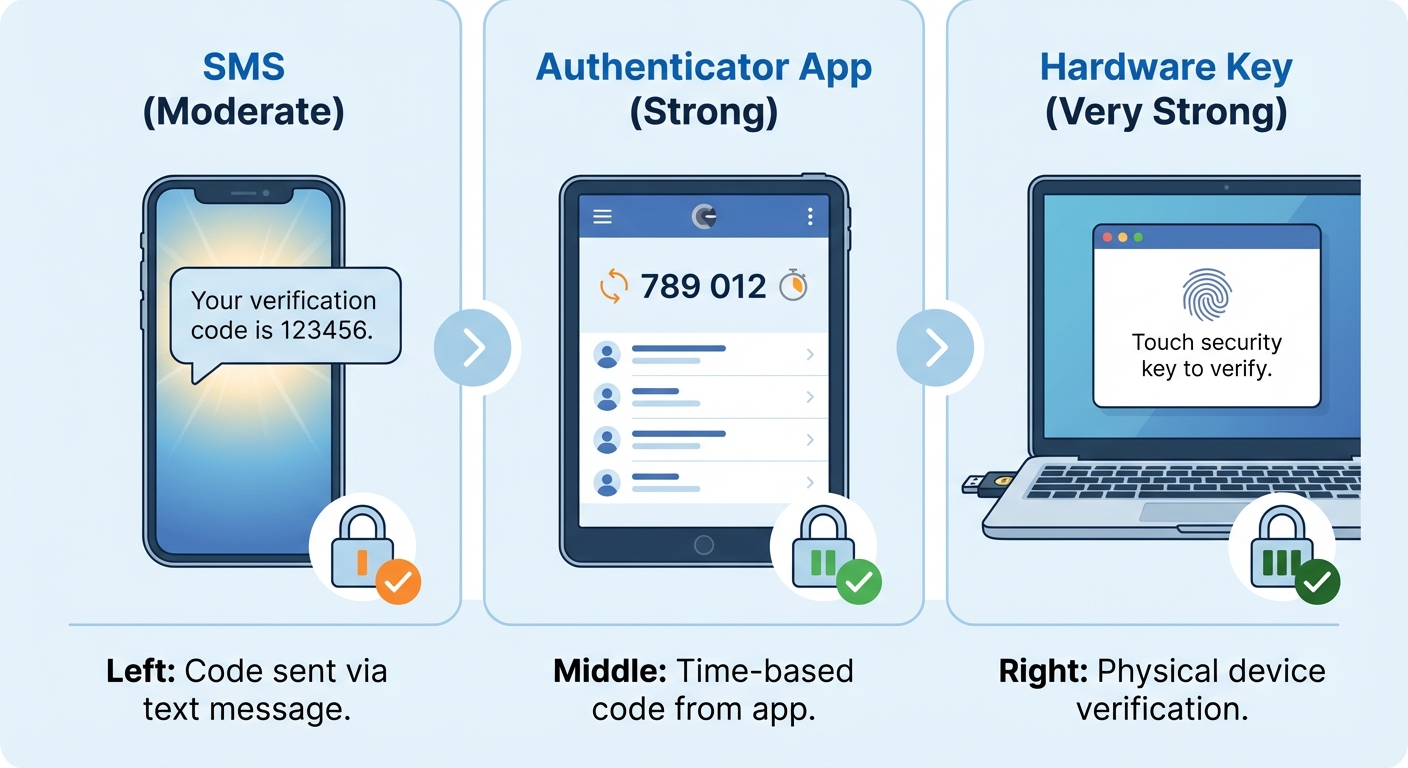
Not all 2FA methods offer equal protection. SMS-based authentication sends a code to your phone via text message. While better than no 2FA, SMS is vulnerable to SIM-swapping attacks where criminals convince your carrier to transfer your number to their device. Authentication apps like Google Authenticator, Microsoft Authenticator, or Authy generate time-based codes on your device that aren’t vulnerable to SIM swapping. Hardware security keys like YubiKey provide the strongest protection by requiring physical possession of a device.
For most accounts, an authenticator app provides excellent security with minimal inconvenience. Install your chosen app, then visit the security settings of each important account. Look for options labeled “two-factor authentication,” “2FA,” “two-step verification,” or “multi-factor authentication.” The setup process typically involves scanning a QR code with your authenticator app, which adds the account and begins generating six-digit codes that refresh every 30 seconds.
Prioritize enabling 2FA on accounts that control access to other accounts. Your primary email address should be your top priority because password reset links for other services go to your email. If an attacker controls your email, they can reset passwords across all your accounts. After email, secure your financial accounts, social media accounts with valuable history, and any accounts used for single sign-on (like “Sign in with Google”). If you’re interested in learning more about authentication methods, our guide to two-factor authentication provides additional depth on how each method works.
Recovery codes are generated when you enable 2FA on most services. These one-time use codes let you access your account if you lose your phone or authenticator app. Print these codes or save them in your password manager. Losing access to both your 2FA device and recovery codes can permanently lock you out of accounts, so treat recovery codes with the same care as passwords.
Privacy Settings That Actually Matter
Privacy settings control how much data companies collect about you and how they use it. While you cannot eliminate data collection entirely while using modern services, you can significantly reduce your exposure with targeted changes. Focus on the settings that have the largest impact rather than trying to optimize everything.
Location services represent one of the largest privacy concerns. Your phone continuously tracks your location, and many apps request access unnecessarily. On both iOS and Android, review which apps have location access and set most to “only while using” or deny access entirely. Weather apps, mapping apps, and ride-sharing services genuinely need location. Social media apps, games, and most other applications do not.
Ad tracking allows companies to build profiles of your behavior across apps and websites. Apple’s App Tracking Transparency and Android’s similar controls let you disable cross-app tracking. On iOS, go to Settings, Privacy and Security, and Tracking, then disable “Allow Apps to Request to Track.” On Android, go to Settings, Privacy, and Ads, then delete your advertising ID and opt out of ad personalization. These changes don’t eliminate ads but reduce how precisely they’re targeted based on your behavior.
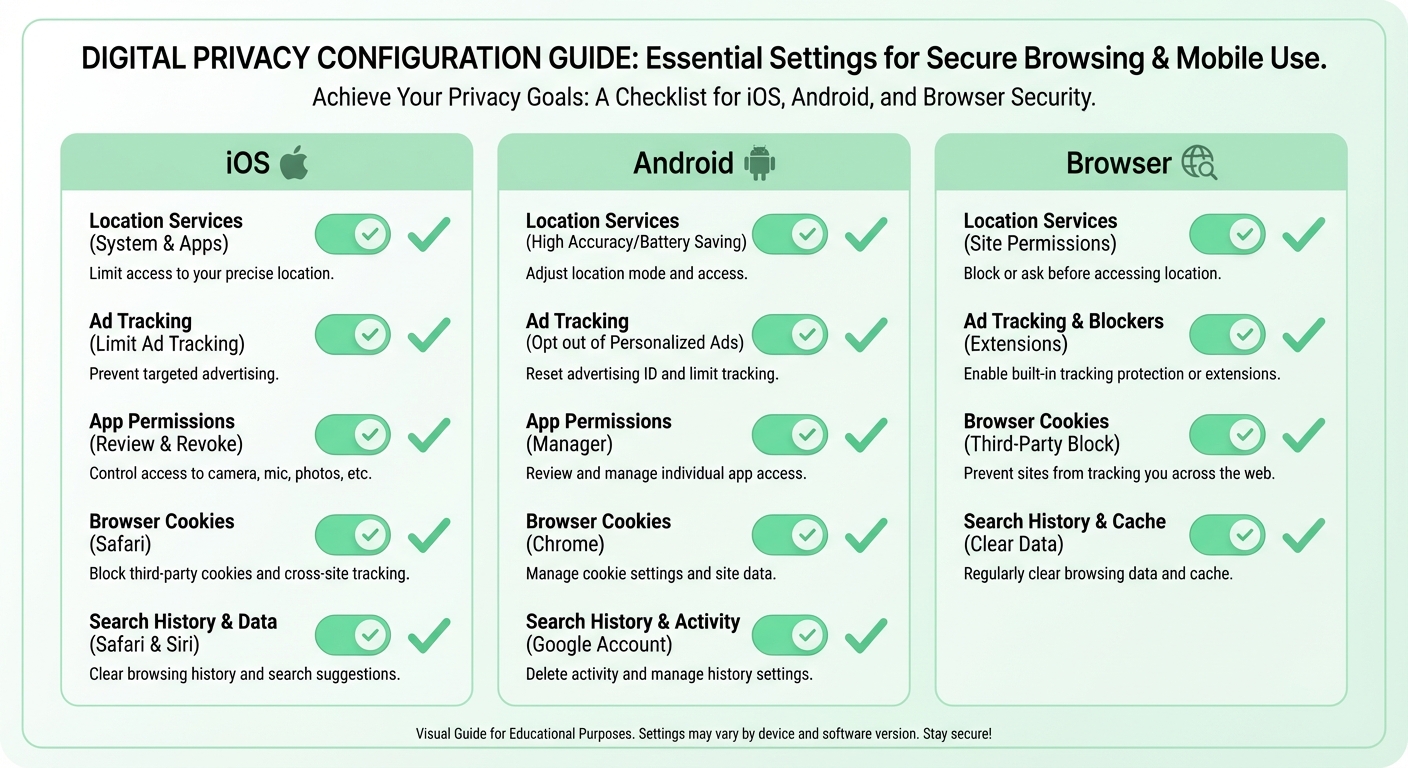
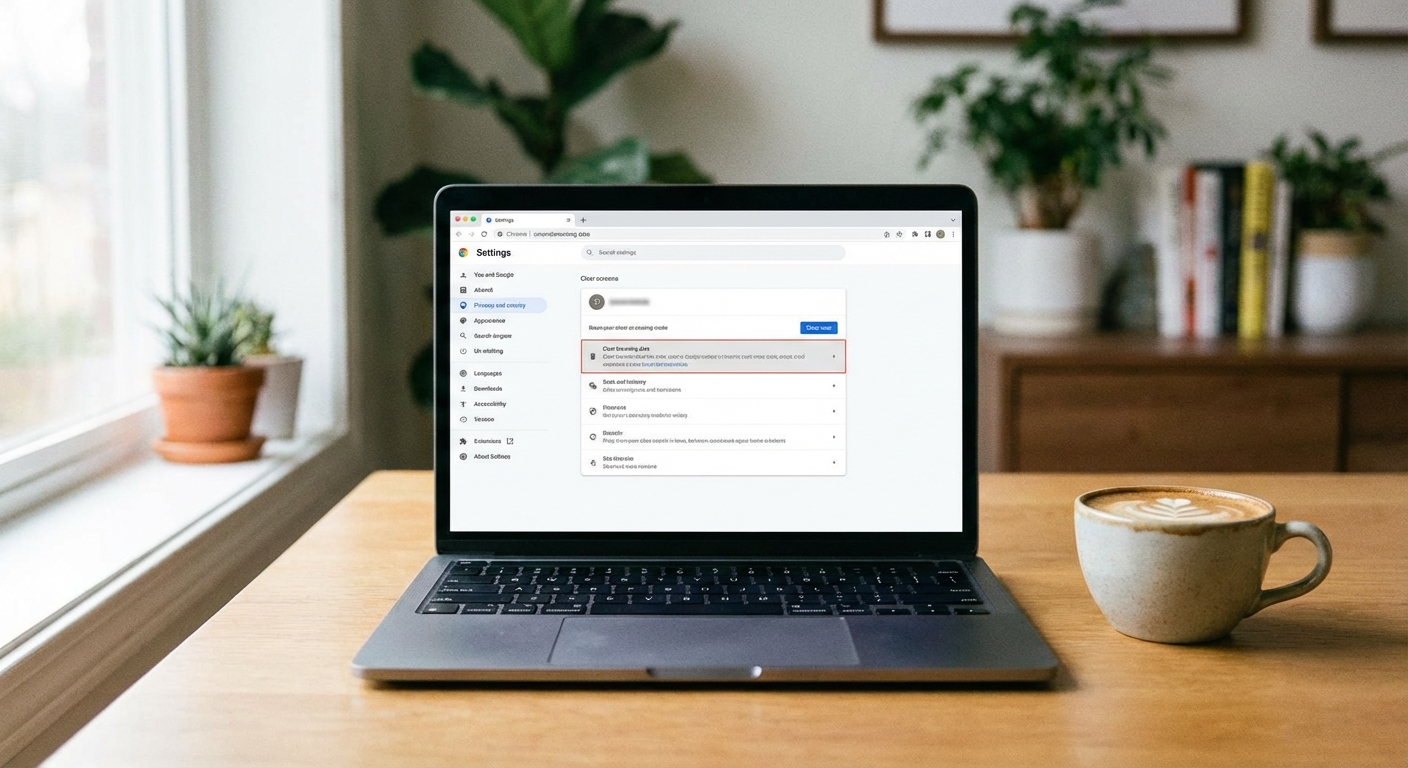
Browser privacy affects how much data websites can collect as you browse. Consider using a privacy-focused browser like Firefox, Brave, or Safari instead of Chrome, which is built by an advertising company. Enable the built-in tracking protection settings. Clear cookies regularly or configure your browser to clear them on exit. Use private browsing mode when researching sensitive topics or when using shared computers.
Social media privacy settings determine who sees your posts and how platforms use your data. On Facebook, visit Settings, Privacy, and review who can see your future posts, who can send you friend requests, and how you can be found. Consider limiting past posts visibility. On Instagram and Twitter, review whether your account should be private. Check which apps have access to your social accounts and revoke access for any you no longer use.
Search engine alternatives like DuckDuckGo don’t track your searches or build profiles of your behavior. While Google’s results are often more relevant due to personalization, using DuckDuckGo as your default search engine prevents a significant stream of personal data from flowing to advertisers. You can always add “!g” to a DuckDuckGo search to redirect to Google when needed.
Securing Your Devices
Your phone and computer contain more personal information than any other objects you own. Securing these devices prevents unauthorized access to your data if they’re lost, stolen, or targeted by malware. Basic security hygiene goes a long way.
Enable device encryption on all computers and phones. iPhones and modern Android phones encrypt data by default when you set a passcode. On Windows, enable BitLocker (available on Pro editions) or use device encryption (Settings, Privacy and Security, Device Encryption). On Mac, enable FileVault in System Preferences, Security and Privacy. Encryption ensures that if your device is lost or stolen, the data cannot be read without your passcode.
Keep software updated because updates frequently patch security vulnerabilities. Enable automatic updates on all devices. This applies to your operating system, browsers, and apps. Many successful attacks exploit known vulnerabilities that were patched months earlier but never installed by the victim.
Use strong screen locks on phones and computers. A six-digit PIN is significantly better than four digits, and an alphanumeric password is better still. Enable biometric authentication for convenience, but understand that in some jurisdictions, law enforcement can compel biometric unlock more easily than password unlock. If this concerns you, use a strong password rather than biometrics.
Be cautious with app permissions. When apps request access to your camera, microphone, contacts, or files, consider whether the request is reasonable for the app’s function. A flashlight app has no reason to access your contacts. Review permissions periodically and revoke any that seem unnecessary. Both iOS and Android provide permission dashboards in their privacy settings.
Recognizing and Avoiding Phishing
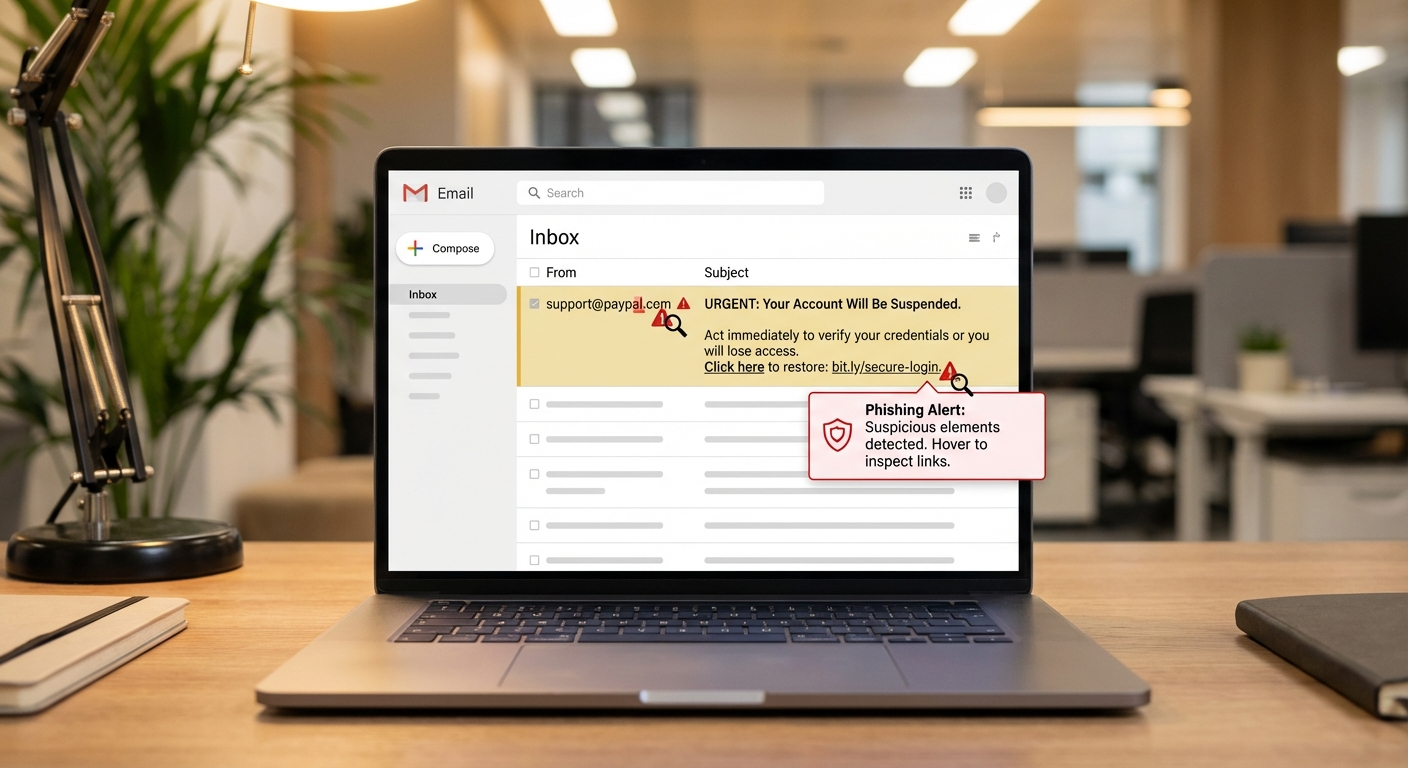
Phishing attacks trick you into revealing credentials or sensitive information by impersonating legitimate organizations. Modern phishing has become remarkably sophisticated, with attackers creating pixel-perfect replicas of login pages and sending emails that appear to come from trusted sources. If you’ve had questions about checking if your credentials were compromised, our guide on checking for password leaks walks through the process.
The most effective defense against phishing is skepticism combined with verification habits. Never click links in emails or text messages to access sensitive accounts like banking or email. Instead, open a new browser tab and navigate directly to the website by typing the address. This habit alone defeats most phishing attempts because attackers rely on their fraudulent links to work.
Check sender addresses carefully, not just display names. An email appearing to be from “PayPal Support” might actually come from support@paypa1-secure.com (note the number “1” instead of the letter “l”). Hover over links before clicking to see where they actually lead. Be suspicious of urgency (“Your account will be suspended in 24 hours!”) because attackers use urgency to prevent you from thinking critically.
When in doubt, contact the company through official channels. If you receive an email claiming your bank account has a problem, call the number on your debit card, not the number in the email. If a text claims your package couldn’t be delivered, log into the carrier’s website directly to check. This extra step takes seconds and can prevent devastating compromises.
Backing Up Your Data
Data protection isn’t just about keeping others out. It’s also about ensuring you don’t lose access to your own information. Ransomware attacks encrypt victims’ files and demand payment for decryption. Hardware fails without warning. Phones get lost or dropped in water. Regular backups ensure that data loss isn’t permanent.
Follow the 3-2-1 backup rule: three copies of important data, on two different types of media, with one copy stored off-site or in the cloud. For most people, this means keeping data on your device, backing up to an external drive, and syncing to a cloud service like iCloud, Google Drive, or a dedicated backup service like Backblaze.
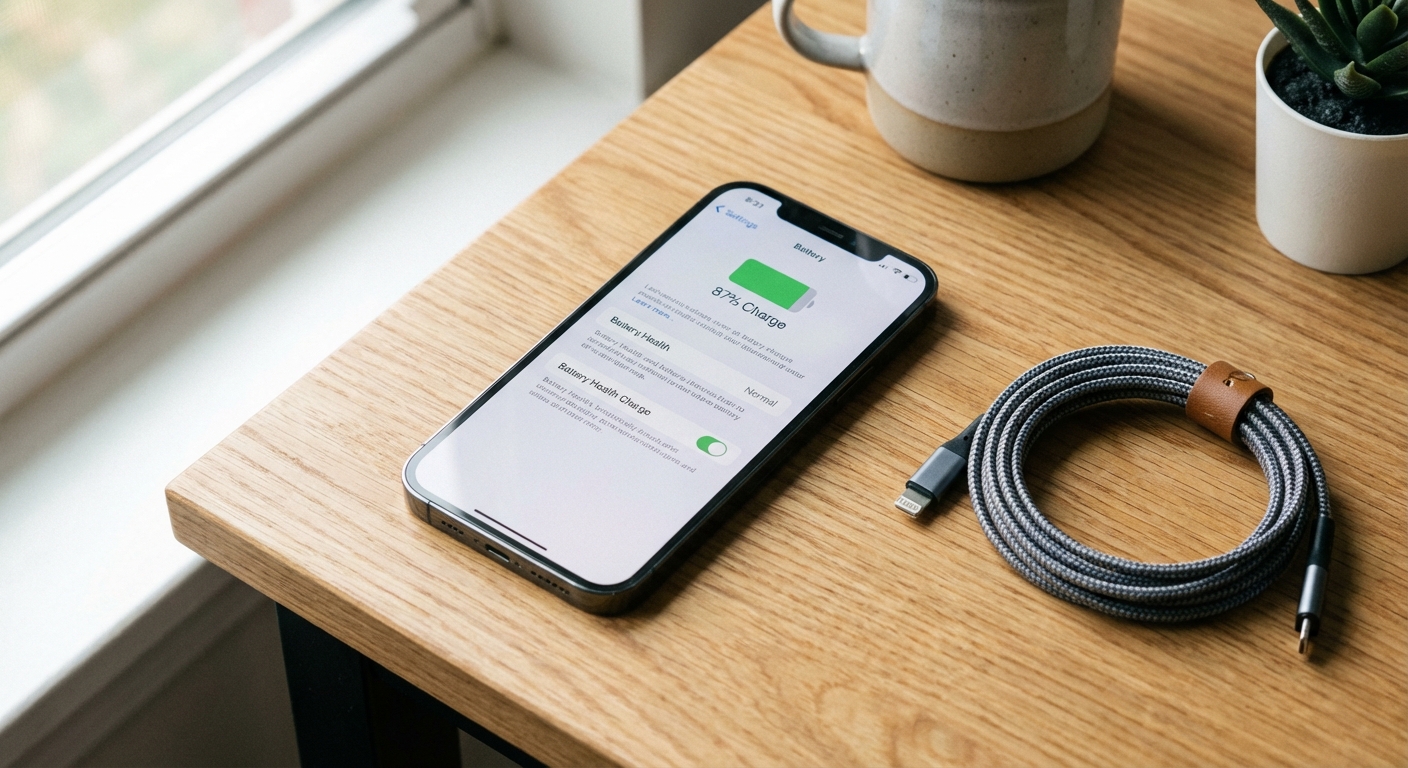
For phones, enable automatic cloud backup. On iPhone, go to Settings, your name, iCloud, and iCloud Backup. On Android, go to Settings, System, and Backup. These backups capture photos, messages, app data, and settings. Verify periodically that backups are completing successfully by checking the backup date in settings.
For computers, use built-in backup tools like Time Machine on Mac or File History on Windows, combined with cloud storage for critical documents. External hard drives are inexpensive and provide fast local backup for large files. Cloud backup services like Backblaze ($9 per month) automatically back up your entire computer off-site, protecting against theft, fire, and other disasters that would destroy local backups.
Summary
Protecting your data in 2026 requires a password manager with unique passwords for every account, two-factor authentication on all important accounts (especially email and financial services), and thoughtfully configured privacy settings on your devices and browsers. These three pillars address the most common attack vectors targeting individuals.
Start with a password manager today. Bitwarden’s free tier provides everything most people need. Enable 2FA on your email account first, then work through your other important accounts. Review privacy settings on your phone and browser, focusing on location services, ad tracking, and app permissions.
Build these habits gradually rather than trying to change everything at once. Each improvement compounds your security posture. Perfect security doesn’t exist, but attacker economics mean that making yourself a harder target causes most threats to move on to easier victims. A password manager, 2FA, and reasonable privacy settings put you ahead of the vast majority of internet users.