What are passkeys and should you use them? Passkeys are a new way to sign into websites and apps without typing a password. Instead of remembering a password, you authenticate using your fingerprint, face scan, or device PIN. They’re significantly more secure than passwords because they can’t be phished, guessed, or stolen in data breaches. If a website you use offers passkeys, you should set one up.
The shift from passwords to passkeys is accelerating rapidly. Google reports over 800 million accounts now use passkeys. Amazon saw 175 million users create passkeys within the first year of offering them. Microsoft made passkeys the default for new accounts in 2025, triggering a 120% increase in passwordless authentication. Major platforms are pushing this technology because it solves problems that have plagued password security for decades.
How Passkeys Actually Work
Traditional passwords require you to create and remember a secret, then type that secret into websites when you want to log in. This creates multiple failure points: you might choose a weak password, reuse passwords across sites, fall for phishing emails, or have your password stolen in a data breach. Research shows 81% of data breaches involve weak or stolen passwords.
Passkeys eliminate the shared secret entirely. When you create a passkey for a website, your device generates two cryptographic keys: a private key stored securely on your device and a public key shared with the website. When you log in, your device proves it holds the private key without ever transmitting it. The website can verify your identity using the public key, but even if hackers steal the website’s database, they get nothing useful.
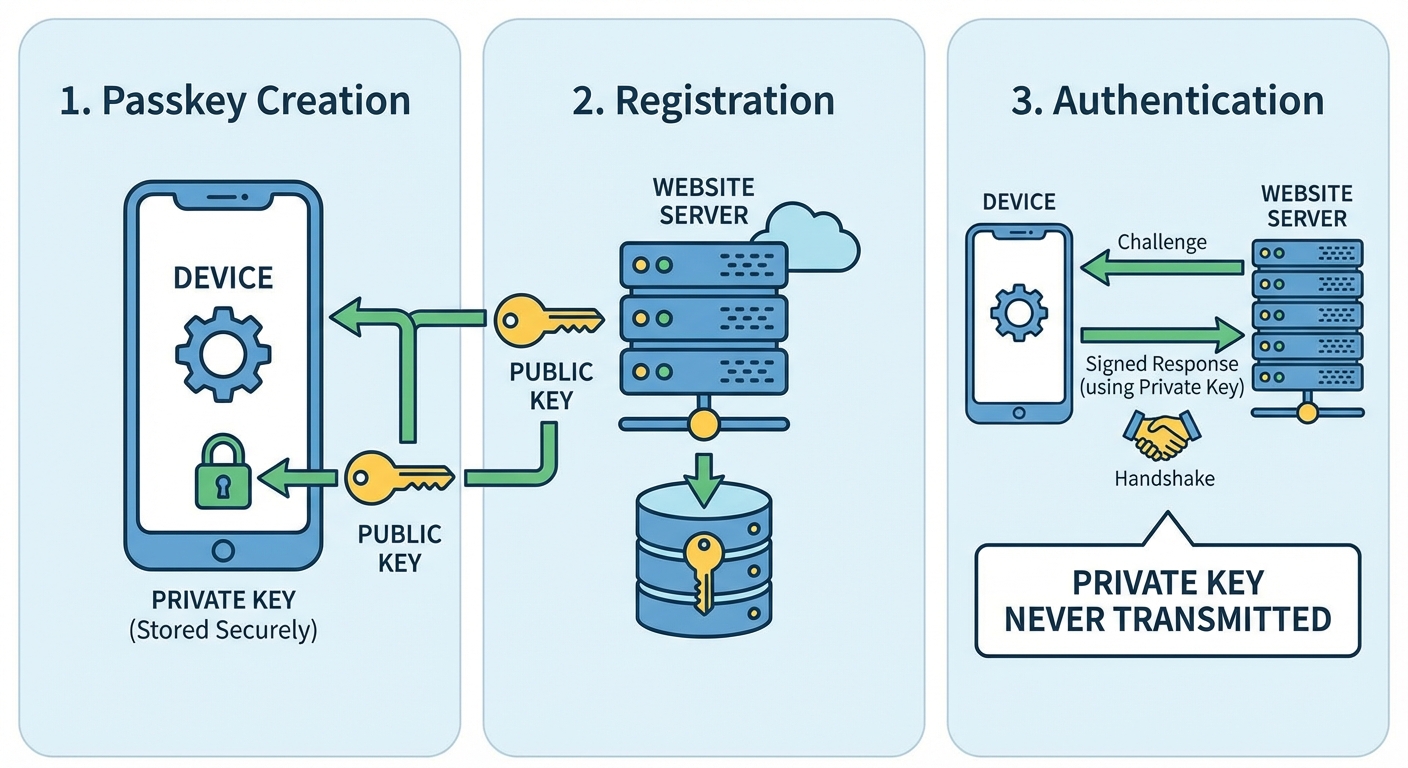
The authentication happens through your device’s secure hardware, similar to how Apple Pay or Google Pay protect your payment information. Your biometric data, whether fingerprint or face scan, never leaves your device. It simply unlocks access to the private key stored in a secure enclave. Websites never receive your biometric information, only cryptographic proof that you possess the correct private key.
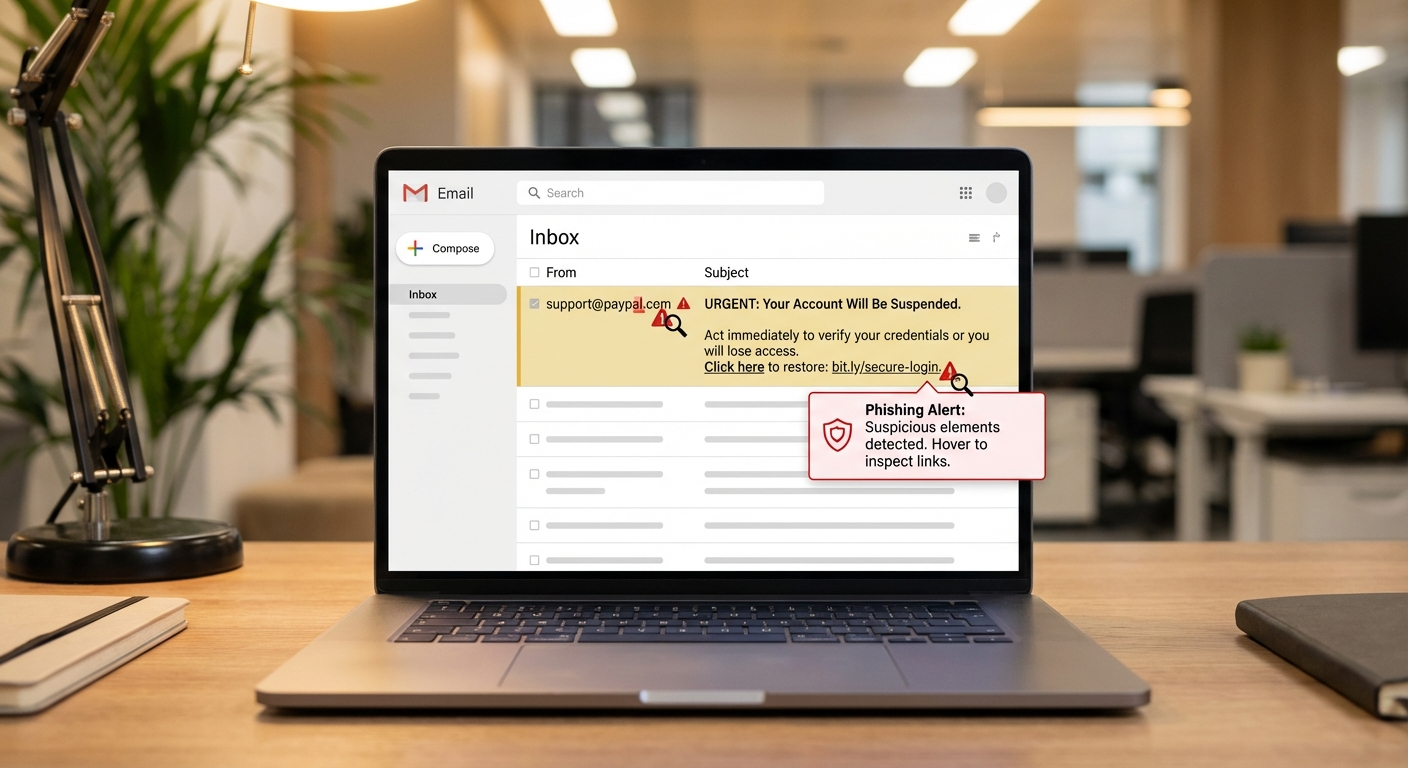
This architecture makes phishing nearly impossible. Even if you click a link to a fake website, the passkey authentication won’t work because it’s tied to the legitimate site’s domain. There’s no password to type into a fake login page.
Setting Up Passkeys on Major Platforms
Most major platforms now support passkeys. The setup process is straightforward, though it varies slightly by service.
Google: Go to myaccount.google.com, select Security, then “Passkeys and security keys.” Click “Create a passkey” and follow the prompts to authenticate with your device’s biometric or PIN. Google will store your passkey and let you use it for future sign-ins.
Apple: Passkeys work automatically across your Apple devices through iCloud Keychain. When a website offers passkey creation, your iPhone, iPad, or Mac will prompt you to save the passkey. It syncs across all your Apple devices signed into the same Apple ID.
Microsoft: Visit account.microsoft.com, go to Security, then “Advanced security options.” Select “Add a new way to sign in” and choose Passkey. Microsoft now defaults new accounts to passkeys, so you might already have this option enabled.
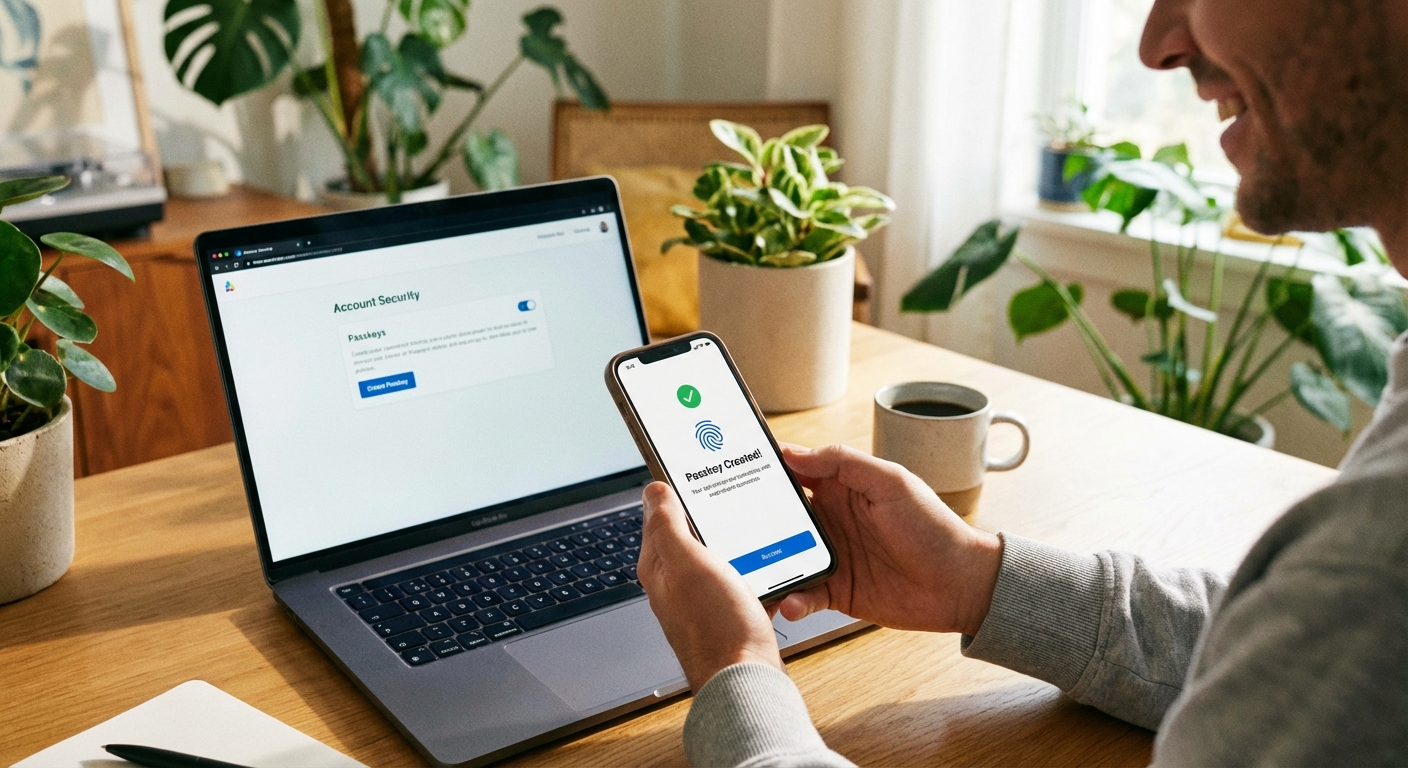
Amazon: Go to Account & Lists, then “Login & security.” Look for “Passkey” in the sign-in options and click “Set up.” Amazon reported 175 million users created passkeys in the first year they offered this option.
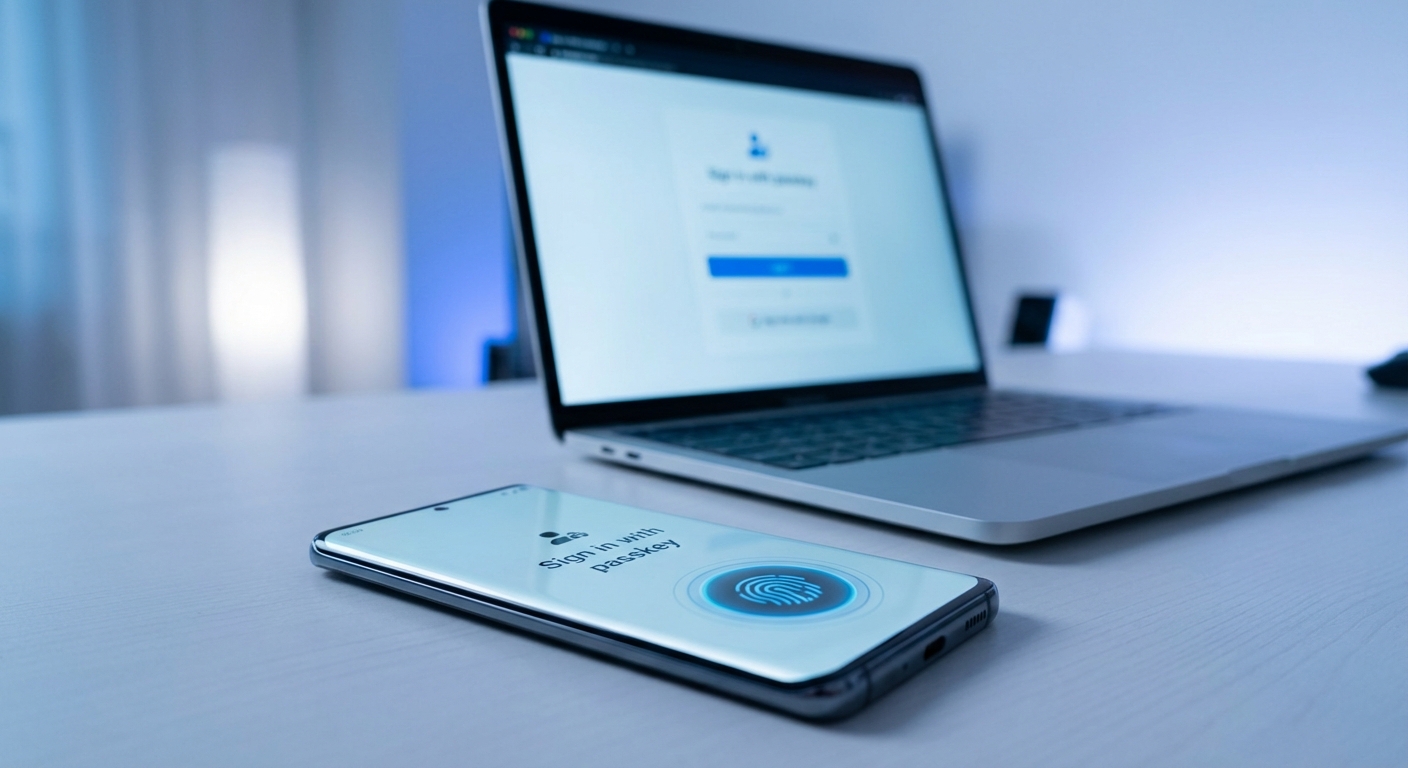
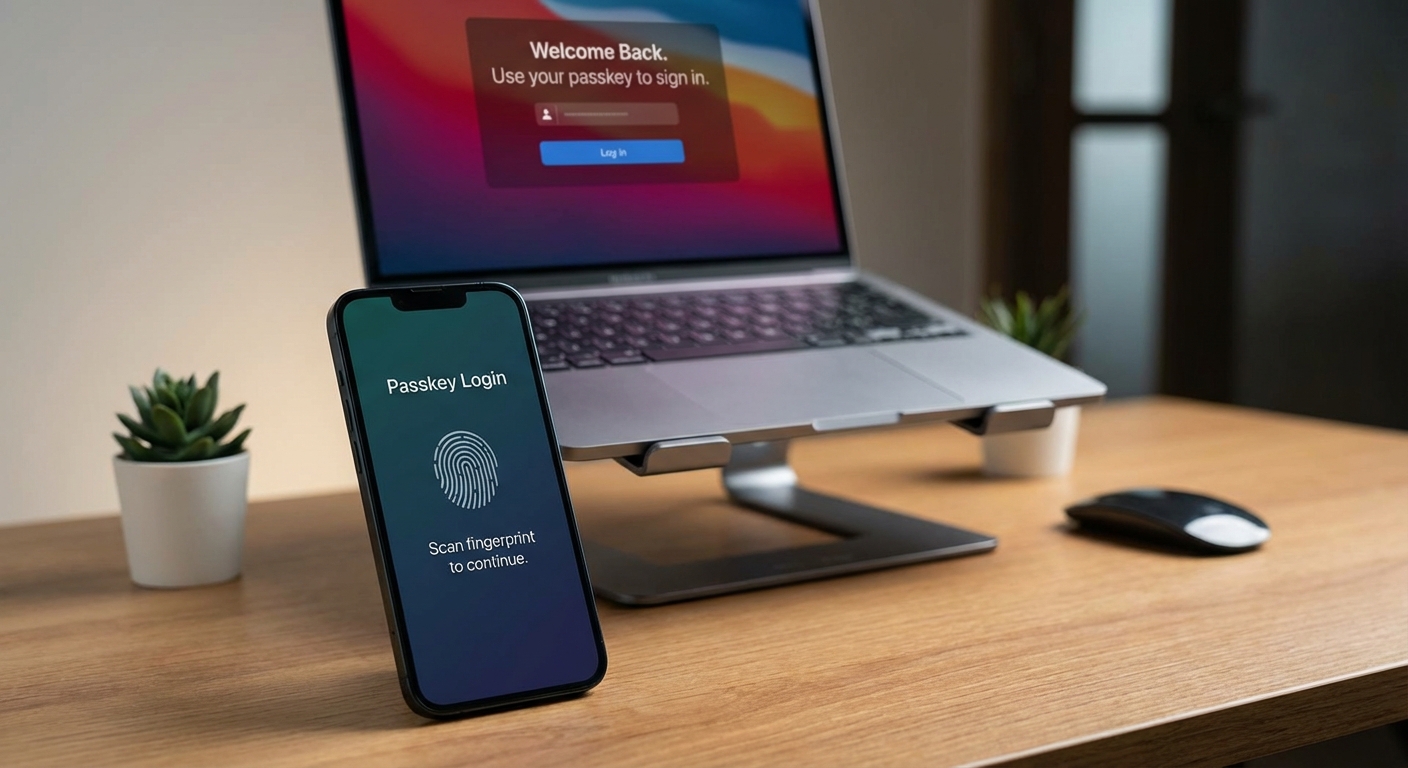
After creating a passkey, the next time you visit that site and click “Sign in,” your device will offer passkey authentication instead of asking for a password. You’ll see a prompt to use your fingerprint, face, or PIN. The entire login process takes seconds.
Current Limitations to Know About
Passkeys aren’t perfect yet, and understanding the limitations helps you decide how to use them.
Website support is still growing. As of early 2026, only a few hundred major sites support passkeys. Your bank, favorite shopping sites, and social media platforms increasingly offer them, but many smaller sites still require traditional passwords. You’ll likely need to maintain both passkeys and passwords for the foreseeable future.
Device dependency creates considerations. Your passkeys live on your devices. If you lose your phone and don’t have passkeys synced to other devices or backed up, you could lose access to accounts. Apple, Google, and Microsoft all offer cloud syncing for passkeys across their ecosystems, which solves this for most people but creates vendor lock-in.
Cross-platform sharing has friction. Using a passkey stored on your iPhone to log into a website on a Windows PC is possible but requires extra steps, typically scanning a QR code with your phone. The experience is smoothest when staying within one ecosystem.
Password managers like 1Password and Dashlane now support storing passkeys alongside passwords, which can help with cross-platform access and backup concerns. If you already use a password manager, check whether it supports passkeys as a storage option.
Why Passkeys Are More Secure
The security advantages of passkeys over passwords are substantial and worth understanding.
Phishing resistance: Passkeys are cryptographically bound to specific websites. A passkey for google.com won’t work on g00gle-login.com. Even if you click a phishing link, the fake site can’t capture anything useful.
No password reuse: Each passkey is unique to one website. Compromising one service doesn’t expose credentials usable elsewhere. This eliminates the cascading breach problem where hackers try stolen credentials across multiple sites.
Elimination of weak passwords: Studies show most people use simple, guessable passwords and reuse them everywhere. Passkeys remove human password choices from the equation entirely.
Breach resistance: When hackers breach a website database, they steal hashed passwords that can often be cracked. With passkeys, the website only stores public keys, which are useless without the corresponding private keys on users’ devices.
TikTok reported that passkeys achieve 98% success rates and reduce login times by up to 17 times compared to passwords. The improved security comes with better usability, a rare combination in security technology.
Should You Switch to Passkeys Now?
For most people, the answer is yes, with a practical approach. Start using passkeys on the accounts that matter most: email, banking, social media, and shopping sites where you have payment information stored. These are the accounts where a breach would cause the most harm.
Don’t delete your passwords immediately after creating passkeys. Keep them as backup authentication methods until you’re confident in your passkey setup and have proper syncing or backup in place. Most sites let you have both a password and a passkey, using whichever is more convenient at the moment.
If you use multiple devices across different ecosystems, like an iPhone and a Windows laptop, consider whether a cross-platform password manager that supports passkeys makes sense for your situation. This adds complexity but solves the cross-device challenge.
The technology is mature enough for mainstream use. With 69% of consumers now holding at least one passkey and major companies eliminating passwords entirely, the transition is well underway. Starting now means you’ll be comfortable with the technology as more sites adopt it and password-only options eventually disappear.