How do you actually use AI tools at work? Start with one tool and one specific task that wastes your time repeatedly. Don’t try to transform everything at once. AI tools work best for drafting written content, summarizing long documents, answering questions about data, and automating repetitive formatting. The biggest mistake is adding AI to tasks that didn’t need help, which creates more work instead of less.
The promise of AI productivity tools is compelling: less time on routine tasks, faster document creation, automated meeting notes. The reality for many workers has been different. Studies show that employees often end up with additional tasks like learning new interfaces, checking AI outputs for errors, and moving content between disconnected apps. These overhead costs can cancel out the time savings. The key to getting value from AI is being strategic about where you apply it.
Pick One Tool and One Problem First
The worst approach to workplace AI is signing up for every tool simultaneously. You end up learning multiple interfaces, paying for overlapping capabilities, and spending more time managing tools than doing actual work.
Instead, identify a single recurring task that frustrates you. Maybe it’s writing the same types of emails repeatedly, summarizing meeting notes, converting rough ideas into structured documents, or answering similar questions from colleagues. Pick one thing that genuinely wastes your time and find the AI tool that addresses it specifically.

For most office workers, ChatGPT, Claude, or Gemini handles the majority of useful tasks. These general-purpose assistants excel at drafting and editing text, explaining complex topics, generating ideas, and transforming information between formats. If you haven’t mastered one of these tools yet, adding specialized apps is premature.
Microsoft Copilot integrates directly into Office applications, which makes sense if you live in Word, Excel, and Outlook. Google’s Gemini does the same for Google Workspace users. The native integration reduces friction, since you don’t have to copy content between apps.
Tasks That Actually Benefit From AI
Not every task improves with AI involvement. Some work needs human judgment, context, or creativity that AI can’t reliably provide. Other tasks are so quick manually that AI assistance adds overhead without saving time. Focus AI on tasks with these characteristics:
Repetitive drafting with variations. Writing similar emails to different recipients, creating standard reports with updated data, generating multiple versions of marketing copy. AI handles the repetitive structure while you customize the specifics.
First drafts of substantial documents. Starting from a blank page is harder than editing existing text. Use AI to generate a rough first draft, then revise heavily. The AI output isn’t the final product; it’s raw material that saves you from the blank page.
Summarizing and extracting information. Long documents, meeting transcripts, research papers, and dense reports can be summarized to extract key points. AI can answer specific questions about documents faster than you can search manually.
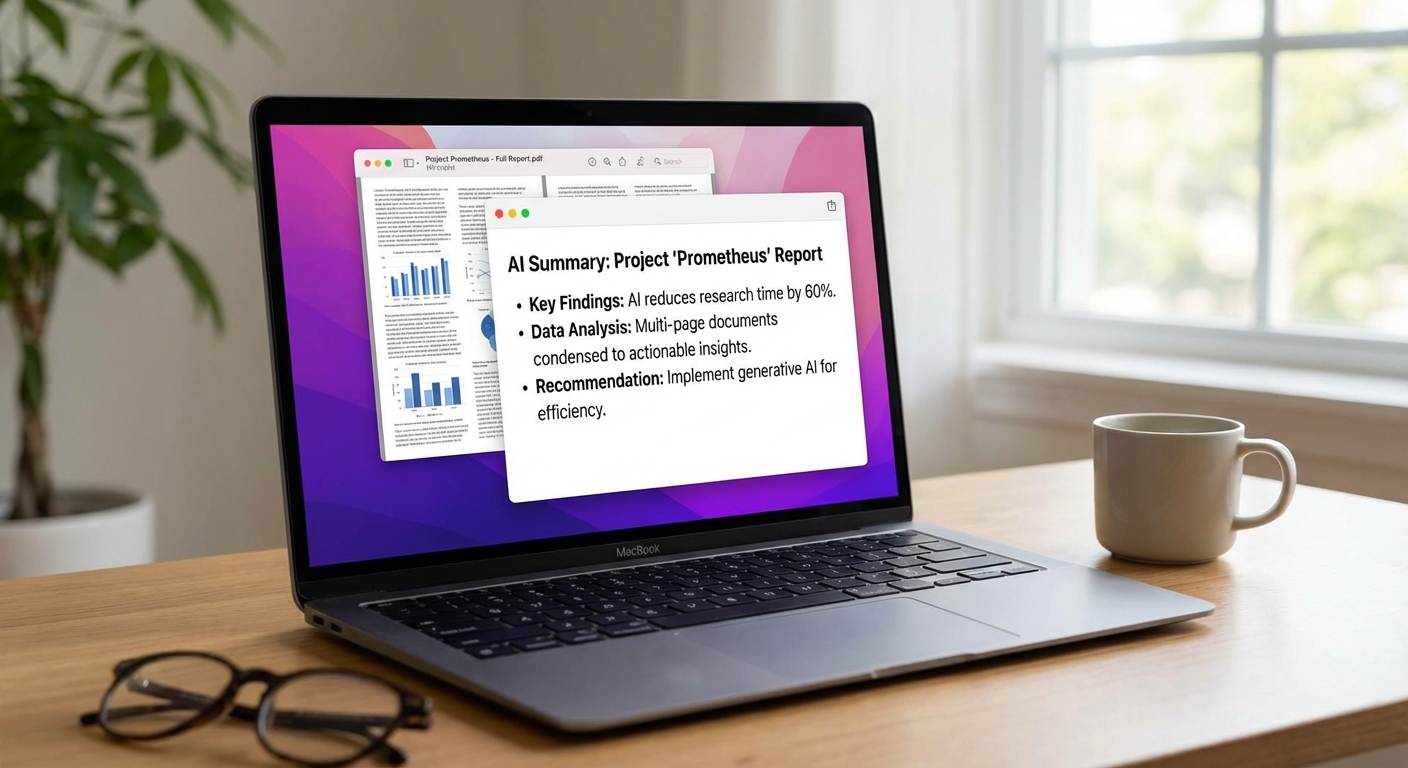
Format transformations. Converting meeting notes into action items, turning bullet points into paragraphs, restructuring content for different audiences, creating outlines from rough ideas. AI handles mechanical restructuring well.
Explaining and teaching. When you need to understand something complex, AI can explain concepts at whatever level of detail you need. It’s like having a patient colleague who never gets tired of answering questions.
Avoiding the Productivity Trap
The irony of AI productivity tools is that they can reduce productivity when used poorly. Watch for these warning signs:
Spending more time prompting than doing. If crafting the perfect prompt takes longer than just completing the task manually, the AI isn’t helping. Simple tasks often don’t need AI involvement.
Checking and rechecking AI output. AI makes mistakes, sometimes subtle ones. If you have to carefully verify everything the AI produces, you might not be saving time. This is especially true for tasks requiring accuracy, like data analysis or technical content.
Adding AI to tasks that weren’t problems. If a task only takes five minutes and you’ve been doing it fine for years, adding AI might just add complexity. Focus AI assistance on actual pain points.
Tool sprawl. Each new AI tool has a learning curve, subscription cost, and maintenance overhead. More tools isn’t better; the right tools for your specific needs is what matters.
The workers getting genuine value from AI tend to use fewer tools more deeply rather than many tools superficially. They’ve invested time learning how to prompt effectively for their specific tasks and have integrated AI into their actual workflows rather than treating it as a separate step.
Building AI Into Your Workflow
Effective AI use becomes habitual rather than an extra step. Here’s how to make that transition:
Start with templates. If you frequently ask AI for similar things, save your prompts. Most AI interfaces let you copy conversations or save custom instructions. A library of prompts for your common tasks removes the friction of figuring out how to ask each time.
Establish a review process. AI output shouldn’t go directly to its final destination. Build in a step where you review, edit, and improve what the AI produces. This catches errors and ensures the output actually sounds like you.
Know when to skip AI. For simple, quick tasks, AI adds unnecessary steps. For highly creative or judgment-dependent work, AI might not help much. Recognizing when not to use AI is as important as knowing when it helps.
Integrate with existing tools when possible. Copilot in Word, Gemini in Google Docs, or AI features built into your project management software reduce context-switching. The less you have to copy content between applications, the more time you actually save.
The trend in 2026 is AI shifting from individual tools to workflow integration, with AI coordinating entire processes rather than handling isolated tasks. You don’t need to wait for that future; you can start integrating AI into your existing workflows now by identifying the specific moments where AI assistance adds genuine value and building habits around those use cases.
Getting Started This Week
If you’re new to workplace AI, here’s a practical starting plan:
Day 1: List five recurring tasks that waste your time or frustrate you. Be specific about what makes them tedious.
Day 2: Choose one task from your list. Try addressing it with ChatGPT, Claude, or whichever AI assistant you have access to. Experiment with different ways of asking.
Day 3-5: Refine your approach to that one task. Save prompts that work well. Notice what the AI does well and where you need to edit heavily.
Week 2: Once you’ve integrated AI into one task successfully, consider adding another. Build gradually rather than transforming everything at once.
The goal isn’t maximum AI usage; it’s eliminating specific pain points. Workers who approach AI strategically report genuine productivity improvements. Those who chase every new tool often end up with more complexity and little benefit. Start small, focus on real problems, and expand only when you’ve mastered what you have.