How do you factory reset an iPhone? Go to Settings > General > Transfer or Reset iPhone > Erase All Content and Settings. Enter your passcode, confirm your Apple Account password to disable Find My, and tap “Erase iPhone.” The process takes a few minutes, after which your iPhone will restart as if it just came out of the box, with all your data permanently deleted.
Before you reset, back up anything you want to keep. Photos, messages, app data, and settings will all be erased. A factory reset is the right choice when you’re selling or giving away your phone, experiencing persistent software problems that other troubleshooting hasn’t fixed, or want a completely fresh start. It’s usually overkill for minor issues that simpler solutions could address.
What a Factory Reset Actually Does
A factory reset, also called “Erase All Content and Settings,” does exactly what its name suggests. It removes all data you’ve added to the device and returns every setting to Apple’s defaults. This includes your photos, videos, and downloaded files, all apps you’ve installed, your text messages and call history, saved passwords and login information, Wi-Fi networks and Bluetooth pairings, and all customized settings and preferences.
The reset also removes your Apple Account from the device and disables Find My iPhone, which is essential if you’re transferring ownership. A phone with Find My still active is essentially unusable by the next owner because they can’t sign in with their own account. The reset process prompts you to sign out, ensuring the phone is ready for someone else.
What the reset preserves is the operating system itself. Your iPhone will have whatever version of iOS was installed before the reset. If you were running iOS 18.2, you’ll still have iOS 18.2 afterward, just with no personal data or apps beyond what Apple includes by default. If the phone has a hardware problem, the reset won’t fix it since the issue isn’t in the software being erased.
Back Up Your iPhone Before Resetting
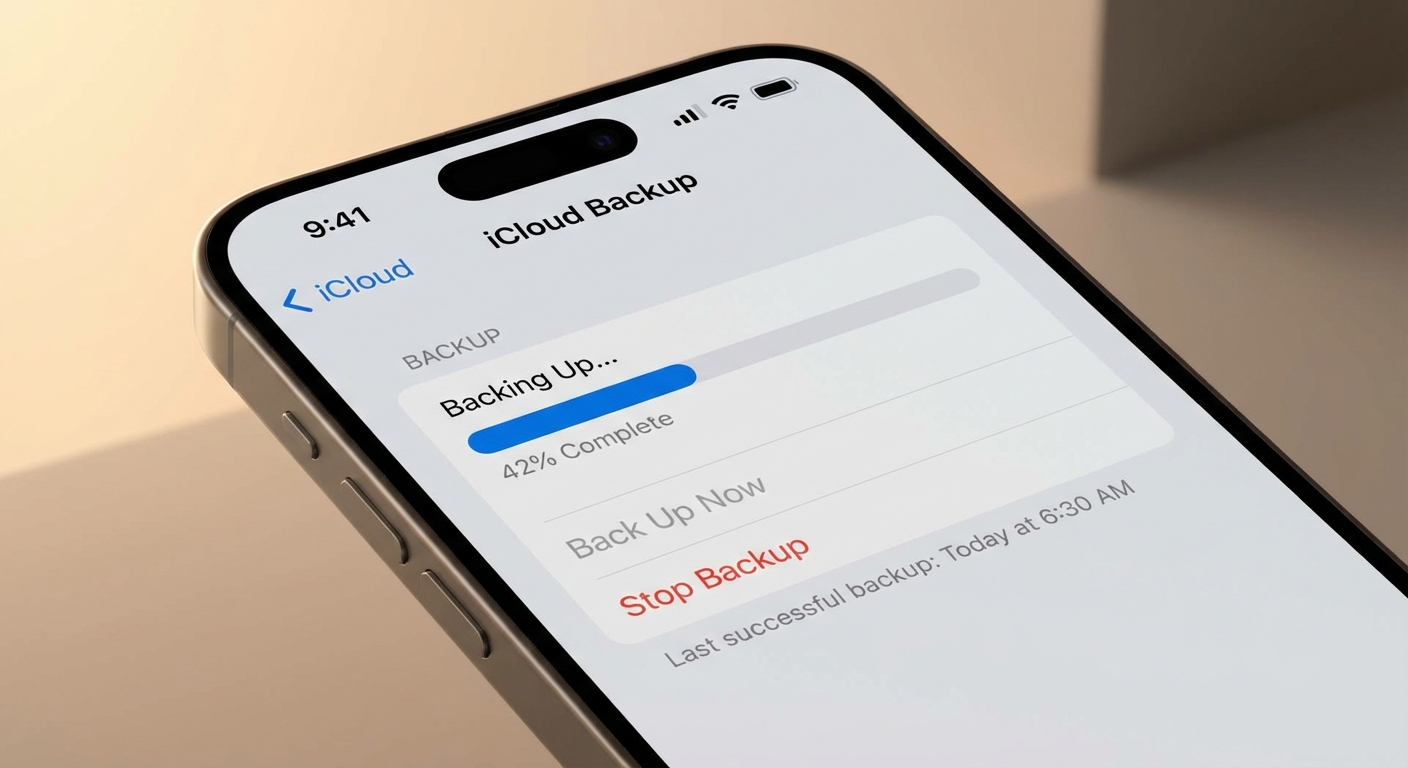
Skipping the backup is the most common regret people have after resetting their phone. Even if you think everything important is already synced elsewhere, take a few minutes to ensure you have a current backup.
iCloud backup: Go to Settings > [Your Name] > iCloud > iCloud Backup, and tap “Back Up Now.” Your iPhone will back up to Apple’s servers over Wi-Fi. Depending on how much data you have and your internet speed, this can take anywhere from a few minutes to several hours. Make sure you have enough iCloud storage; free accounts only include 5GB, and most people need to pay for additional space or manage what gets backed up.
Computer backup: Connect your iPhone to a Mac or PC with a cable. On Mac running macOS Catalina or later, open Finder and select your iPhone from the sidebar. On Windows or older Macs, use iTunes. Click “Back Up Now” to create a local backup on your computer. For extra security, check “Encrypt local backup,” which includes your passwords and health data in the backup. Remember the encryption password since you’ll need it to restore.
Beyond full backups, manually verify that critical items are synced to services you can access from elsewhere. Check that your photos are in iCloud Photos or Google Photos. Confirm your contacts sync to iCloud or your email provider. Export any app data that might not transfer through standard backups, like game progress or notes from apps that don’t use iCloud.
The Complete Reset Process
Once you’ve backed up and are ready to proceed, the factory reset takes just a few taps. Here’s the step-by-step process for iOS 17 and iOS 18.
Open the Settings app and scroll down to General. Tap “Transfer or Reset iPhone” near the bottom of the list. On the next screen, tap “Erase All Content and Settings.” Your iPhone will show you a summary of what will be removed, including apps, data, accounts, and settings.
Tap “Continue” and enter your iPhone passcode when prompted. If you have an eSIM, you’ll be asked whether to keep it or erase it. Choose to erase it if you’re selling the phone, or keep it if you’re resetting for troubleshooting and plan to use the same carrier.
Next, you’ll need to enter your Apple Account password to turn off Find My iPhone and remove Activation Lock. This step is mandatory and cannot be skipped. Without turning off Find My, the phone remains tied to your account even after erasing. Tap “Erase iPhone” to confirm.
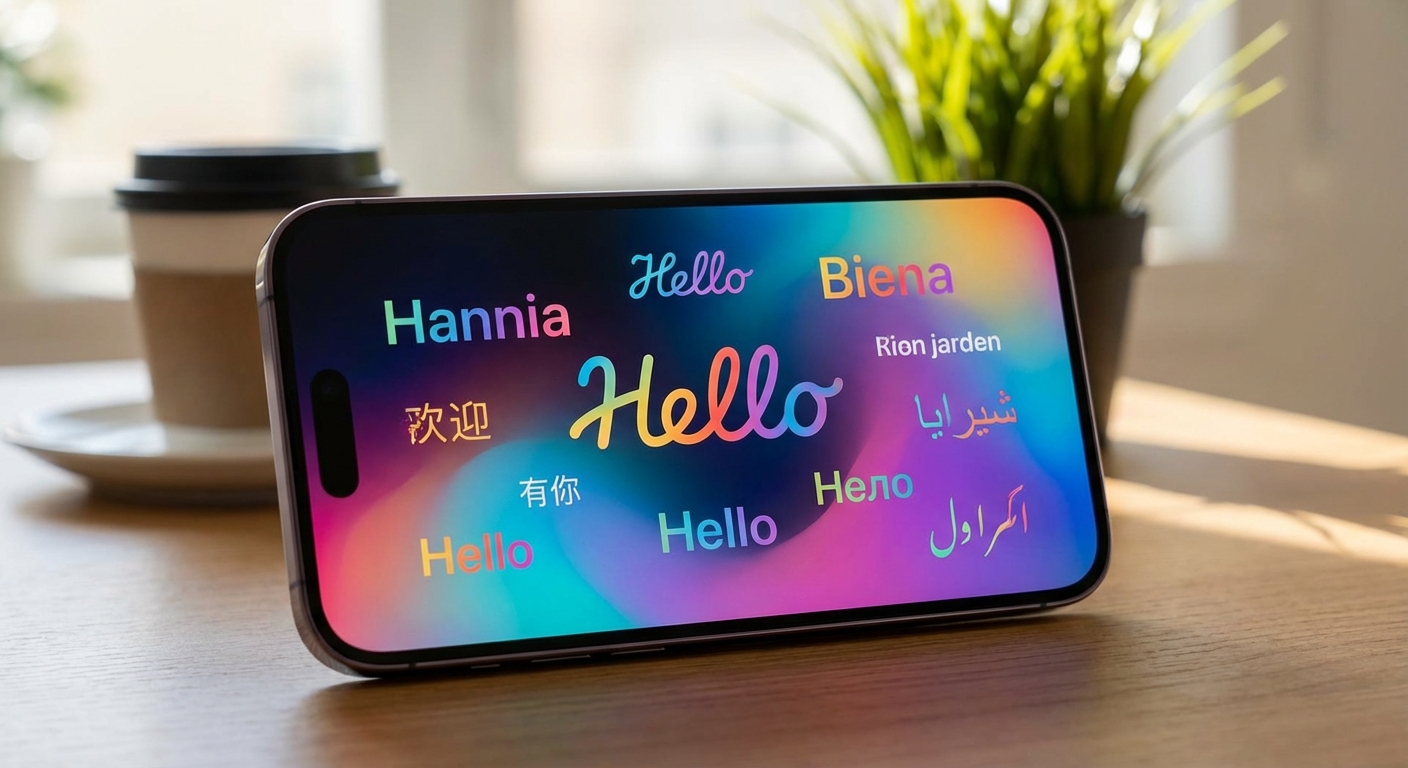
The screen will go dark, then show the Apple logo with a progress bar. The erase process typically takes 5 to 15 minutes, depending on how much storage was in use. When complete, the iPhone restarts to the “Hello” setup screen, ready to be configured as a new device or restored from a backup.
When to Reset and When to Try Something Else
A factory reset is a powerful but drastic solution. Before erasing everything, consider whether your problem might have a simpler fix.
Reset makes sense when: You’re selling, trading in, or giving away your iPhone. This is the most common reason to reset, and it’s the right call since you want no trace of your data left behind. A reset also makes sense when you’ve tried other troubleshooting and nothing has worked, or when your phone has accumulated years of apps and data and feels sluggish in ways a restart doesn’t fix.
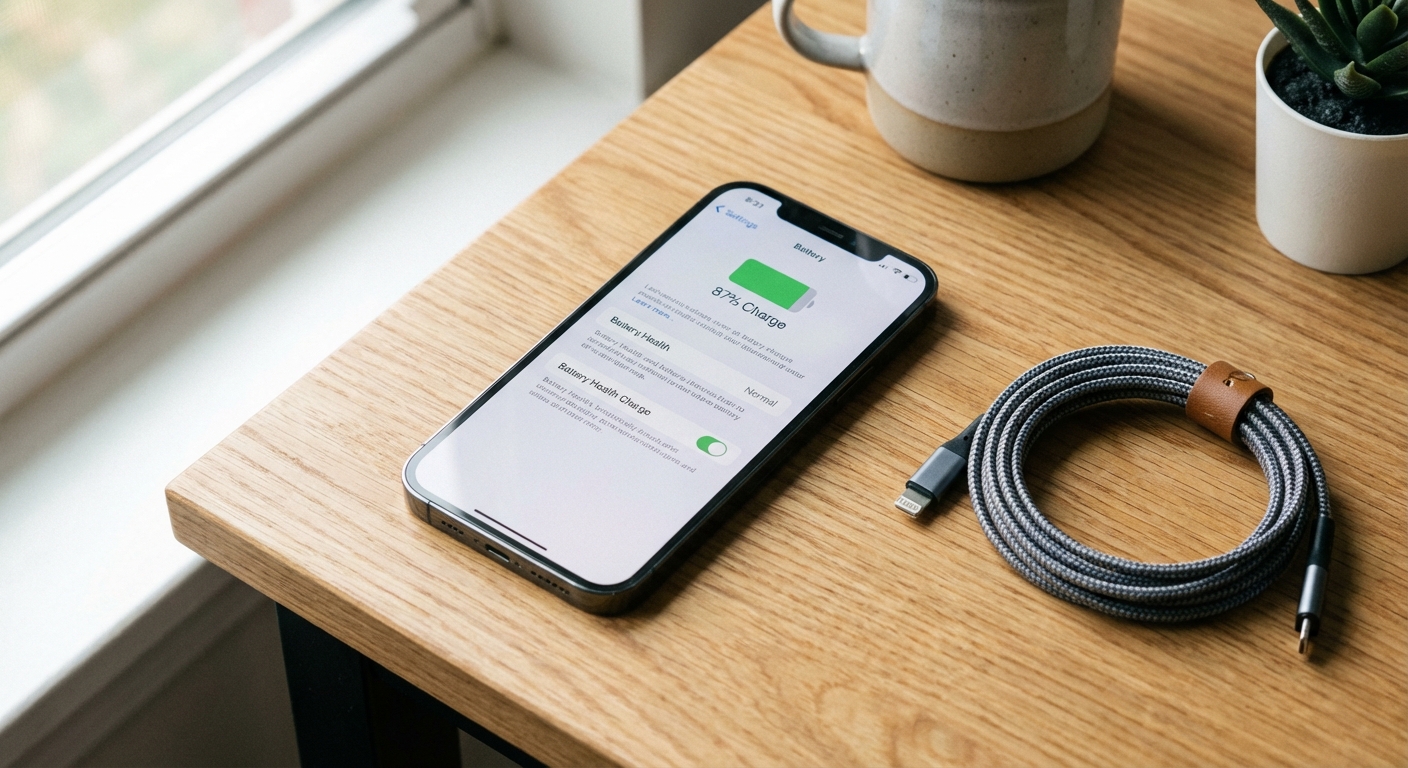
Try simpler solutions first when: An app is crashing or misbehaving. Delete and reinstall that specific app before erasing your entire phone. If your phone is running slowly, try restarting it, which clears temporary files and gives apps a fresh start. For battery issues, check battery health in Settings > Battery and review which apps are draining power.
A reset won’t help when: The problem is hardware-related. A cracked screen, malfunctioning button, failing speaker, or deteriorating battery won’t improve after a reset since the issue isn’t in the software. Likewise, if your phone is overheating regularly, a reset might help if it’s caused by a misbehaving app, but persistent overheating often indicates hardware problems or environmental factors.
What to Do If Your iPhone Won’t Reset Normally
Sometimes an iPhone is too malfunctioning to complete a normal reset. The screen might be unresponsive, you might have forgotten your passcode, or the phone might be stuck in a boot loop. Recovery mode provides an alternative path.
To enter recovery mode, connect your iPhone to a Mac or PC. On iPhone 8 or later, quickly press and release the volume up button, quickly press and release the volume down button, then press and hold the side button until you see the recovery mode screen (a computer with a cable icon). Keep holding even past the Apple logo.
Once in recovery mode, Finder (Mac) or iTunes (Windows) will detect the phone and give you options to Update or Restore. “Update” attempts to reinstall iOS while keeping your data. “Restore” does a full factory reset, erasing everything and installing a fresh copy of iOS. If Update doesn’t fix the problem, you can always return to recovery mode and choose Restore.
For iPhones with an unavailable screen due to too many wrong passcode attempts, recovery mode is the only way to regain access, but it will erase your data. This is by design since Apple can’t allow passcode bypassing without consequences, or the passcode would be meaningless.
Key Takeaways
Factory resetting your iPhone erases all content and settings, returning the device to its original state. The process goes through Settings > General > Transfer or Reset iPhone > Erase All Content and Settings. You’ll need your passcode and Apple Account password to complete it. Always back up to iCloud or a computer first unless you intentionally want to lose everything.
Use a factory reset when selling your phone, when troubleshooting has failed, or when you want a completely fresh start. For simpler problems, try restarting, deleting problematic apps, or checking specific settings before erasing everything. If your iPhone won’t respond normally, recovery mode provides an alternative path to resetting through a computer. After any reset, you can set up as new or restore from your backup to get your data back while starting with clean system files.